Firewall Profiles

Firewall ProfilesCTS1328C · AZ-800
The firewall applies one of three profiles by network, Domain, Private, or Public, and all three block inbound while allowing outbound by default.
Firewall Rule Types
Rule TypesCTS1328C · AZ-800
Inbound traffic is blocked by default and outbound is allowed, and each rule matches on a program, port, predefined service, or custom combination.
Creating Firewall Rules
Creating RulesCTS1328C · AZ-800
New-NetFirewallRule creates a rule scoped by direction, protocol, port, and profile, and restricting the remote address is the tightest control you can add.
Advanced Rule Properties
Rule PropertiesCTS1328C · AZ-800
Narrow a rule by local and remote address, port range, and authorized user so management ports like RDP and WinRM are exposed only to admins.
Managing Existing Rules

Auditing RulesCTS1328C · AZ-800
Audit what the server actually allows by listing enabled inbound rules and searching by name, so stale allow rules do not pile up unnoticed.
Managing Existing Rules (cont.)

Editing RulesCTS1328C · AZ-800
Inspect a rule's port filter, then disable it (reversible), modify it, or remove it, disabling and confirming before you ever delete.
Connection Security Rules (IPsec)
IPsec RulesCTS1328C · AZ-800
Connection security rules use IPsec to authenticate and encrypt the connection itself with Kerberos, a certificate, or a key, enabling domain isolation.
Firewall Logging
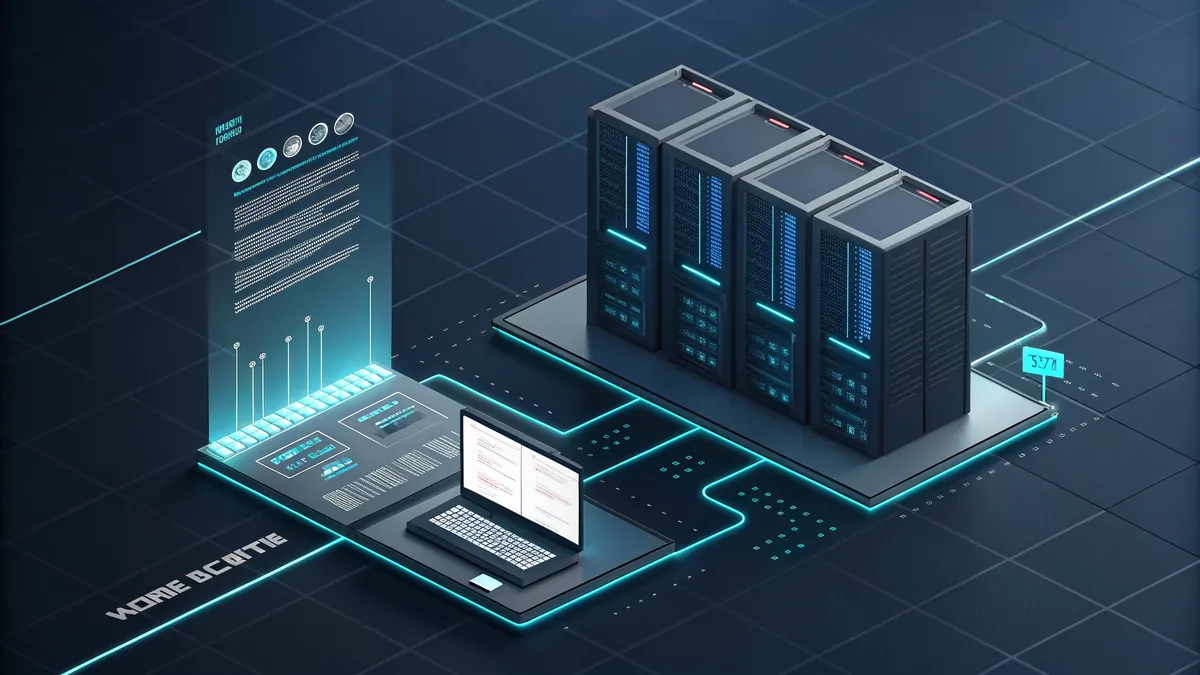
LoggingCTS1328C · AZ-800
Turn on per-profile logging of blocked and allowed connections so you have real evidence of what the firewall dropped and why.
Group Policy Deployment
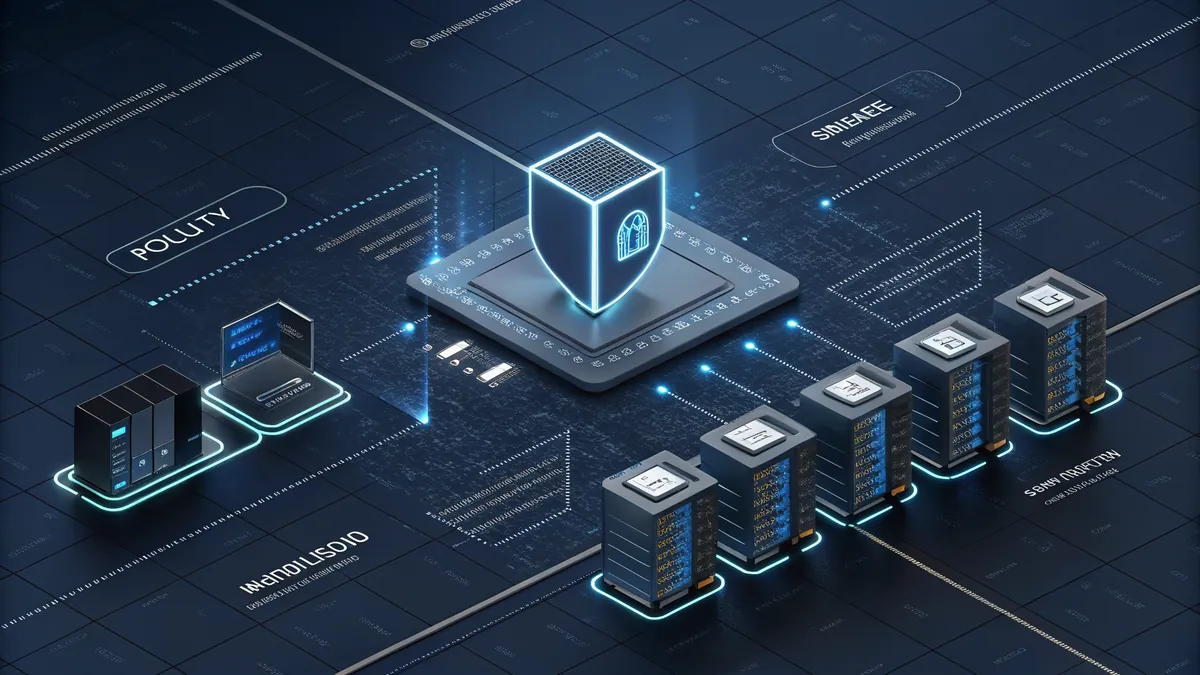
GPO DeploymentCTS1328C · AZ-800
Author firewall rules once in a GPO to enforce them across an OU, deciding per profile whether to merge or ignore locally created rules.
Common Server Ports

Common PortsCTS1328C · AZ-800
Open only the ports a server needs, DNS 53, Kerberos 88, LDAP 389 and 636, SMB 445, and never expose RDP 3389 to the internet.
Troubleshooting Firewall Issues
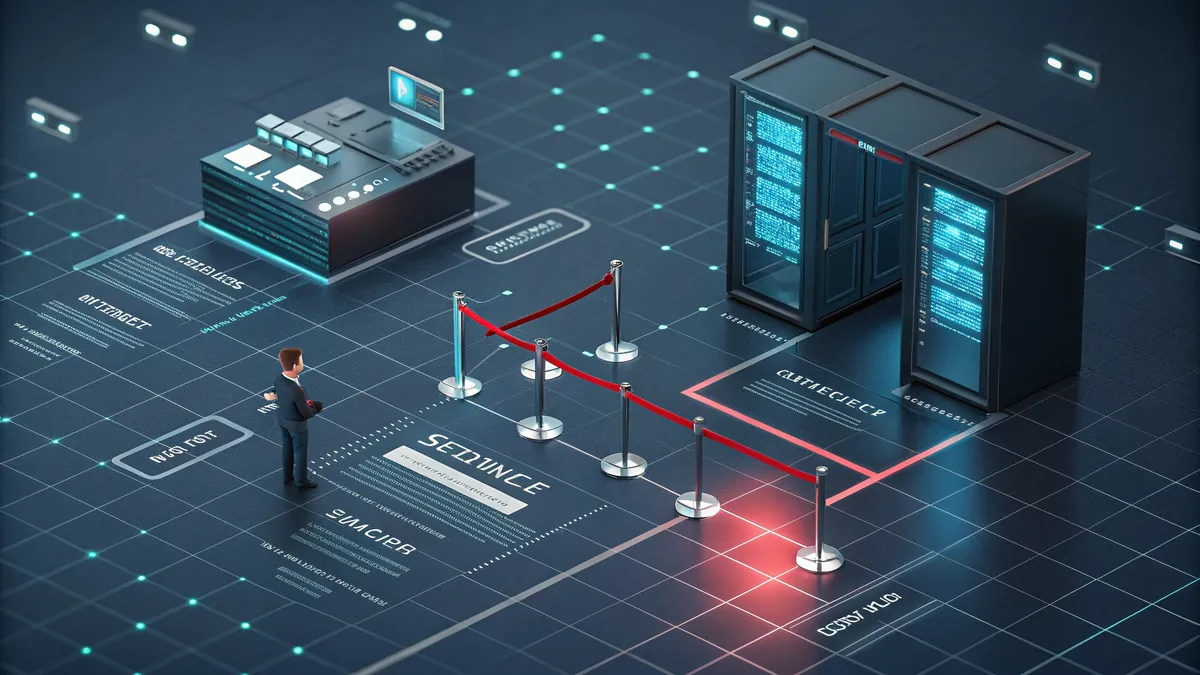
TroubleshootingCTS1328C · AZ-800
Diagnose in order: is it the firewall (disable and test), which rule (log and reproduce), and which profile, since a Domain rule does nothing on a Public interface.
Diagnostic Commands

Diagnostics: InspectCTS1328C · AZ-800
Find what the firewall is dropping by listing active Block rules, then use Test-NetConnection to tell a blocked port from a service that is not listening.
Diagnostic Commands (cont.)

Diagnostics: TraceCTS1328C · AZ-800
Map a port to the rule that governs it and read the Firewall event log; the usual causes are a missing rule, an unapplied GPO, or the wrong active profile.
Lab Preview: Firewall Configuration

Lab PreviewCTS1328C · AZ-800
In the labs you set profiles, create scoped inbound rules, enable logging, and confirm a blocked connection with Test-NetConnection.