Module 13: AD Certificate Services
The PKI that lives inside the domain. Issue, distribute, and revoke the certificates every modern auth and crypto operation needs.
What you'll learn
- PKI fundamentals, asymmetric crypto, public/private keys, the trust chain
- CA hierarchy ★, Root + Issuing, offline rule, two-tier vs three-tier
- Enterprise vs Standalone, AD-integrated vs manual; when to use each
- Templates + Autoenrollment ★, the recipe system, GPO-triggered lifecycle
- Revocation, CRL + AIA + OCSP; how clients learn a cert died
- Operations, certutil, certificate stores, backup and recovery
PKI Fundamentals: Asymmetric Cryptography and Trust
Public Key Infrastructure is the system that makes asymmetric cryptography usable at scale. The math is the easy part; the operational machinery to issue, distribute, validate, and revoke keys across thousands of devices is the hard part. AD Certificate Services is Microsoft's PKI implementation, integrated into Active Directory.
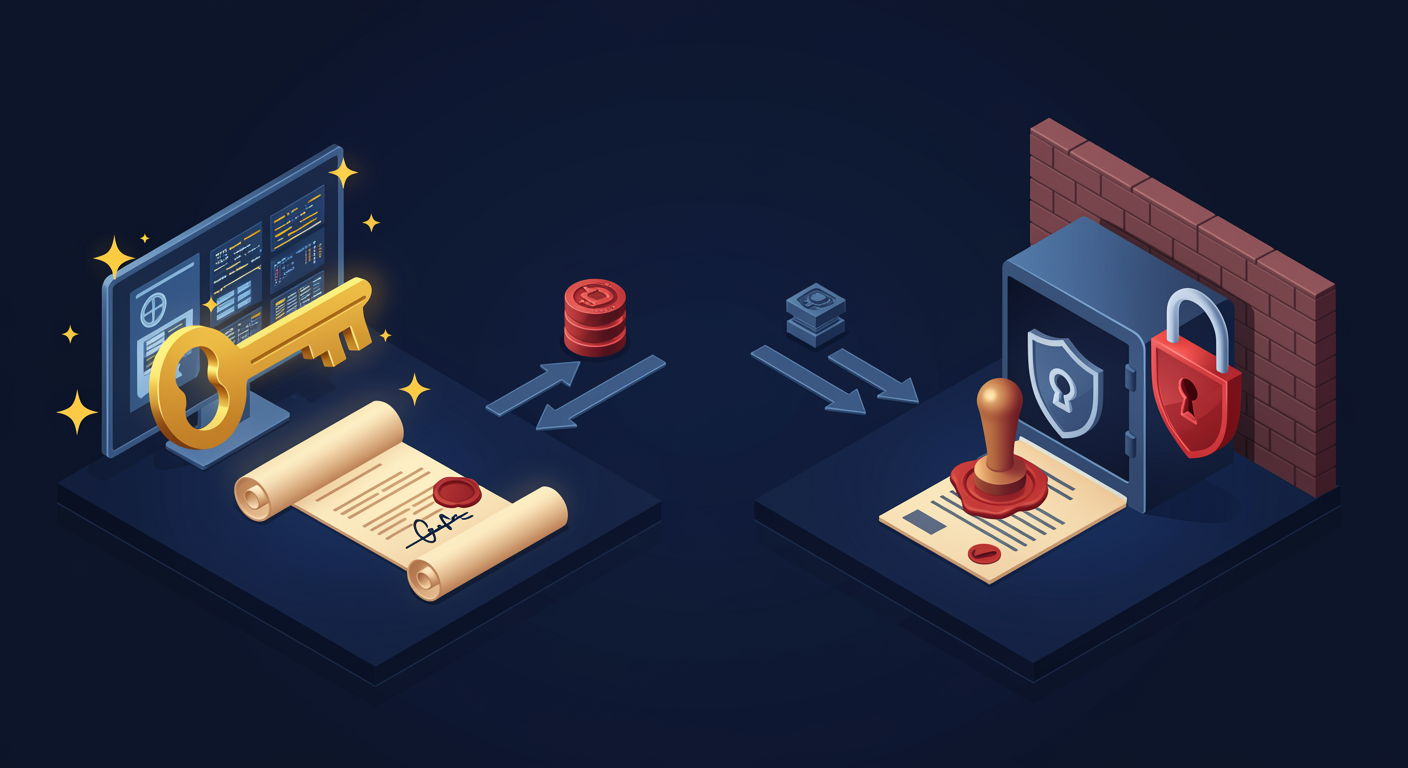
Asymmetric crypto: two keys, mathematically linked. Every entity has a KEY PAIR: a public key (shareable, openly distributed) and a private key (secret, never leaves the holder). What one key encrypts, only the other can decrypt. What one key signs, only the other can verify.
The two operations. Encryption: anyone can encrypt a message to you using your PUBLIC key; only you can decrypt with your PRIVATE key. Signing: only you can sign a message with your PRIVATE key; anyone can verify the signature with your PUBLIC key. Same key pair, two complementary uses.
What makes a key trustworthy. A raw public key is just bytes. It carries no identity. A CERTIFICATE binds a public key to an identity (a hostname, a user, a service) and is signed by a trusted authority (the CA). The signature is the trust mechanism: clients trust the CA, the CA signs the cert, the cert vouches for the public key.
Where Windows uses PKI. HTTPS / TLS (web server certs), Code Signing (driver signing, ClickOnce), EFS (Encrypting File System), S/MIME (signed and encrypted email), Smart Card Logon, Wi-Fi authentication (EAP-TLS), VPN, IPsec, AD DS server-to-client comms, and most modern Microsoft authentication scenarios. The list grows over time, never shrinks.
Why "infrastructure." A working PKI is not one server; it is a coordinated set of roles: CAs that issue, templates that define what gets issued, GPOs that distribute trust, revocation services, archives. Treat it as the foundational service it is, not an afterthought.
How Certificates Work: X.509 Structure and Purposes
A certificate is a structured document (X.509 format) that binds a public key to an identity, signed by a trusted authority. The validity test a client runs on EVERY incoming cert is the same: parse it, walk the chain, check signatures, check revocation, check expiration, check intended purpose.
The fields that matter. Subject: the identity (CN=server.contoso.com, or a user UPN). Issuer: which CA signed this cert (must chain to a trusted root). Public Key: the actual key being bound. Validity: NotBefore and NotAfter dates. Serial Number: unique within the CA. Signature: the CA's signature over everything above. Extensions: optional fields (EKU, Key Usage, Subject Alternative Names, CRL Distribution Points, AIA pointers).
The validation flow (client-side). Receive cert, walk chain up to a Trusted Root in the client's store, verify each signature, check that no cert in the chain is revoked, confirm Validity dates include "now," and confirm the cert's intended purpose (EKU) matches what the client is trying to do. Any check fails, the cert is rejected.
Enhanced Key Usage (EKU): the purpose field. A cert is not generally trusted; it is trusted FOR A SPECIFIC PURPOSE. EKU is an extension that lists what the cert is allowed to do. Server Authentication (1.3.6.1.5.5.7.3.1): for HTTPS server certs. Client Authentication (1.3.6.1.5.5.7.3.2): for client certs, smart cards. Code Signing: drivers, executables. Email Protection: S/MIME. Smart Card Logon: AD logon via smart card. EFS: Encrypting File System. A cert can carry multiple EKUs; clients filter by what they need.
Why a server cert cannot be used to sign code. Same key pair, different EKU. The signing-code client checks the EKU; a "Server Authentication only" cert fails the check. This is what stops a leaked TLS cert from being repurposed for code signing.
The expiry rule. A cert outside its Validity window is rejected outright. Short-lived certs (1-2 years for end-entity) limit the blast radius of compromise; long-lived certs (10+ years for Root CAs) reduce operational churn but increase the impact of any compromise.

CA Hierarchy: Root, Issuing, End-Entity
A real-world PKI is almost never a single CA. It is a hierarchy that separates the role of being THE ANCHOR OF TRUST from the role of issuing day-to-day certificates. Understanding the three-tier model is what lets you reason about why Root CAs sit offline in a safe and Issuing CAs are the ones you actually deploy on a domain controller.
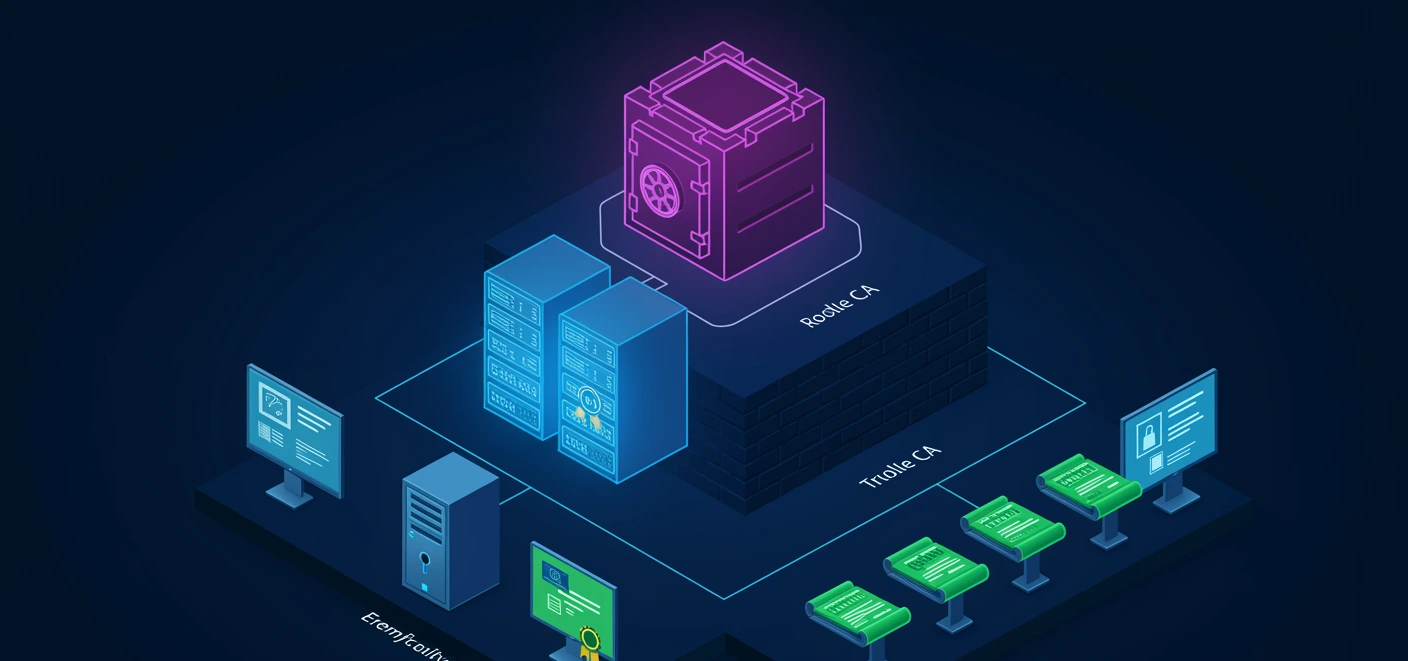
Root CA. The top of the chain. Self-signed (no one signs the Root; it signs itself). Lives in every client's "Trusted Root Certification Authorities" store. The cryptographic anchor: if the Root's private key is compromised, every cert in the hierarchy is suspect and must be reissued. For this reason, production Roots SIT OFFLINE: powered off, in a physical safe, brought online only to sign Issuing CAs or rotate the root key. A Standalone CA install is the right choice for the Root because it does not need AD integration.
Issuing CA (Subordinate CA). The middle tier. Its own certificate is signed by the Root. Issues end-entity certs day-to-day. Lives ONLINE on a domain-joined server (Enterprise CA installation), processes thousands of cert requests per day, publishes CRLs, integrates with AD for autoenrollment. If an Issuing CA is compromised, you revoke its cert at the Root, stand up a replacement, and reissue end-entity certs. The Root stays clean.
End-Entity Certificate. The bottom tier. What apps and services actually present (web server cert, user cert, code-signing cert, etc.). Validity typically 1-2 years.
Trust path. Client validates an end-entity cert by walking up: end-entity → Issuing CA → Root CA. Each link must check out: Issuing CA's cert is in the client's "Intermediate CAs" store (so the chain builder finds it), Root CA's cert is in "Trusted Root CAs" (so the anchor check passes), and every signature along the path validates against the next key up. The chain is verified END to ROOT.
Three-tier (Root + Policy + Issuing). Some regulated environments add a middle "Policy CA" tier between Root and Issuing. Policy CA defines issuance policy (audit requirements, geographic restrictions); Issuing CAs sign end-entity certs that comply with the policy. Rare. Most environments are fine with two-tier.
The offline rule. Roots offline. Always. The single most important operational rule in PKI design. Online Roots are a recurring incident-report finding.
Enterprise CA vs Standalone CA
The first decision when installing AD CS is the CA TYPE. Two choices that look similar in the wizard but have wildly different operational behaviors: Enterprise CA and Standalone CA. AD integration is the deciding factor.
Enterprise CA. AD-integrated. Publishes certificate templates to AD; issues certs based on user/computer identity from AD; supports autoenrollment; CRLs and CA cert published to AD's Public Key Services container. Requires installation on a domain-joined server. This is the choice for production issuing CAs in any AD-integrated environment.
Standalone CA. No AD integration. No templates; every cert request is one-off with manually-entered subject info. No autoenrollment. Operates independently of any directory. Can be installed on a workgroup machine (no AD required). Use for: offline Root CAs (the single most common reason; the offline Root cannot be domain-joined or it would not be offline), partner CAs where AD does not exist, specialized scenarios where AD integration is undesirable.
The classic mix. Standalone Root CA (offline, in a safe) signs the certificate of an Enterprise Issuing CA. The Enterprise Issuing CA runs online on a domain-joined server, integrates with AD, supports autoenrollment, issues day-to-day certs. This combo gives the security of an offline Root with the operational ease of AD-integrated issuance.
What you cannot do. An Enterprise CA cannot issue certs to non-AD-joined entities through autoenrollment (those clients have no AD identity to authenticate the autoenrollment request). They can still get certs via manual or web enrollment, with manual approval at the CA.
Templates and Enterprise CA are inseparable. Templates LIVE in AD and ONLY work with Enterprise CAs. Standalone CAs do not use templates; every request fills in subject info manually. Most production cert volume comes through Enterprise CAs via templates, which is why the Standalone install is reserved for the special case of Root CAs.

Installing AD CS: Role Service and Configuration
AD CS install is two steps: install the ROLE, then run the CONFIGURATION wizard. Installing the role only puts the bits on the server; the configuration wizard is what actually creates the CA. Many "the CA is installed but not working" tickets are "we ran step 1 and skipped step 2."
Role service options. Inside the AD CS role, six role services to choose: Certification Authority (the core CA, always required). Certification Authority Web Enrollment (HTTPS interface for manual enrollment via browser). Online Responder (OCSP service; per-cert real-time revocation lookup). Network Device Enrollment Service (NDES) (SCEP for network devices like routers). Certificate Enrollment Web Service / Certificate Enrollment Policy Web Service (for non-domain or cross-forest enrollment). For a typical production deployment, install Certification Authority + Web Enrollment + Online Responder; add NDES if you have network devices needing certs.
Configuration wizard. Decisions made here are HARD to change later. Setup type: Enterprise (AD-integrated) or Standalone. CA type: Root or Subordinate. Cryptography: key length (RSA 2048 minimum; RSA 4096 for high-security Roots; ECC for new deployments where supported) and hash algorithm (SHA-256 minimum). CA name: visible in every cert; rename is painful, get it right. Validity period: how long the CA's own cert is valid (typically 10-20 years for Root, 5-10 years for Subordinate). Database location: where the CA stores its issued cert database (separate from system drive recommended).
The Root CA's own cert. A Root CA self-signs its own certificate as part of configuration. Validity period of the Root's self-signed cert sets how long this Root is operational; expire it and you must stand up a new Root with all the trust-distribution work that entails. 10-20 years is the working range.
Validity ladders. Issued certs cannot be valid longer than the CA that issued them. So if your Root is valid for 20 years and your Subordinate's validity is 10 years, the Subordinate can issue end-entity certs valid up to its remaining lifetime. Plan the ladder when configuring: Root 20y → Issuing 10y → End-entity 2y is a common shape.
Certificate Templates: The Recipe System
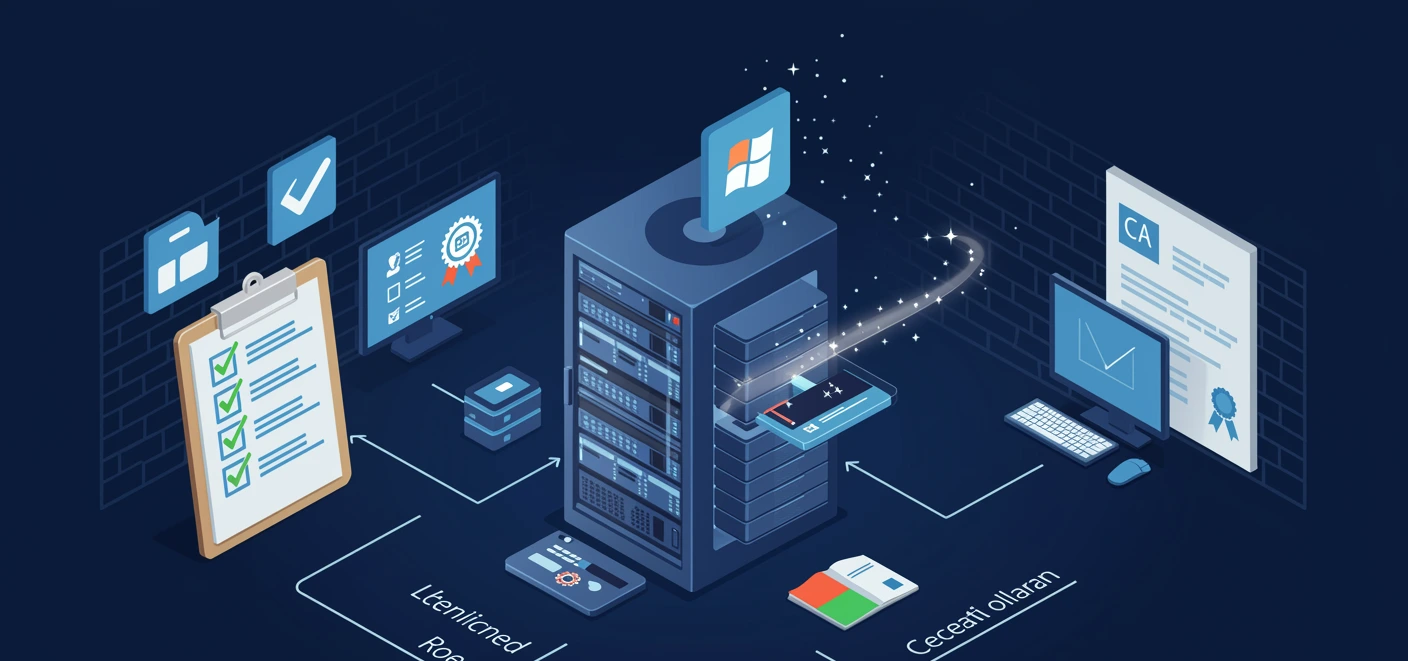
Templates are the recipes that tell an Enterprise CA what kind of cert to issue. Want a web server cert? Issue from the Web Server template. Want a smart-card-logon cert? Issue from the Smart Card Logon template. A template defines EVERY parameter of the issued cert: subject naming, key usage, validity period, key length, key storage provider, who is allowed to enroll.
Where templates live. In AD, under CN=Certificate Templates, CN=Public Key Services, CN=Services, CN=Configuration, DC=.... Templates replicate across the forest, so any Enterprise CA in the forest can use any defined template.
The default templates. Microsoft ships several dozen templates out of the box: User, Computer, Web Server, Domain Controller, Code Signing, Smart Card Logon, EFS Recovery Agent, Workstation Authentication, etc. Each is tuned for its purpose: Web Server requires the requester to supply the subject name; Computer auto-populates from the computer's AD identity; Smart Card Logon requires hardware key storage.
Template properties that matter. Subject Name: built from AD info (CN=username) or supplied in the request. Enhanced Key Usage (EKU): what the cert is allowed to do (Server Auth, Client Auth, etc.). Validity Period: how long the issued cert is valid. Renewal Period: when auto-renewal kicks in (e.g., 6 weeks before expiry). Key Length: minimum key size for requesters. Key Storage Provider: software or hardware (TPM, smart card). Issuance Requirements: requires CA Manager approval, requires signature from an existing cert (renewal), etc.
Template Permissions. Each template has an ACL controlling who can use it. Read: see the template exists. Enroll: request a cert based on this template (manual). Autoenroll: receive a cert based on this template via GPO automatically.
Template versions. v1 (legacy, Server 2000), v2 (Server 2003, customizable), v3 (Server 2008, CNG-aware), v4 (Server 2012+, full modern feature set). New templates are usually v4. Old apps stuck on v1 templates limit features; if you have a v1 template in production, you cannot use CNG providers, modern cryptography, or many newer features.
The cardinal rule. NEVER MODIFY THE BUILT-IN TEMPLATES. Duplicate first. The built-ins are recreated on schema upgrades and your changes are lost. The duplicate is yours; modify freely.
Custom Certificate Templates: Duplicate and Modify
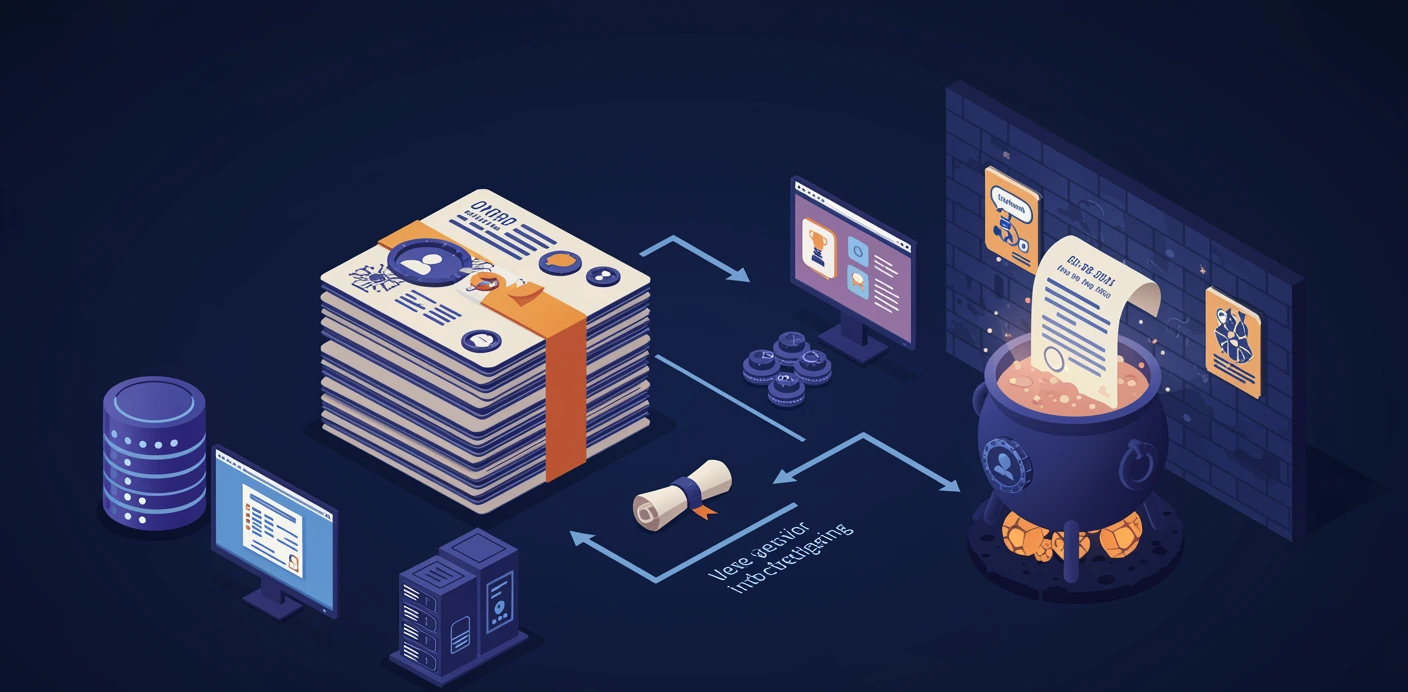
The built-in templates are 80% solutions. Almost every production deployment has at least one custom template: longer validity for code-signing certs, CA-Manager-approval requirement for sensitive certs, smart-card-only requirement for admin auth, custom Subject Name format for legacy apps. The pattern is always the same: duplicate, then modify.
Step 1: Duplicate. Open Certificate Templates console (certtmpl.msc). Right-click the built-in template that is closest to what you need. "Duplicate Template." Pick the template version (v3 or v4 unless you have a specific compatibility reason).
Step 2: Rename. Give the duplicate a clear name that signals it is custom: "Web Server (Contoso-Extended)" tells the next admin what it is. "Copy of Web Server" tells them nothing.
Step 3: Modify the properties. Common modifications:
- Validity Period. Default Web Server is 1 year; many shops bump to 2-3 for code signing or wildcard scenarios.
- Subject Name. "Build from AD info" vs "Supply in the request." Web Server templates almost always need "Supply in the request" because the FQDN comes from the application, not AD.
- Issuance Requirements. Toggle "CA certificate manager approval" for high-value certs. Toggle "This number of authorized signatures" to require signed-by-existing-cert (e.g., a renewal must be signed by the cert being renewed).
- Cryptography. Bump minimum key length to 4096 for sensitive certs. Restrict to specific Key Storage Providers (e.g., "Microsoft Smart Card Key Storage Provider" for smart-card-only enrollment).
- Permissions. Configure who can Read / Enroll / Autoenroll. Strip Domain Computers' Autoenroll on sensitive templates and add only the specific group that should receive them.
Step 4: Publish to a CA. Creating a template does NOT make it issuable. You must publish it to one or more Enterprise CAs. In the Certification Authority console: Certificate Templates folder → New → Certificate Template to Issue → pick the new template. Without this step, requests fail with "no templates match your criteria."
The supersede pattern. When you create a v3+ template, you can mark it as superseding an older template. Clients enrolled against the OLD template auto-receive the NEW template's cert on next renewal. Useful for cryptography upgrades (1024-bit RSA template → 2048-bit RSA superseding template).

Certificate Enrollment: Request, Issue, Install
Enrollment is the process of getting a cert from a CA onto a client. Three paths exist for getting there: manual (admin opens an MMC), autoenrollment (GPO automatically does it), and web enrollment (user browser submits a request). The underlying CSR-signed-cert flow is the same; the user-facing experience differs.
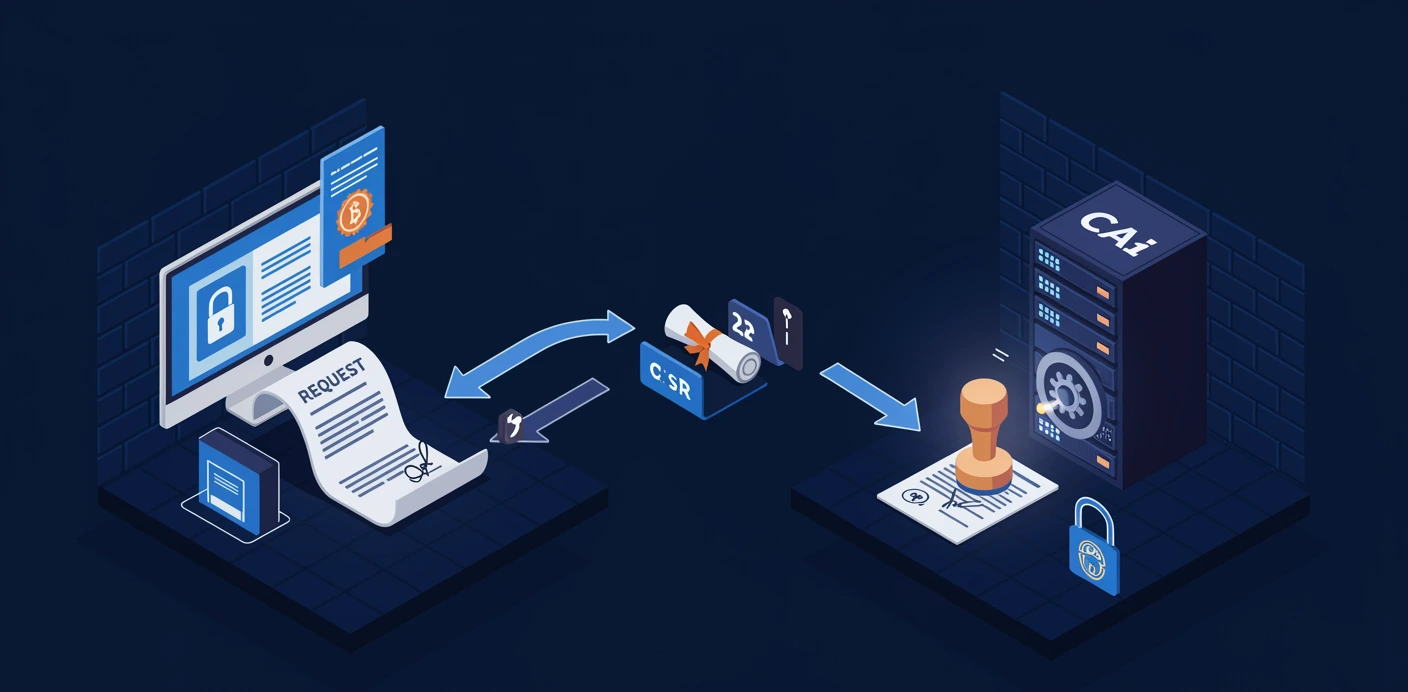
The cryptographic dance. Client generates a KEY PAIR (the private key never leaves the client). Client builds a CSR (Certificate Signing Request): a structured request containing the public key, the desired subject info, the desired EKU and other extensions, signed by the client's PRIVATE key (to prove possession). Client sends CSR to CA. CA validates the request against the template's policy. CA signs a certificate using its OWN private key, binding the client's public key to the requested identity. CA returns the cert; client installs it alongside its private key.
Path 1: Manual enrollment. certmgr.msc (user) or certlm.msc (computer) → right-click Personal → All Tasks → Request New Certificate → pick a template. The MMC drives the CSR flow under the hood. Use when: one-off cert request, template requires manual interaction, admin needs to set request fields not exposed via GPO.
Path 2: Autoenrollment. The production pattern for the vast majority of certs. GPO instructs domain members to check for autoenrollment-eligible templates on every GPO refresh. Eligible = has Autoenroll permission for the user/computer. If a cert is not present or is approaching expiration, the client silently requests one. See next slide for the deep dive.
Path 3: Web enrollment. https://CA/certsrv → sign in → pick template → submit request → download cert. Use for: non-domain machines, manual one-off, certs for platforms without native AD integration.
What can fail. Template not published to a CA → "no templates match your criteria." User lacks Enroll permission on the template → "denied by policy module." Subject info conflicts with template policy (e.g., requesting a Web Server cert with no Subject Name supplied) → "request denied by policy module." Pending Requests queue (CA admin approval required) → "Pending" status until approved.
Autoenrollment Deep Dive: GPO-Driven Lifecycle
Autoenrollment is what makes a PKI scalable. Without it, every domain machine that needs a Computer cert would require manual enrollment from an admin. With autoenrollment, the cert flows automatically on GPO refresh, renews itself before expiration, and self-cleans when the GPO trust ends.
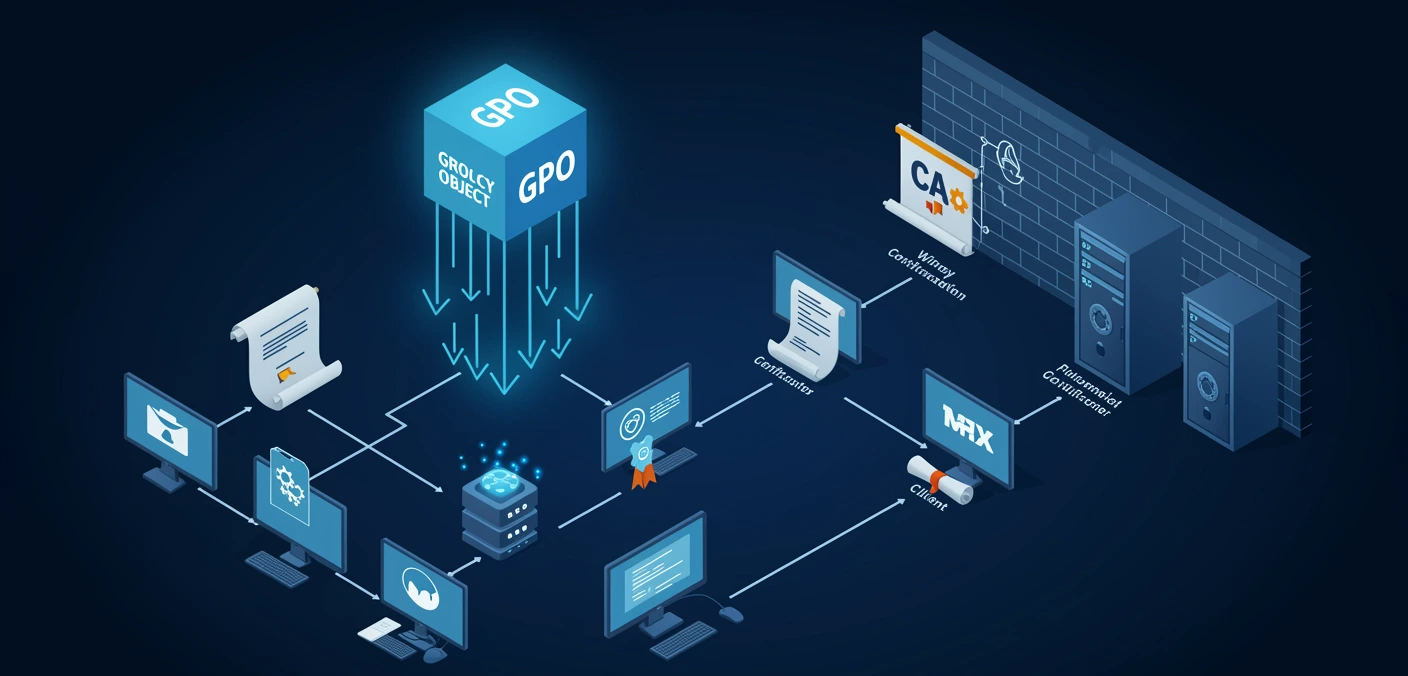
The three things that must align. Template configured for autoenrollment: the template's Compatibility settings allow autoenrollment (v2+); permissions include Autoenroll for the target group. Template published to a CA: at least one Enterprise CA is issuing this template. GPO enabled at the target OU: Computer Configuration or User Configuration → Policies → Windows Settings → Security Settings → Public Key Policies → Certificate Services Client - Auto-Enrollment, set to Enabled with "Renew expired certificates" and "Update certificates that use certificate templates" both checked.
The lifecycle. Default GPO refresh interval (90 min ± 30 min jitter for members, 5 min for DCs) triggers autoenrollment processing. On first apply: client checks templates with Autoenroll permission; for each, checks if a current cert is in the local store; if not, requests one. On subsequent refreshes: monitors existing certs; at 20-percent-remaining lifetime (configurable), auto-renews. When the GPO no longer applies (machine moves out of the OU, etc.), the autoenrolled cert is left in place but no longer renews.
The autoenrollment trigger. Runs whenever Group Policy processes. Force it manually with certutil -pulse. The pulse triggers immediate enrollment without waiting for the next GPO cycle, useful during deployment and troubleshooting.
Where the cert lands. Computer Configuration autoenrolled certs land in the COMPUTER store (Cert:\LocalMachine\My). User Configuration autoenrolled certs land in the user's store (Cert:\CurrentUser\My). The store determines which apps can use the cert (services run as machine = needs computer cert; user apps = needs user cert).
Diagnostics. Most autoenrollment problems trace to one of three issues: (1) template Autoenroll permission missing for the target user/computer; (2) Computer needs Read permission on the template to even SEE it (MS16-072 era fix: add "Domain Computers" with Read-only); (3) GPO not actually applying. Tools: gpresult /h report.html shows the GPO and its Public Key Policies subsection; certutil -pulse forces a run with verbose log to the CertificateServicesClient event log.
Web Enrollment: The User-Facing Path
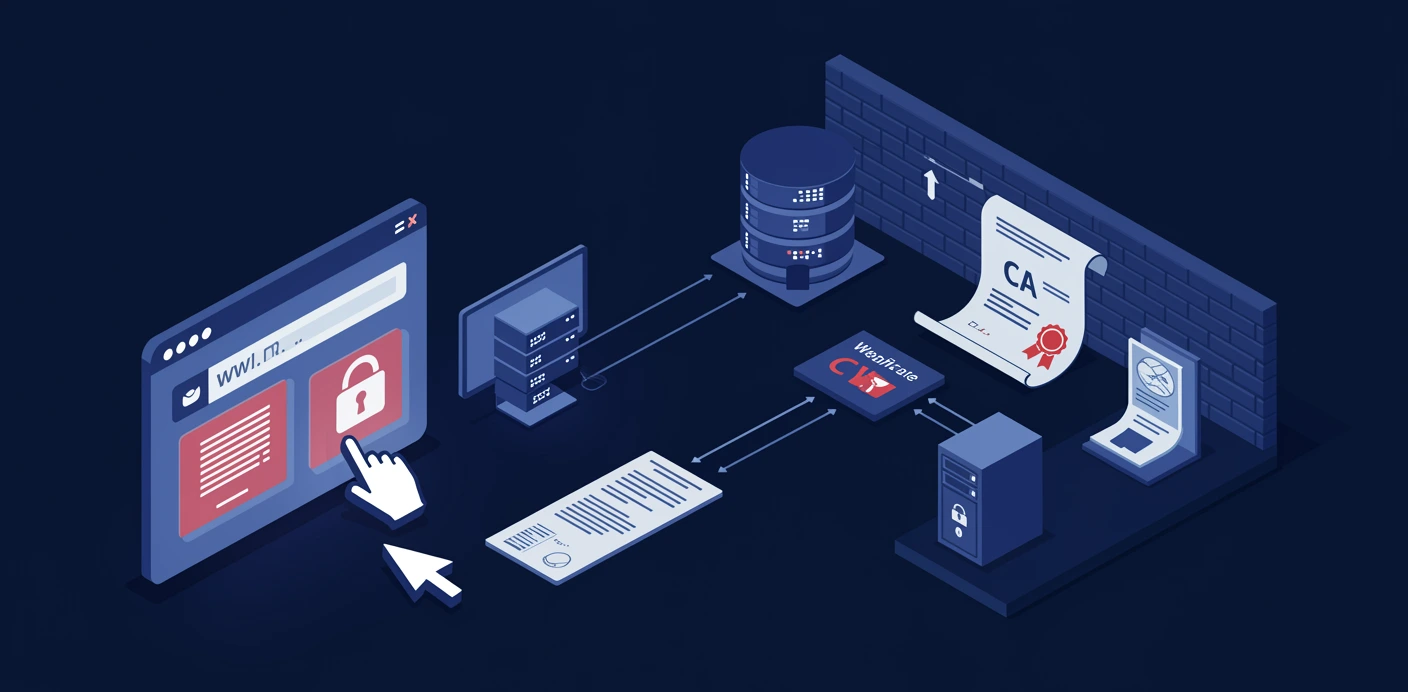
Web Enrollment is the browser-driven path: a user opens https://CA/certsrv, signs in with AD credentials, picks a template, fills in subject info, submits a CSR, and downloads the resulting cert. Used heavily for non-domain devices and for one-off requests that do not fit autoenrollment.
The role to install. Web Enrollment is a SEPARATE role service from the core CA: under AD CS, install "Certification Authority Web Enrollment." It can live on the CA itself or on a separate web server. Many organizations put it on a separate server for security isolation (the certsrv site is more exposed than the CA itself).
The URL and authentication. Default URL: https://CA-FQDN/certsrv. The site requires authentication (Windows Integrated, Basic, or Forms depending on configuration). Use HTTPS only; do NOT expose certsrv over HTTP. The auth method depends on who needs to enroll: Windows Integrated for domain users, Basic+HTTPS for non-Windows clients.
The workflow for a Windows client. Sign in → "Request a certificate" → "Advanced certificate request" → pick the template → fill in subject info → submit. The browser triggers the local certificate provider (used to be ActiveX in IE; modern browsers use CSR-paste because they have no native cert-request hook). Cert is issued (or queued for approval), then downloaded for installation.
Modern browser limitations. The traditional certsrv site was built around IE's ActiveX cert provider. Edge / Chrome / Firefox do not have ActiveX, so the smooth click-to-enroll experience is gone. Modern workaround: generate a CSR offline (using certreq on the client), paste the CSR into the certsrv "Submit a certificate request by using a base-64-encoded CMC or PKCS #10 file" page, download the resulting cert, install on the client. Clunky but works on any browser.
Use cases. Non-domain workstation needing a cert. Linux server requiring a TLS cert from the internal CA (admin generates CSR with openssl, submits via certsrv, downloads the issued cert). One-off issuance for a partner or auditor. Pending-approval certs where a user submits a request that requires CA Manager approval before issuance.
Security posture. certsrv is the public-facing entry point to your PKI. Treat it accordingly: HTTPS-only, strong auth, anti-bot/abuse controls, monitor request volumes, rotate credentials regularly. A compromised certsrv site is a credential-equivalent compromise of the PKI.
Certificate Revocation: CRL, AIA, OCSP
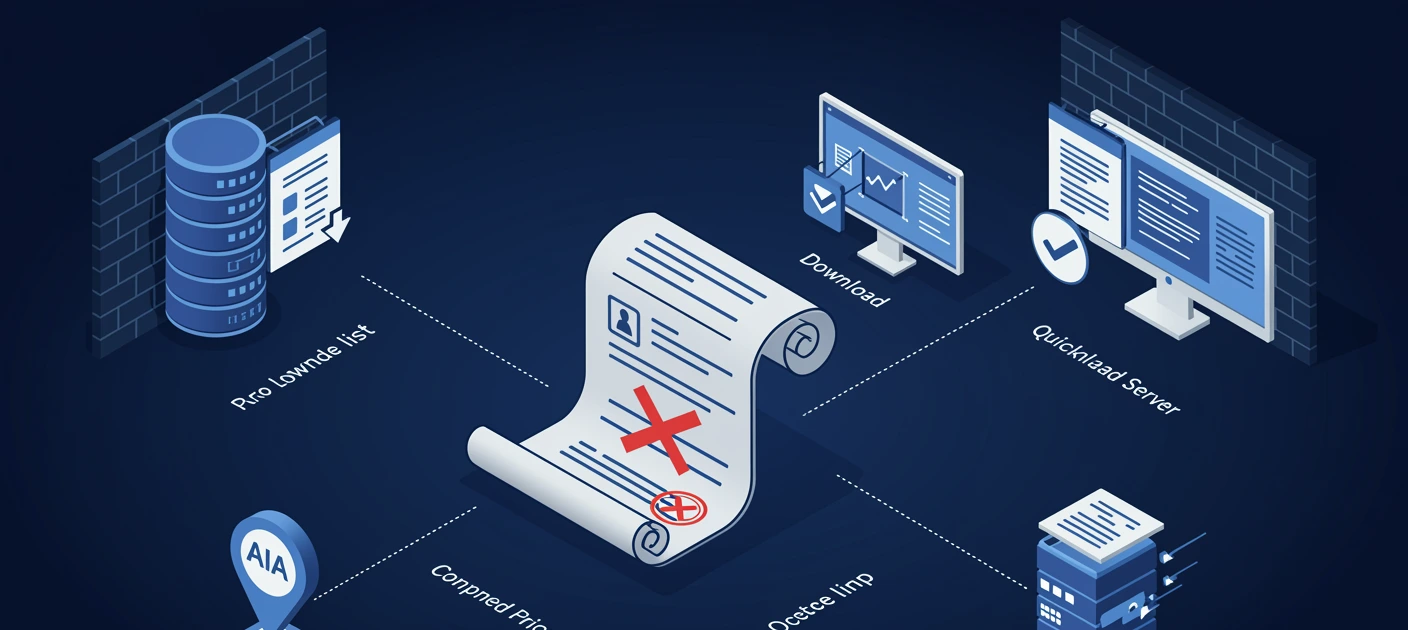
Sometimes a cert needs to die before its expiration date. Compromised private key, employee left the company, decommissioned server, hostname change. Revocation is how the world learns the cert is no longer valid. Three mechanisms coexist: CRL, AIA, OCSP. Knowing which one fires when is core operational knowledge.
CRL (Certificate Revocation List). A signed list of revoked cert serial numbers, published by the CA on a schedule (typically every 1-7 days). Clients download the CRL, cache it, check every incoming cert's serial against the list. Pros: simple, no per-cert lookup needed, scales well. Cons: CLR can be megabytes for busy CAs, freshness limited by publish interval, brief revocation-to-effective lag.
CRL Distribution Point (CDP). A URL embedded in every issued cert pointing to where the CRL lives. Clients walk the cert's CDP list, fetch the CRL, check it. Multiple CDPs supported for redundancy; HTTP and LDAP are the common schemes. Configure CDPs at CA install; changing them later means the change applies only to NEWLY issued certs.
AIA (Authority Information Access). A URL embedded in certs pointing to the ISSUER'S certificate. Used during chain building: a client receives an end-entity cert and needs the Issuing CA's cert to verify the chain; AIA tells it where to download. Without AIA, the chain build can fail if the Intermediate CA cert is not pre-installed on the client. HTTP-served AIA is universal; LDAP also supported in AD environments.
OCSP (Online Certificate Status Protocol). A per-cert real-time status lookup. Client sends "is serial X revoked?" to an OCSP responder; responder answers "good," "revoked," or "unknown." Faster than downloading a full CRL, ideal for high-volume clients (Windows itself uses OCSP heavily). Requires an Online Responder service (an AD CS role service) configured to answer queries for the CA. OCSP URL is embedded in the AIA extension alongside the issuer URL.
Delta CRLs. Smaller version of the CRL containing only changes since the base CRL. Published more frequently than the full CRL (e.g., full daily, delta hourly). Clients use the base + the most recent delta for current state. Helps with both freshness and bandwidth.
The revocation gotcha. Revoking a cert does NOT instantly invalidate it everywhere. The world learns at the speed of CRL publish + client cache + client check. Plan revocation around the CRL publish cycle. For instant revocation, use OCSP; clients that check OCSP see the revocation immediately when the responder updates.
Certificate Stores: Where Certs Live
Windows organizes installed certs into LOGICAL STORES that have specific roles in the trust model. Knowing which store contains what is the difference between debugging a cert problem in five seconds and digging for an hour.
The named stores. Personal (My): certs YOU own (the matching private key is locally accessible). The PowerShell drive name is My. This is where autoenrolled and manually-requested end-entity certs land. Trusted Root Certification Authorities (Root): the Root CA certs your system trusts. Anchors of trust; adding here means accepting that CA's signature anywhere. Intermediate Certification Authorities (CA): the Issuing CA certs that signed your Personal certs. Needed for chain building. Trusted Publishers (TrustedPublisher): code-signing certs you have explicitly trusted (e.g., your internal code-signing CA). Trusted People (TrustedPeople): certs of specific peers you have directly trusted. Untrusted Certificates (Disallowed): explicit denial; never trust these even if otherwise chained to a Root.
Physical scope: Computer / User / Service. Computer store: machine-wide. Services and machine processes use this. Tools: certlm.msc, PowerShell path Cert:\LocalMachine\. User store: per-user. User apps (browsers, Outlook) use this. Tools: certmgr.msc, PowerShell path Cert:\CurrentUser\. Service store: per-service-account. Rare in practice; managed via certutil -addstore -service.
Inheritance. A User store INHERITS the Computer's Trusted Root, Intermediate CAs, Trusted Publishers, Untrusted Certificates. So a Root added at Computer level is trusted by all users on that machine. The User's Personal store is separate from the Computer's Personal store.
The PowerShell drive (Cert:). Browse certs like a filesystem. Cert:\LocalMachine\My = machine Personal. Cert:\CurrentUser\Root = user Trusted Root. Get-ChildItem Cert:\LocalMachine\My lists; pipe through Where-Object to filter. Far faster than the MMC for inspection.
The trust delivery mechanism. An internal CA's Root cert MUST be in every client's Trusted Root store for the CA's issued certs to be trusted. Two delivery paths: (1) Group Policy "Trusted Root CAs" setting; (2) manual installation via certutil -addstore or Import-Certificate. GPO is the production path; manual is for non-domain machines.

Key Archival and Recovery
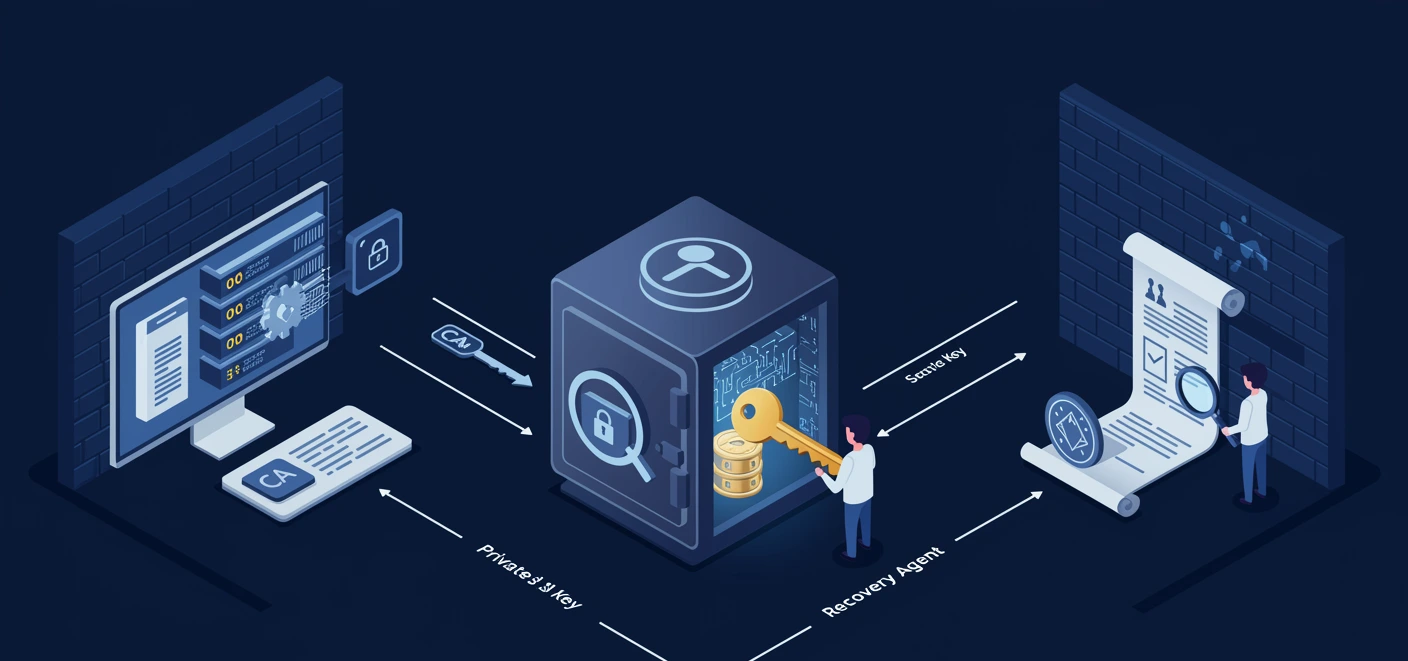
Some certificates encrypt data. EFS-encrypted files. S/MIME-encrypted email. Lose the private key and the data is gone forever, by design. Key archival solves this: the CA stores an encrypted backup of the private key at issuance time; recovery agents can extract that copy when needed.
What gets archived. ENCRYPTION private keys, only. Signing keys MUST NEVER be archived: if a copy exists outside the signer's possession, the cryptographic non-repudiation property of a signature is destroyed. Smart-card-stored keys cannot be archived (they never leave the card by design). Templates that mix Signature and Encryption EKU need careful thinking about whether archival is appropriate.
How archival works. Template is configured with "Archive subject's encryption private key." When a client enrolls against this template, its private key is encrypted with the CA's KEY RECOVERY AGENT (KRA) certificate and stored in the CA database. The client never knows; only the CA holds the encrypted copy.
The Key Recovery Agent (KRA) certificate. A special EKU-tagged cert ("Key Recovery Agent" purpose) issued to a designated recovery officer. The KRA's PRIVATE KEY is what unlocks the archived encrypted keys. Multiple KRAs can be configured (M-of-N quorum models supported); the KRA cert(s) must be installed on the CA in the KRA store; the CA encrypts archived keys with the KRA's public key at archival time.
The recovery flow. CA admin runs certutil -getkey SerialNumber to extract the encrypted blob from the CA database. KRA cert holder runs certutil -recoverkey BlobFile UserKey.pfx with their KRA cert/private key available, which decrypts the blob and outputs a PFX file containing the user's original key + cert. User installs the PFX and regains access to their encrypted data.
Operational discipline. KRAs are the keys to the kingdom for encrypted data. Treat with extreme caution: separate the role of CA admin from KRA cert holder (different people, different machines, different credentials). Rotate KRA certs on a schedule (annual is common). Audit recovery operations.
The two failure modes. Forgot to enable archival: template was not set to archive; encryption keys are not recoverable. Discovered when the first user loses access to their EFS files and there is no archived copy. Fix forward only. KRA cert lost or expired: cannot decrypt previously archived keys. Plan KRA succession: overlap old and new KRA certs during transition, re-encrypt the archived store with the new KRA.
certutil: The Diagnostic Swiss Army Knife
certutil is the command-line tool for everything cert-related on Windows. Hundreds of subcommands. The CA admin's most-used tool. When something certificate-related fails, certutil is the first stop because its output is verbose and the operations map directly to the underlying APIs.
The greatest hits.
certutil -CAInfo— dump CA properties (name, type, validity, hierarchy info)certutil -CRL— force publish a new CRL immediatelycertutil -store My— list certs in the Personal storecertutil -dump cert.cer— dump every field of a certificate filecertutil -verify cert.cer— validate the cert's chain and report what failscertutil -pulse— trigger immediate autoenrollment processingcertutil -urlcache CRL delete— clear the local CRL cache (for diagnostics)certutil -revoke SerialNumber 4— revoke a cert with reason code 4 (Superseded)certutil -addstore Root cert.cer— add a cert to the Trusted Root storecertutil -delcert SerialNumber— delete a cert from a store
The CA database commands. The CA's issuance log is a database (Jet/ESE format). Query with certutil -view: filter by Disposition, Date, Common Name, etc. Useful for compliance reports ("show me every cert we issued in Q3") and for diagnostics ("show me the most recent failed requests").
The verbose flag. Add -v to most certutil commands to get verbose output: every step, every API call, every error code. Indispensable for "why did this fail" debugging.
The PowerShell equivalents. Modern Windows has PowerShell cmdlets in the PKI module (Import-Certificate, Export-Certificate, Get-Certificate, New-SelfSignedCertificate, etc.) that cover MOST of certutil's daily-use surface. certutil still wins for CA-side operations (CRL publishing, key recovery, advanced diagnostics) and for legacy compatibility (works on every Windows version back to NT). Pick the tool to match the audience: PowerShell for scripts that other admins will read; certutil for the deep cert plumbing.

Group Policy for Certificate Deployment
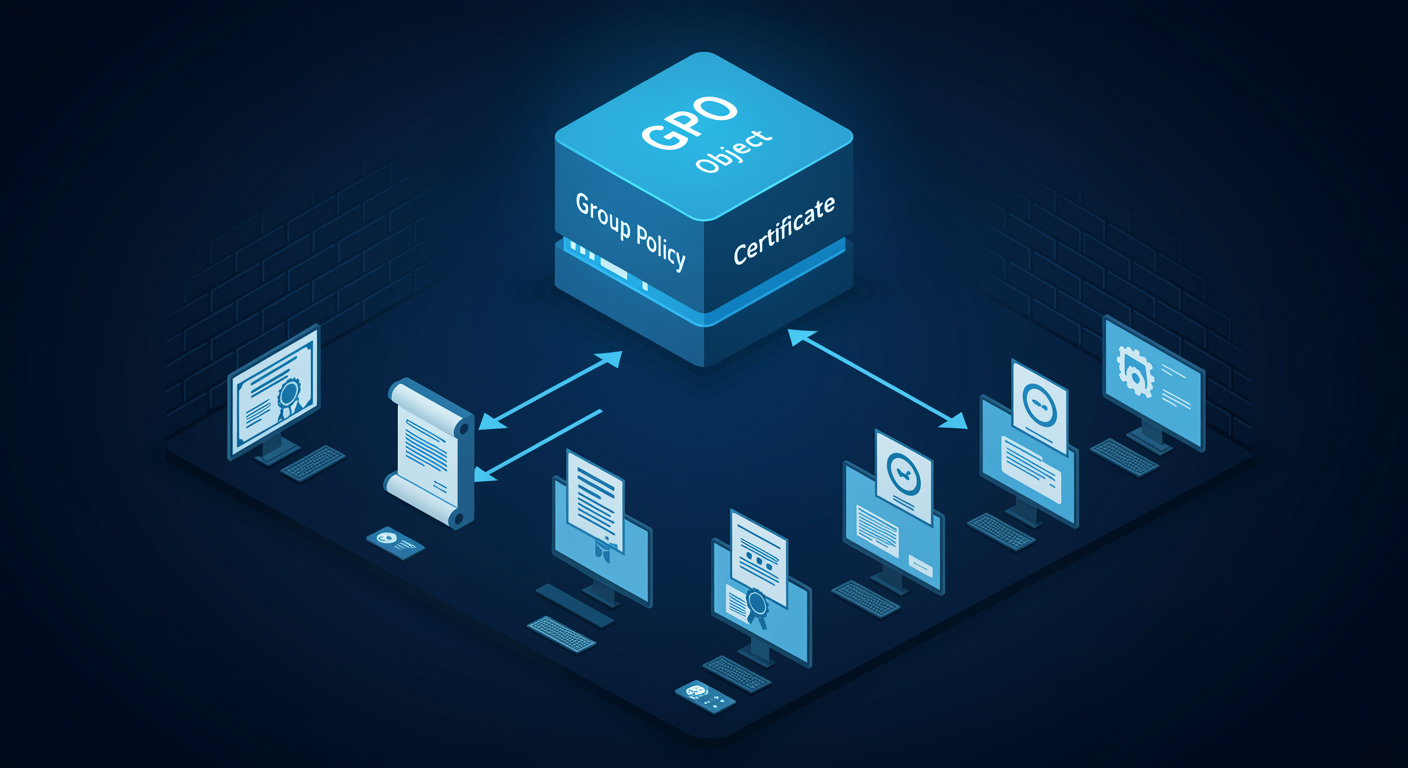
Group Policy is the delivery mechanism for cert policy and trust. It does three jobs: tells clients to autoenroll, distributes Trusted Root certs domain-wide, and configures Intermediate CAs and other special trust stores. Without GPO, every cert-trust change would require touching every machine.
The Public Key Policies tree. Computer Configuration → Policies → Windows Settings → Security Settings → Public Key Policies. Eight nodes under this branch, each managing a different aspect of PKI trust:
- Encrypted Data Recovery Agent (EFS Recovery), distributes the EFS recovery cert
- BitLocker Drive Encryption, BitLocker policy (linked but technically separate)
- Automatic Certificate Request Settings, legacy autoenrollment (v1, rare now)
- Trusted Root Certification Authorities, add Roots that all clients trust
- Intermediate Certification Authorities, add Intermediate CAs
- Trusted Publishers, distribute code-signing trust
- Untrusted Certificates, explicit blacklist
- Trusted People, peer-trusted certs
Certificate Services Client - Auto-Enrollment. User Configuration and Computer Configuration both have this setting. Enabled, with "Renew expired certificates" + "Update certificates that use templates" both checked, is the production-recommended setting. The trigger that makes autoenrollment work.
The Trusted Root distribution flow. Drop a Root CA's cert file into a GPO's "Trusted Root Certification Authorities" node. On next GPO refresh, every targeted machine receives the cert and adds it to its Trusted Root store. From that point on, certs issued by that Root are trusted by every machine in scope. The mechanism that lets you roll out an internal Root with zero per-machine work.
Per-OU scoping. The cert GPOs cascade like any other GPO. Link them at the appropriate OU level: domain-wide for universally-trusted Roots, OU-scoped for specific Intermediate CAs that only certain workloads need.
The pilot pattern. Before flipping a cert trust GPO domain-wide, link it to a Pilot OU. Validate a small set of machines. Promote to production after the pilot confirms no unexpected effects.
Diagnostics. gpresult /h report.html shows the applied Public Key Policies subsection. certutil -store Root on a target machine confirms the Root is actually in the store. If GPO says the Root should be there but the store says it is not, look at GPO link order, security filtering, and WMI filters (the usual GPO troubleshooting).
CA Backup and Disaster Recovery
A CA failure that lasts more than a few days starts breaking trust domain-wide: cert renewals fail, autoenrollment stops, CRLs go stale, eventually clients begin rejecting certs as their CRL caches expire without refresh. CA backup and recovery is not optional; it is the operational discipline that keeps the trust fabric working.
What to back up. Four things, in this order: CA private key (the single most critical artifact; loss = rebuild the entire PKI). CA database (the issued-cert log, the request queue, the archived keys). CA configuration (registry, applicationHost.config for the Web Enrollment piece, certutil templates). CA logs (audit trail).
certutil -backup. The canonical CA backup command. Writes the CA database + private key + log files to a target folder. Encrypted with a password supplied at backup time. Schedule this nightly (or more often for high-volume CAs) and replicate the backup folder off the CA host immediately.
The PowerShell path. Backup-CARoleService wraps certutil -backup; Restore-CARoleService wraps certutil -restore. Same end result, friendlier to script.
Restore. Install AD CS on a new server with the SAME computer name and role configuration as the original. Run certutil -restore from the backup folder. CA database and private key are reloaded. New server takes over with the original CA identity, issued certs remain valid, in-flight workflows resume.
Cold spare strategy. Backup → archive offline → in disaster, restore to new hardware. Annual restore-drill is the operational discipline that proves the backup actually works. Most "we had a backup" incidents end with "but the restore failed."
CRL availability during a CA outage. If the CA is down, the latest published CRL can still be served by any CDP that has a copy. Plan CDPs across multiple servers (often a load-balanced web server farm) so a single-CA outage does not stop CRL distribution. The CA can be down for the publish cycle (which is days or longer) before clients notice via stale CRLs.
The Root CA backup discipline. Roots are offline. The Root's private key cannot be backed up via online means. Use HSM-backed Roots with HSM-native backup. Or use offline media (encrypted USB, archived to a safe). Annual restore drill is mandatory; testing once a decade is not testing.
Lab Preview: What You Will Practice
The module ends with two hands-on labs covering the same PKI build from two complementary angles, so you build muscle memory in both surfaces.
Lab 1, Server Manager and the AD CS consoles (Graphical). The GUI is the path of least resistance for first-time work. You will:
- Install AD CS role with Certification Authority + Web Enrollment + Online Responder role services
- Configure as Enterprise Subordinate CA chained to an offline Root
- Duplicate the Web Server template into a custom "Contoso-WebServer-Ext" template with extended validity and stricter key requirements
- Publish the custom template to the CA
- Author a GPO enabling Auto-Enrollment for Computer Configuration; link to a Pilot OU
- Trigger autoenrollment via
certutil -pulseon a pilot machine and verify the cert appears in the local store - Revoke a cert; force CRL publish; validate the revocation via
certutil -verifyfrom another machine
Lab 2, PowerShell. The same operations as a repeatable script. You will:
Install-WindowsFeature AD-Certificate+Install-AdcsCertificationAuthorityfor role and configGet-CertificateTemplate+ duplication via the AD module for template workSet-CertificateAutoEnrollmentPolicyin a GPO via the GroupPolicy PowerShell moduleGet-Certificatefor manual enrollment;Import-Certificate/Export-Certificatefor trust distributionBackup-CARoleService+Restore-CARoleServicefor the operational backup cycle- End-to-end deployment script: install role → configure → create template → publish → enable autoenrollment GPO → verify
Do both in sequence: GUI first builds the mental model and shows you what the wizard is doing; PowerShell second builds the operational scale for the next ten environments you stand up.