Module 12: Remote Desktop Services
Run desktops and apps from a server farm. Five roles, one connection per user, secure all the way to the client.
What you'll learn
- Architecture, five role services (Session Host, Broker, Gateway, Web Access, Licensing)
- Deployment models ★, Session-Based vs VDI; pick by density vs isolation
- RD Gateway ★, RDP over HTTPS for external access, CAP + RAP policies
- RemoteApp + Sessions, single-app delivery, connect/disconnect/reconnect lifecycle
- Licensing, Per-User vs Per-Device CALs, 120-day grace
- Security + HA, RDP encryption + NLA, redundant brokers and gateways
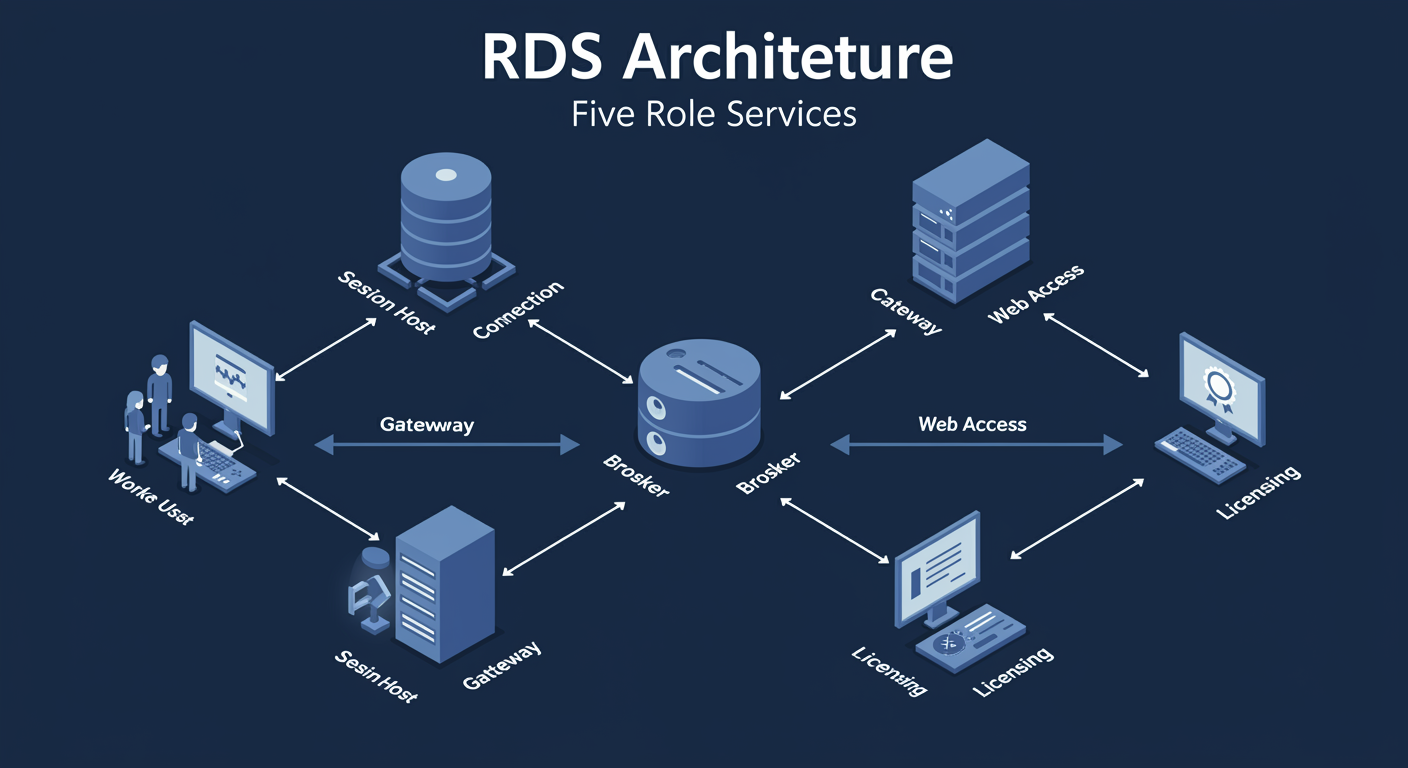
RDS Architecture: The Five Role Services
Remote Desktop Services is not one server. It is a deployment of five distinct role services that together let users connect to centrally-hosted desktops or applications from anywhere. You can stack all five on a single machine for a small environment, or spread them across a farm of servers for production scale. Knowing what each role does is what lets you reason about which server to scale, which server to make redundant, and where a connection is breaking.
RD Session Host (RDSH). The workhorse. Hosts user sessions, either Session-Based (many users sharing one Windows Server) or VDI (one VM per user). When a user connects, this is the machine they end up on, and where their applications actually run. Sized for concurrent users; a single Session Host can comfortably hold 40-80 light office users on modern hardware.
RD Connection Broker (RDCB). The traffic controller. Receives every new connection request and decides which Session Host should serve it (load balancing). Tracks disconnected sessions so a user who drops and reconnects ends up back on the SAME host. Without the Broker, a reconnect would land on a random host and the user's session would be lost.
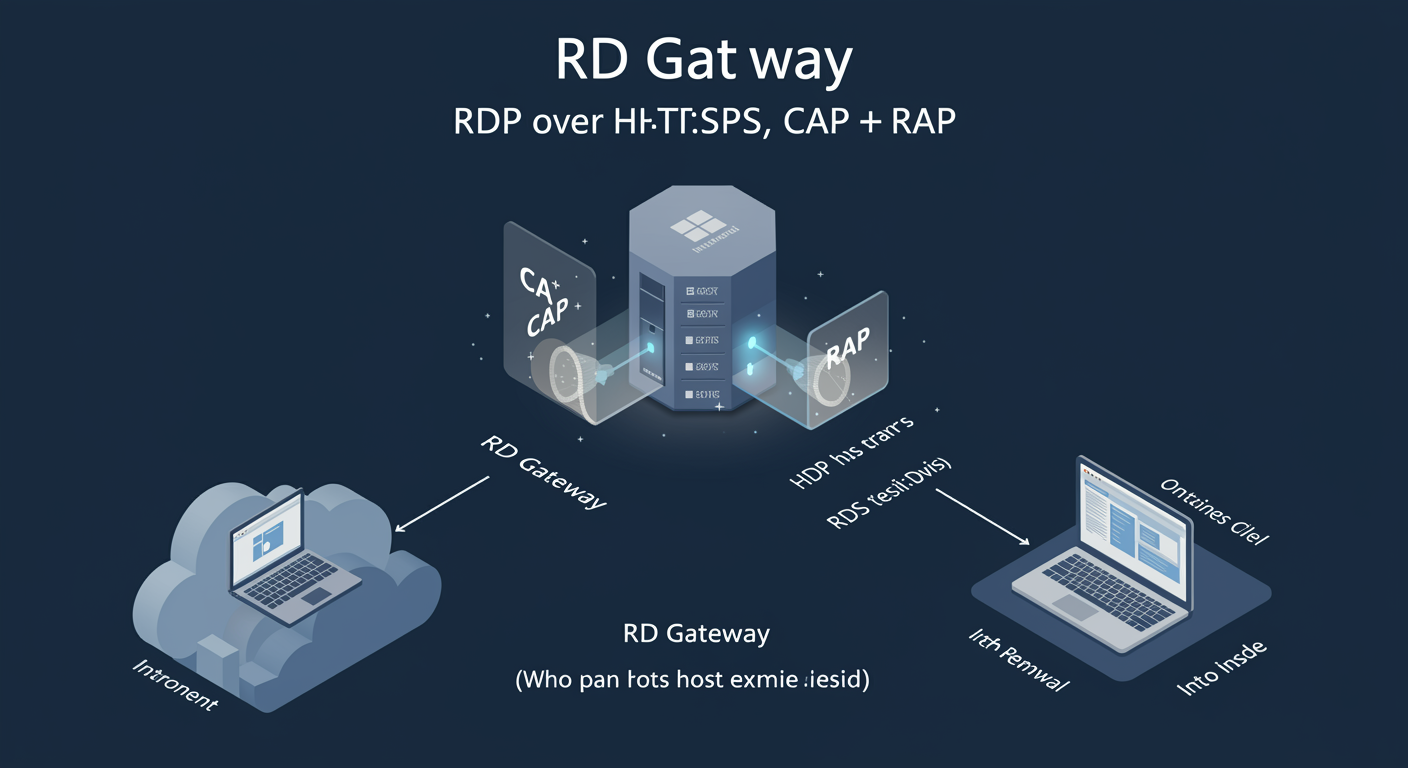
RD Gateway (RDG). The edge. Lets external clients reach internal Session Hosts over RDP-over-HTTPS, tunneling RDP through port 443. Without the Gateway, RDS requires VPN or direct exposure of port 3389 (do not do this). Two policy types: CAP (Connection Authorization Policy, who can connect) and RAP (Resource Authorization Policy, which internal hosts they can reach).
RD Web Access (RDWA). The portal. Browser-based listing of available RemoteApps and full desktops. Users sign in with their AD credentials, see the list, click an icon to launch. Provides single sign-on into the launched session if domain credentials match.
RD Licensing (RDL). The license server. Issues RDS Client Access Licenses (CALs) to clients. Without an RD Licensing server, users get a 120-day grace period; after that, new connections are refused. This is a separate license from the Windows Server license itself.
RDS Deployment Models: Session-Based vs VDI
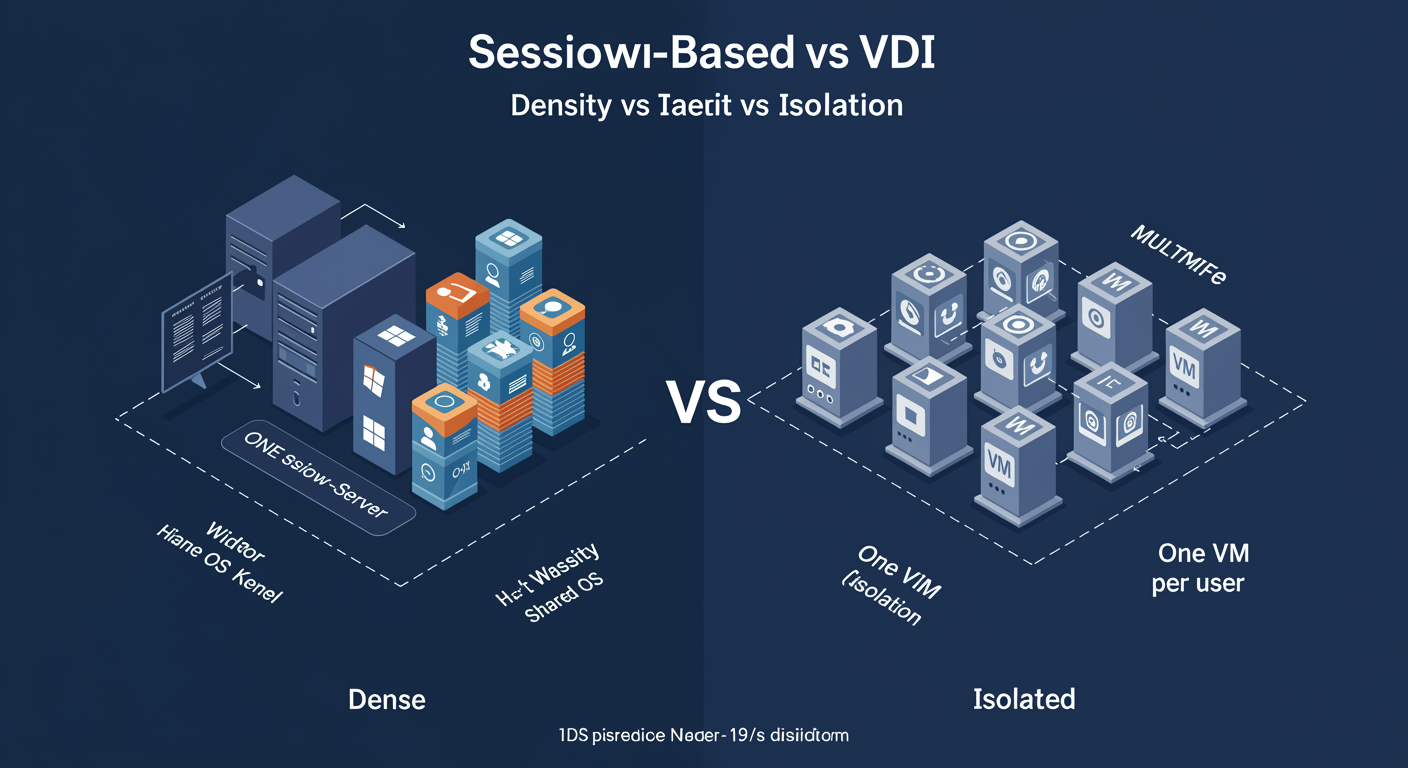
Two ways to deliver desktops from RDS. Same plumbing (broker, gateway, web access), different host shape. Picking the wrong one for the workload is the single most expensive design mistake in an RDS deployment.
Session-Based deployment. ONE Windows Server kernel, MANY concurrent user sessions sharing it. Each user gets their own desktop and apps, isolated at the process and security-token level, but the OS itself is shared. Very high density: 40-100 concurrent light users per server is normal. Very low cost per user: you pay for one Windows Server license + CALs per user, not one full VM per user. Standardized environment: every user gets the same application set.
VDI deployment. ONE Windows Server (or Windows 10/11 Enterprise multi-session) VM per user. Each user gets their own full operating system instance. Much lower density: typically 10-20 users per host. Much higher cost per user: each VM consumes its own license, RAM, storage. Strong isolation: regulatory environments where one user must not even share OS memory space with another user need VDI, not Session-Based.
Pooled vs Personal VDI. Pooled means VMs are reset to a fresh image on logoff; users do not keep changes. Personal means the same VM is assigned to the same user every time and persists their changes. Pooled is cheaper (one master image, deduplicated); Personal is more flexible (user-installed software persists).
When to pick Session-Based. Standard office workloads (Word, Outlook, line-of-business apps). Kiosks. Call centers. Shift workers sharing the same applications. Cost-sensitive deployments. The default choice for general-purpose RDS.
When to pick VDI. Power users who need administrator rights on their own VM. Developers who install per-user toolchains. Regulatory environments requiring VM-level isolation. Heavy graphics workloads that need GPU partitioning per user. Users with custom OS-level needs.
You can mix. One Broker, one Gateway, one Web Access, both Session-Based and VDI Session Hosts under it. Users see one portal with both kinds of resources available.
Session Collections: Grouping Hosts + Configuration
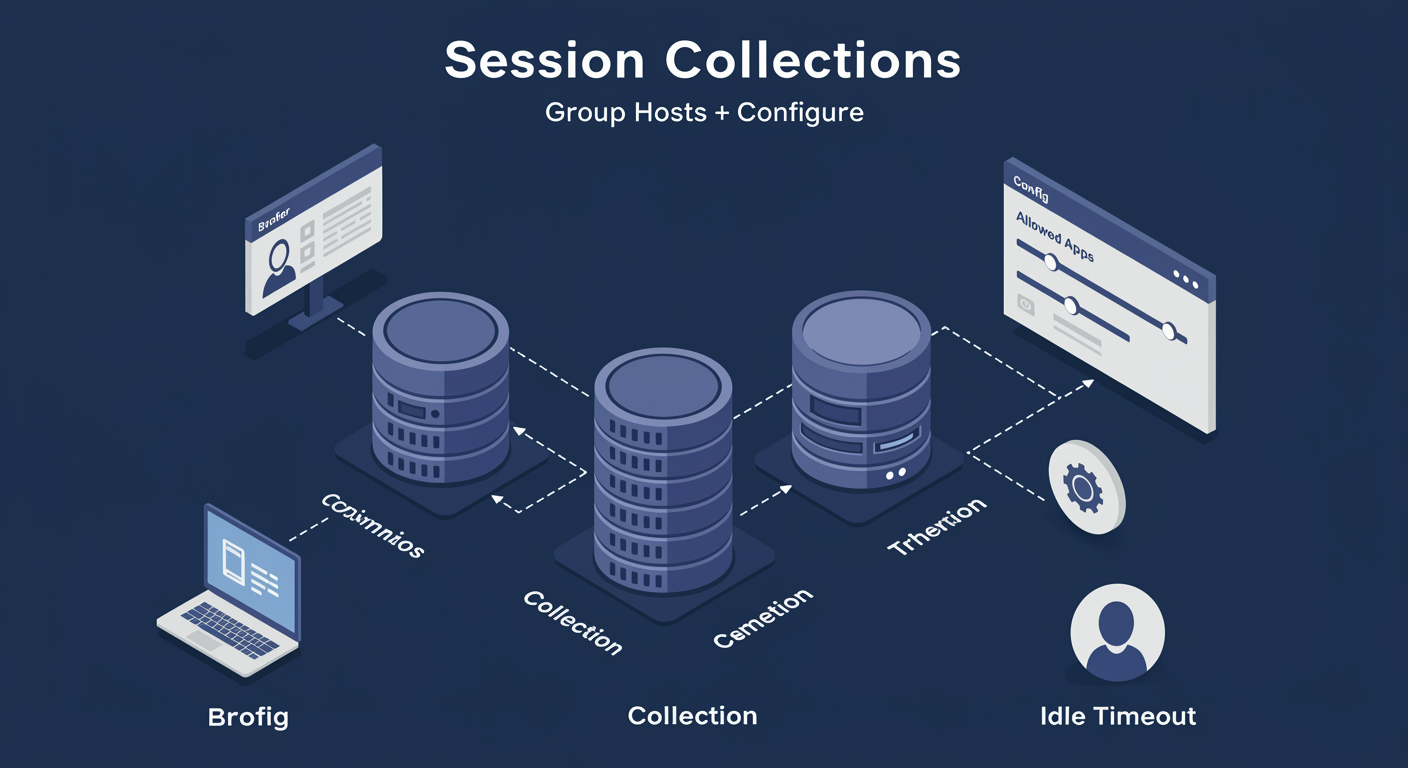
A collection is the unit of grouping in an RDS deployment. It binds together: a set of Session Hosts that serve the collection's workload, a configuration profile applied uniformly to those hosts, and the published resources (full desktops, RemoteApp programs) that users access.
Two collection types. Session Collection (Session-Based) groups Session Hosts that serve sessions to many concurrent users. Virtual Desktop Collection (VDI) groups Hyper-V hosts that run per-user VMs.
Why collections exist. Without them, every Session Host would need its own configuration. Collections let you say "all Session Hosts in this collection run Office, accept idle session timeout at 30 minutes, get drive redirection to local C: but not D:, and present these three RemoteApps to users." Add a new Session Host to the collection and it inherits the configuration automatically.
Collection settings. User Group (which AD groups can connect), Session Settings (idle timeout, disconnect timeout, end on disconnect), Security (encryption level, NLA requirement), Load Balancing (relative weight per host, max session count), Client Settings (drive redirection, printer redirection, clipboard, audio), User Profile Disk path, RemoteApp publishing.
Multiple collections for separation. Many production deployments have multiple collections: a "Standard" collection for office workers, a "Developers" collection with different application sets and looser session timeouts, a "Kiosk" collection with strict lockdown. Same physical Broker and Gateway, separate Session Host groups.
The lifecycle. Create a collection in Server Manager (or via PowerShell). Add Session Hosts to it. Configure properties. Publish desktops or RemoteApps. Users see the published resources via RD Web Access; clicking a resource lands them on a Session Host within the collection chosen by the Broker.
RD Gateway: External Access via HTTPS, CAP + RAP
RDP runs on port 3389. Exposing 3389 directly to the internet is one of the top three causes of compromised servers in industry incident reports. RD Gateway solves the problem by tunneling RDP through HTTPS (port 443), terminating TLS at the edge, authenticating the connection, and then forwarding the RDP stream to an internal Session Host.
The connection flow. External client connects to gateway.contoso.com on 443. Gateway terminates TLS, runs the CAP check, runs the RAP check, opens an internal RDP connection to the target Session Host, and forwards the RDP traffic in both directions. Client and Session Host believe they have a direct RDP session; in reality, every packet is wrapped through the Gateway.
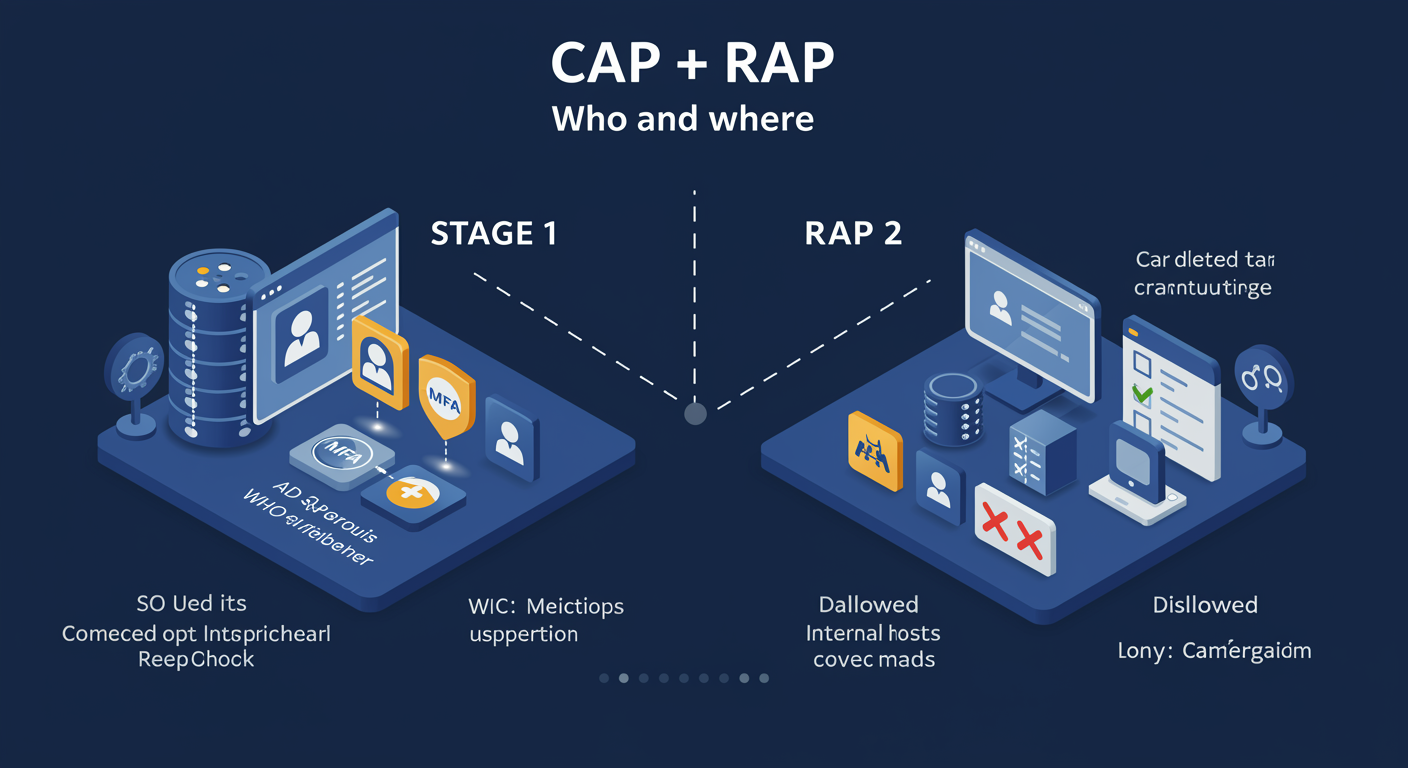
CAP (Connection Authorization Policy). WHO is allowed to connect. Defines: which AD groups are permitted, what authentication method is required (password, smart card, optional MFA via NPS + RADIUS), whether device redirection is allowed (drives, printers, clipboard). One Gateway may have multiple CAPs; the first matching CAP applies.
RAP (Resource Authorization Policy). WHICH internal hosts a CAP-approved user can reach. Defines: a target hostname or group, what RDP port is used internally (usually 3389), which user groups can reach which target groups. RAP lets you say "Sales users can reach Sales-RDSH01-04, Engineering users can reach Eng-RDSH01-08, no one else can reach the Finance Session Hosts via Gateway."
Both must pass. Authentication and CAP filter who; RAP filters where. A user with the right credentials but no RAP coverage for the requested target gets a clean "your account is not allowed to connect through this gateway" message. The two-gate design is what makes Gateway a defensible edge: even credential theft only gets the attacker access to the resources the legitimate user has RAP access to.
NPS + RADIUS integration. Network Policy Server is the CAP policy engine for Gateway. Adding MFA happens at the NPS layer: configure NPS to require a second factor via a RADIUS extension (Azure MFA Server / Duo / etc). Gateway calls NPS; NPS triggers the MFA prompt; user approves; the connection proceeds. The Gateway itself is unaware that MFA happened.
Certificate requirements. Gateway needs a publicly-trusted certificate (Let's Encrypt, public CA) with the FQDN clients use. Internal Session Hosts need a trusted certificate to the Gateway, internally-issued via AD Certificate Services is the norm. Both legs are TLS-protected end-to-end.
RDP Security: NLA and Encryption
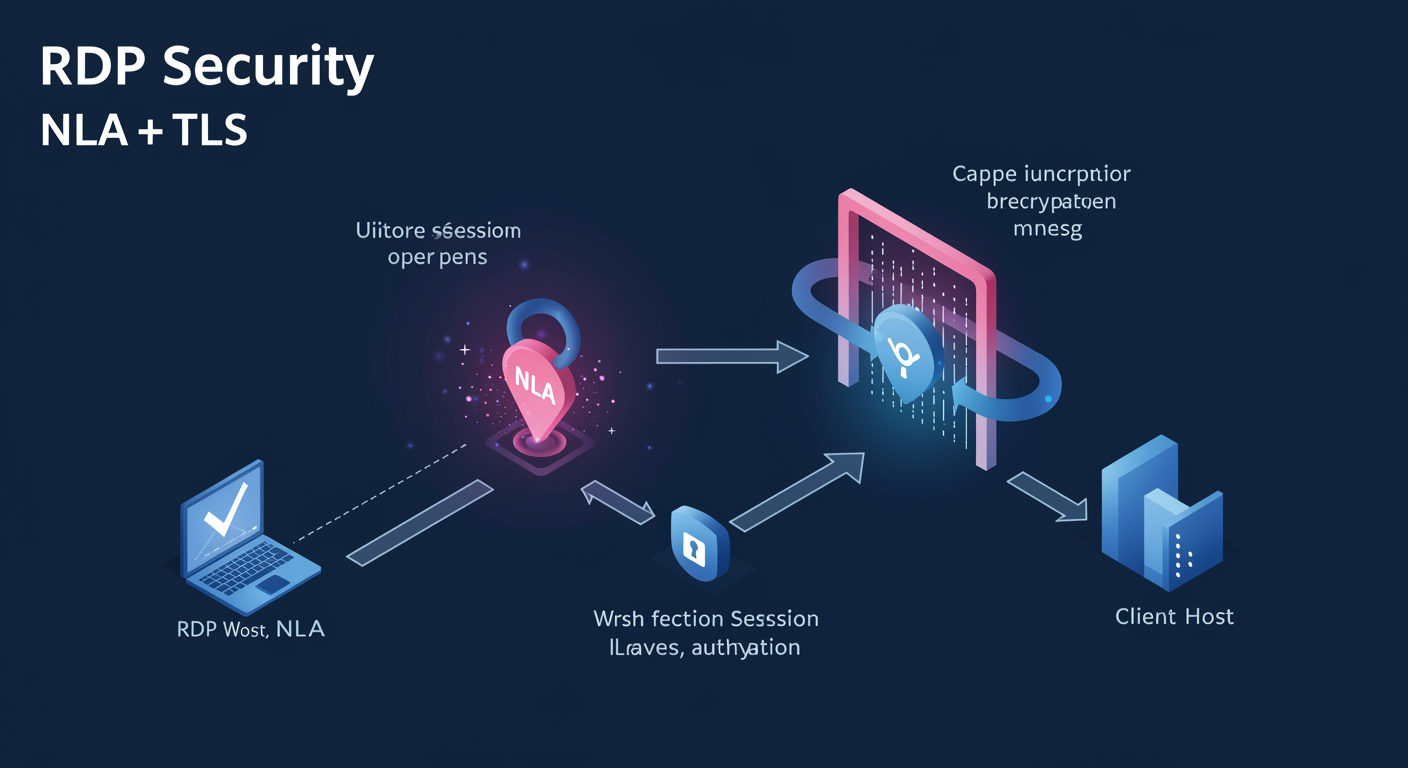
RDP carries every keystroke, screen update, and clipboard contents between client and server. It is also one of the most heavily attacked protocols on the internet (BlueKeep, brute-force botnets). Two configuration knobs make the difference between RDP-the-secure-protocol and RDP-the-incident-waiting-to-happen.
Network Level Authentication (NLA). Authentication happens BEFORE a session is established. Without NLA, an unauthenticated client opens a TCP connection, the server allocates a session, paints a logon screen, and only THEN asks for credentials. With NLA, the client must prove identity before the server allocates anything; the server rejects unauthenticated connection attempts at the TCP/credential negotiation layer. This is the single most important RDP setting.
Why NLA matters. Pre-NLA RDP servers were vulnerable to denial-of-service (flood with TCP connections, exhaust session table) and to remote-code-execution flaws like BlueKeep (server processed traffic from unauthenticated clients). NLA closes both: no session is allocated until authentication is confirmed, and the server does not parse application-layer RDP data from clients who have not proven identity.
NLA requires CredSSP. Credential Security Support Provider is the protocol that lets the client prove identity at the TCP layer. Available on all modern Windows clients. Linux/macOS clients (FreeRDP, Microsoft Remote Desktop) also support CredSSP. The only clients that cannot use NLA are very old (Windows XP / Server 2003), and you should not be supporting those on a modern deployment.
Encryption level. RDP encryption is configurable: Low (40-bit, deprecated, do not use), Client Compatible (negotiate up to the highest both sides support), High (128-bit minimum), FIPS Compliant (only FIPS-validated algorithms). Default in modern Windows is High or FIPS. The transport itself is TLS in modern RDP deployments (RDP 8+), encrypted using the certificate bound to the listener.
Certificate on the Session Host. Without a real certificate, RDP generates a self-signed cert and the client sees a "you cannot verify the publisher" warning. Internal AD Certificate Services should issue every Session Host a certificate matching its FQDN; clients trust the issuing CA via Group Policy. Production RDS environments have CA-issued certs on every Session Host, never self-signed.
RemoteApp Programs: Single-App Delivery
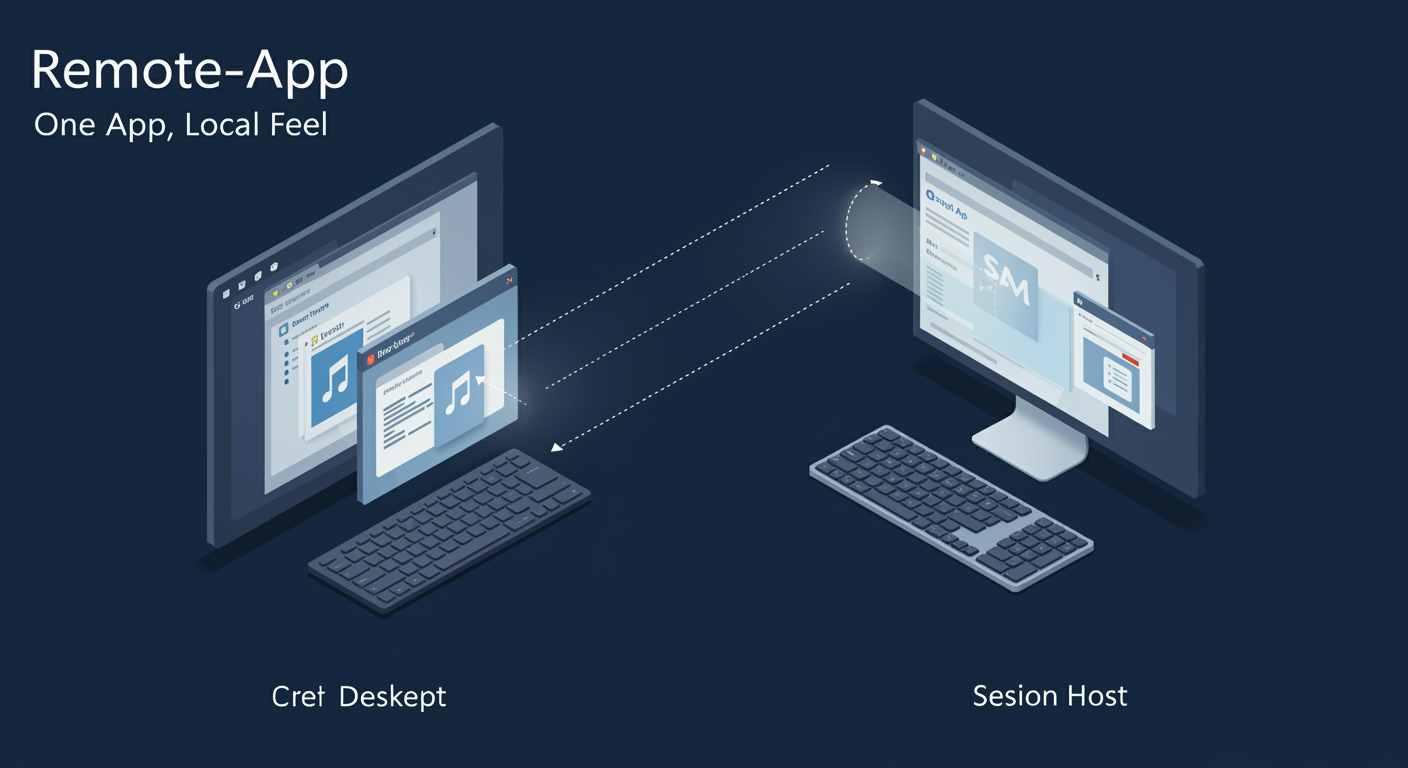
RDS does not have to deliver a full desktop. RemoteApp delivers a single application from the remote Session Host to the local client, where it appears in the user's local taskbar and looks (almost) like a locally-installed app. The Session Host still runs the app; only the window contents stream to the client. Used for legacy apps that cannot be installed on modern clients, for centralized licensing of expensive software, and for security-sensitive apps that should not have their data leave the server.
Publishing a RemoteApp. In Server Manager → Remote Desktop Services → Collections → pick the collection → RemoteApp Programs → Publish RemoteApp Programs. Browse to an executable on the Session Host (the EXE must exist on every Session Host in the collection). Configure: display name, icon path, command-line arguments, whether to allow command-line args from clients (security caution).
How users launch. Three paths. (1) RD Web Access portal: user signs in, sees the published RemoteApps as icons, clicks one. (2) Subscribed feed: client subscribes once to the feed URL (https://gateway.contoso.com/RDWeb/Feed/webfeed.aspx), published apps appear as Start menu entries on the local machine, indistinguishable from local apps until launched. (3) Direct .rdp file: a .rdp file that targets a specific RemoteApp, distributed by IT or downloaded from the portal.
Advanced configuration. User Assignment: restrict who sees a published app (per-app filtering inside the collection's user group). Command-Line Arguments: pre-set arguments or accept from client (only enable Accept From Client when you trust the client not to inject malicious args). File Type Associations: register the RemoteApp as the default handler for specific file extensions on the client; double-clicking a .docx locally opens it in the remote Word.
RemoteApp vs full desktop. RemoteApp = one app window on local desktop, low friction, hides the fact that it's remote. Full desktop = entire remote Windows desktop in a window or full-screen, clearly distinct from the local desktop. For most LoB-app delivery scenarios, RemoteApp is the better UX. Full desktop is reserved for cases where users genuinely need the remote desktop shell.
Audio, drives, clipboard, printers. RemoteApp inherits these redirection settings from the collection. If the collection allows drive redirection, the RemoteApp can see the client's drives as \\tsclient\C. If clipboard redirection is on, copy-paste works between client and remote app. If printer redirection is on, the local default printer is also the remote app's default. Tune redirection at the collection level; do not over-grant.
RDS Licensing: Per-User vs Per-Device CALs
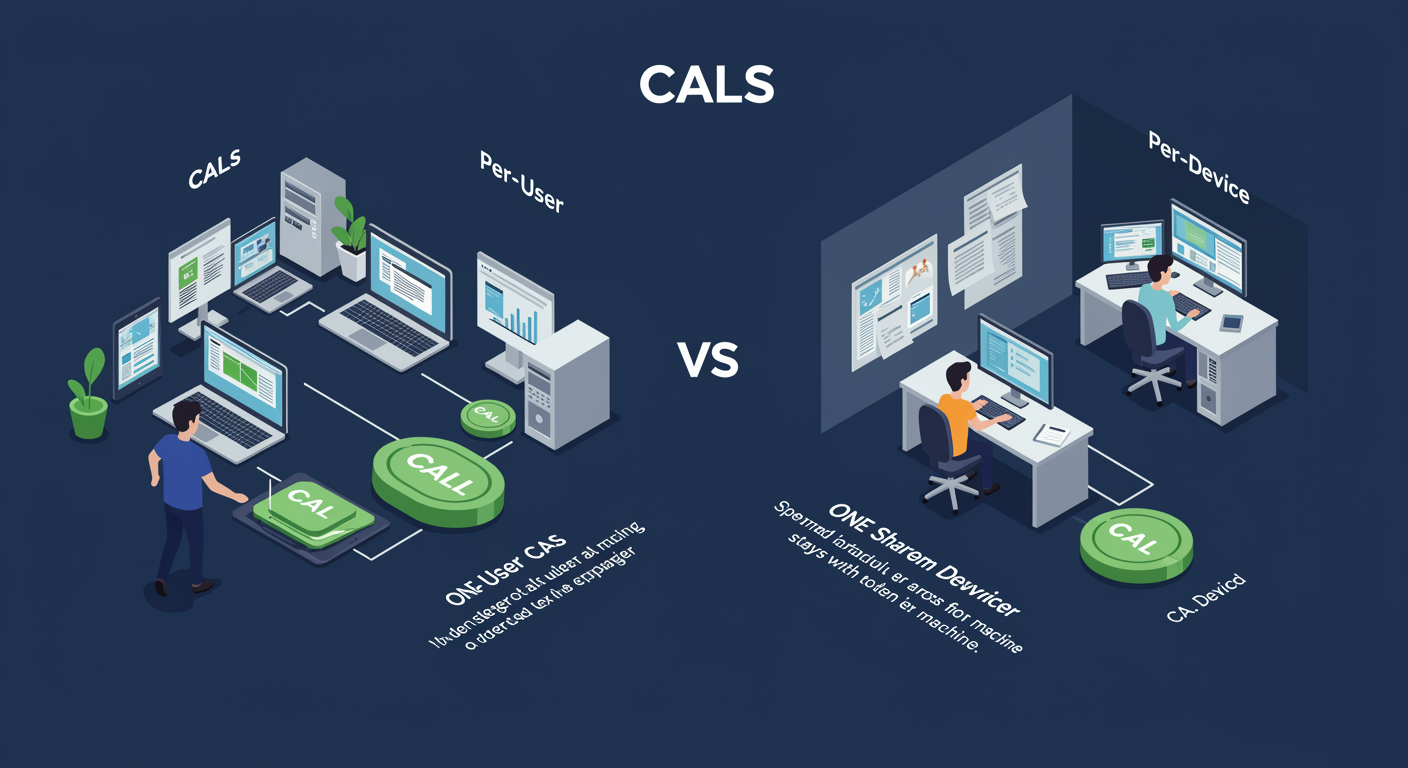
RDS requires its OWN Client Access Licenses on top of the Windows Server license. The CAL is what lets a user connect to a Session Host for an interactive session. Two CAL types, with very different operational behavior: pick by your user-to-device ratio.
Per-User CAL. One CAL per Active Directory user. That user can connect from ANY device. Tracked in AD via a licensing extension attribute on the user object. The RD Licensing server issues the per-user CAL from a pool; the user object carries the assignment. Choose Per-User when users have multiple devices (laptop + tablet + desktop) or when work-from-anywhere is the norm.
Per-Device CAL. One CAL per DEVICE, regardless of how many users sit at that device. Stored as a token on the device itself. Choose Per-Device when shared devices serve multiple users (kiosks, shift workers swapping seats, classroom computers). One device + many users = one CAL.
The 120-day grace period. Without any RD Licensing server, or with one that has no available CALs, Session Hosts issue temporary 120-day licenses. After 120 days, new connections are refused. The grace exists to let you stand up RDS before licensing, not to be your permanent operational state.
License server discovery. Session Hosts must find an RD Licensing server. Discovery scope can be: Workgroup (local Discovery), Domain (auto-discover AD-published Licensing servers), or Forest. Configure in Deployment Properties → RD Licensing → Specify a license server. Most production setups specify the license server FQDN explicitly rather than rely on auto-discovery.
License reporting. RD Licensing Manager shows installed CAL count, issued CAL count, and per-user / per-device assignment. Run periodic reports for license audits; Microsoft and resellers may request these in compliance reviews.
Volume Licensing vs SPLA. Volume Licensing CALs are perpetual (you bought them once). Service Provider License Agreement (SPLA) CALs are rental (you pay monthly per active user/device). Service providers who host RDS for customers use SPLA; enterprises self-hosting RDS use Volume Licensing CALs. Mixing the two is a compliance trap; pick the model that matches your business arrangement.
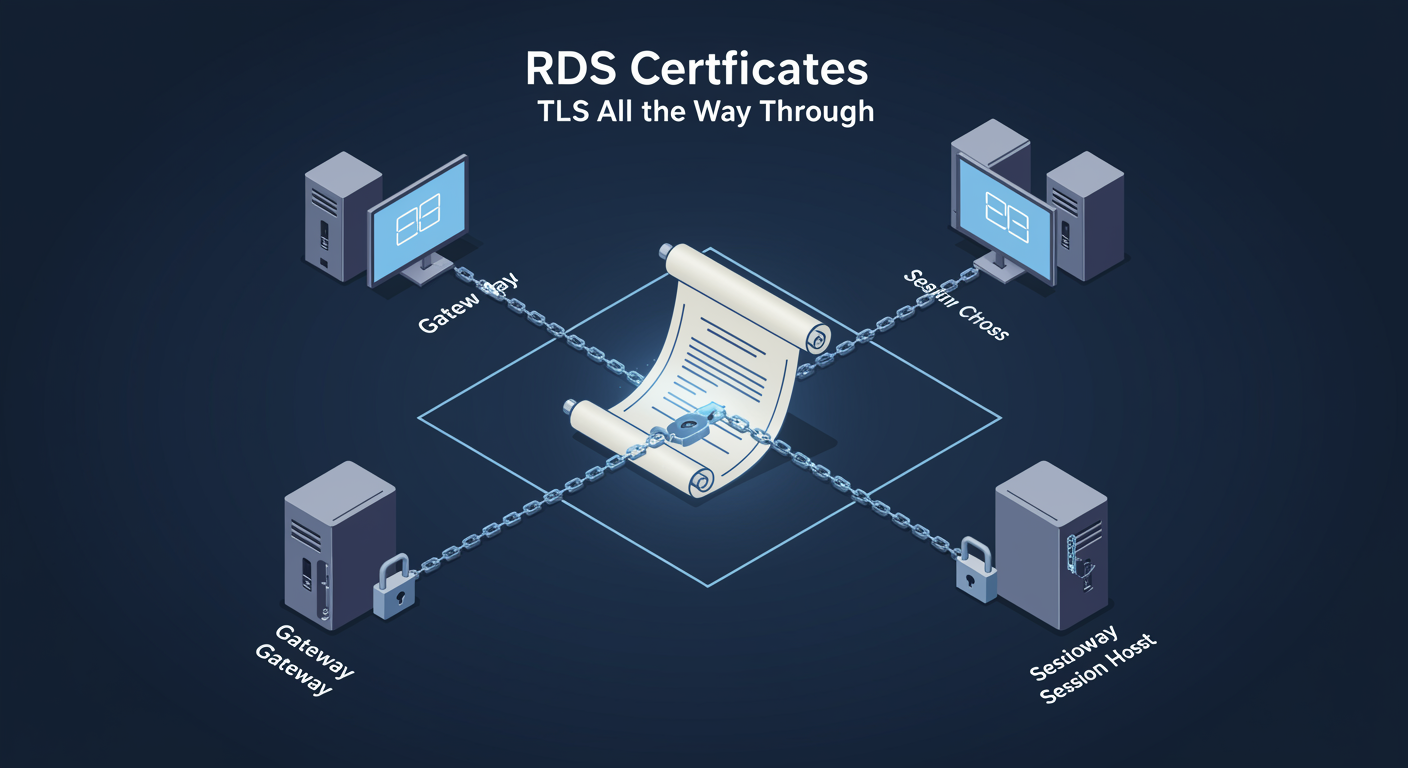
RDS Certificates: TLS for Gateway, Web Access, Broker, Host
An RDS deployment has four certificate consumers: RD Gateway, RD Web Access, RD Connection Broker (both for publishing and for connecting), and RD Session Hosts. Get the certificates wrong and the user sees scary "publisher cannot be verified" warnings, or in the case of CredSSP-strict clients, the connection refuses entirely.
RD Gateway certificate. Must be a publicly-trusted certificate (issued by a public CA, present in the client OS root store). FQDN must match what the external client uses to reach the Gateway (gateway.contoso.com). Without this, every external client sees a TLS warning on every connection, which trains users to click through warnings, which leads to other security failures.
RD Web Access certificate. Same publicly-trusted requirement (Web Access is also internet-facing). Often the same certificate as the Gateway when both run on the same FQDN. Bound in IIS Manager → the RD Web Access site → Bindings → HTTPS binding → certificate selection.
RD Connection Broker certificate. Two roles for the Broker: signing the .rdp files sent to clients (so the client can verify it was launched from a trusted source), and identifying itself when clients connect for broker redirection. The broker's certificate FQDN must match the broker's published name; if you have a Broker high-availability cluster, this is a SHARED name across the cluster.
RD Session Host certificates. Each Session Host needs a certificate matching its FQDN. Internally-issued is fine: AD Certificate Services issues a cert per host, every domain-joined client trusts the issuing CA via Group Policy. Without per-host certs, clients see "the identity of the remote computer cannot be verified."
Wildcard vs SAN. Wildcard certificate *.contoso.com can cover Gateway, Web Access, Broker, and all Session Hosts in one shot. Subject Alternative Name (SAN) certificate explicitly lists each FQDN. Wildcard is operationally easier; SAN is auditable (the certificate states exactly what hosts it covers). Either works.
Configuration. Server Manager → Remote Desktop Services → deployment overview → Tasks → Edit Deployment Properties → Certificates. Pick a PFX for each role; the wizard distributes the certificate to the relevant server(s). Re-run when certificates approach renewal.
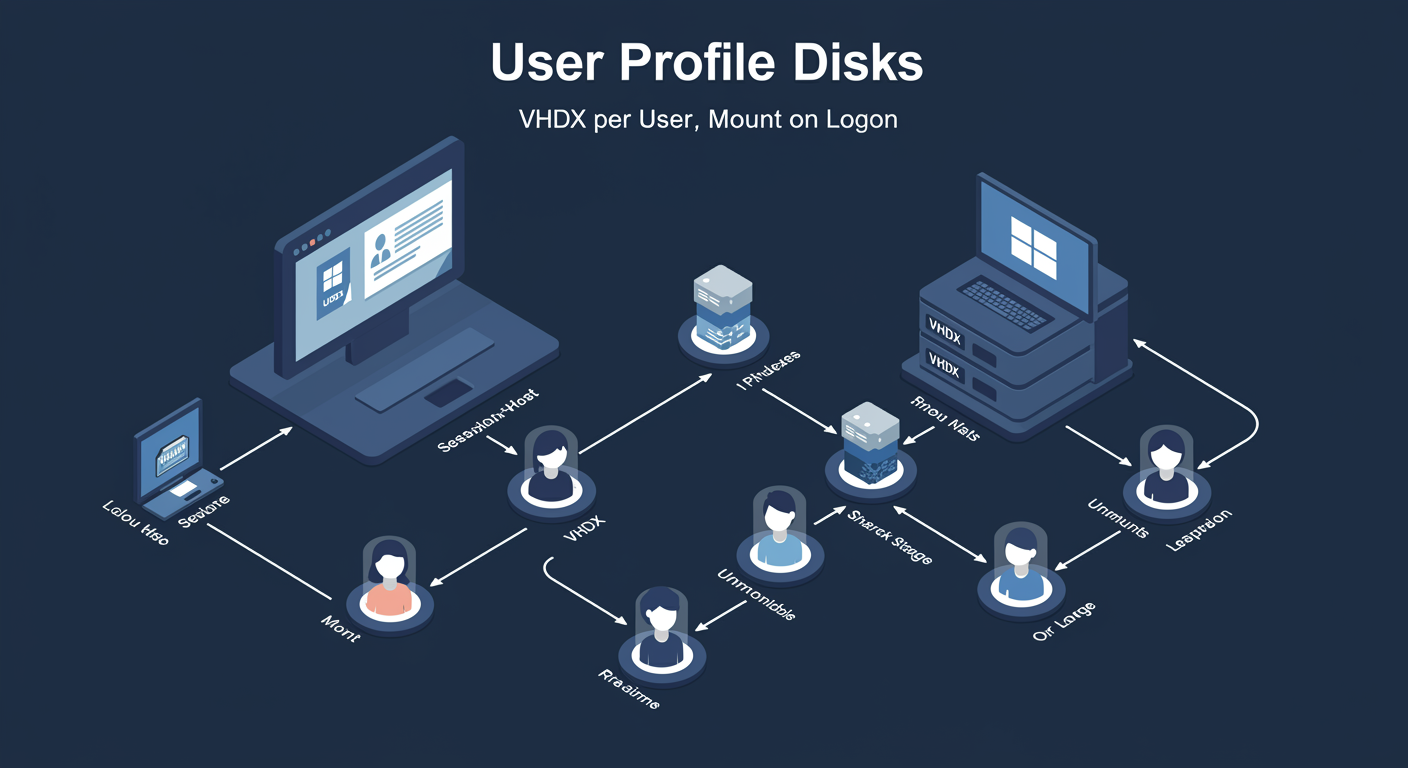
User Profile Disks
In a Session-Based collection with multiple Session Hosts, each user might land on a different Host every session. Without something to make the user's profile follow them, the user starts fresh every time, the desktop they set up yesterday is gone today.
User Profile Disks (UPD). A per-user VHDX disk file stored on a network share. When the user connects to ANY Session Host in the collection, the UPD mounts as the user's profile location. Their profile (documents, settings, registry, application data) lives on the VHDX, which travels with the user. Logoff dismounts the VHDX. Next logon, possibly on a different Host, remounts the SAME VHDX.
The storage shape. UPDs live on an SMB share, one VHDX per user. Recommended capacity: 5-20 GB per user, depending on workload (heavy application caching vs lightweight kiosk). Storage performance matters; the share should be on fast disks (SSD) since every read/write to the user's profile goes over SMB.
UPD vs Roaming Profiles vs FSLogix Profile Containers. Three approaches to the same problem. Roaming Profiles is the legacy approach: copy the profile to the network at logoff, copy it back at logon, slow and error-prone. UPD is the RDS-native answer: mount-on-demand instead of copy. FSLogix Profile Containers is Microsoft's newer, more robust answer (acquired by Microsoft, included in Windows Server licenses since 2018): handles edge cases UPD does not, supports Office 365 cache properly, recommended for new deployments.
Operational caveats. A user can only have ONE UPD mounted at a time. Concurrent logons across Session Hosts in the same collection should not happen, the Broker should always route the second connection back to the original session. If two sessions DO open (broker misconfiguration, broker outage), the second session sees a temporary/local profile and the user's UPD changes are not saved.
Backup. The UPD share should be backed up. Loss of a user's UPD = loss of their profile. Treat the UPD share like critical user data, not like ephemeral session state.
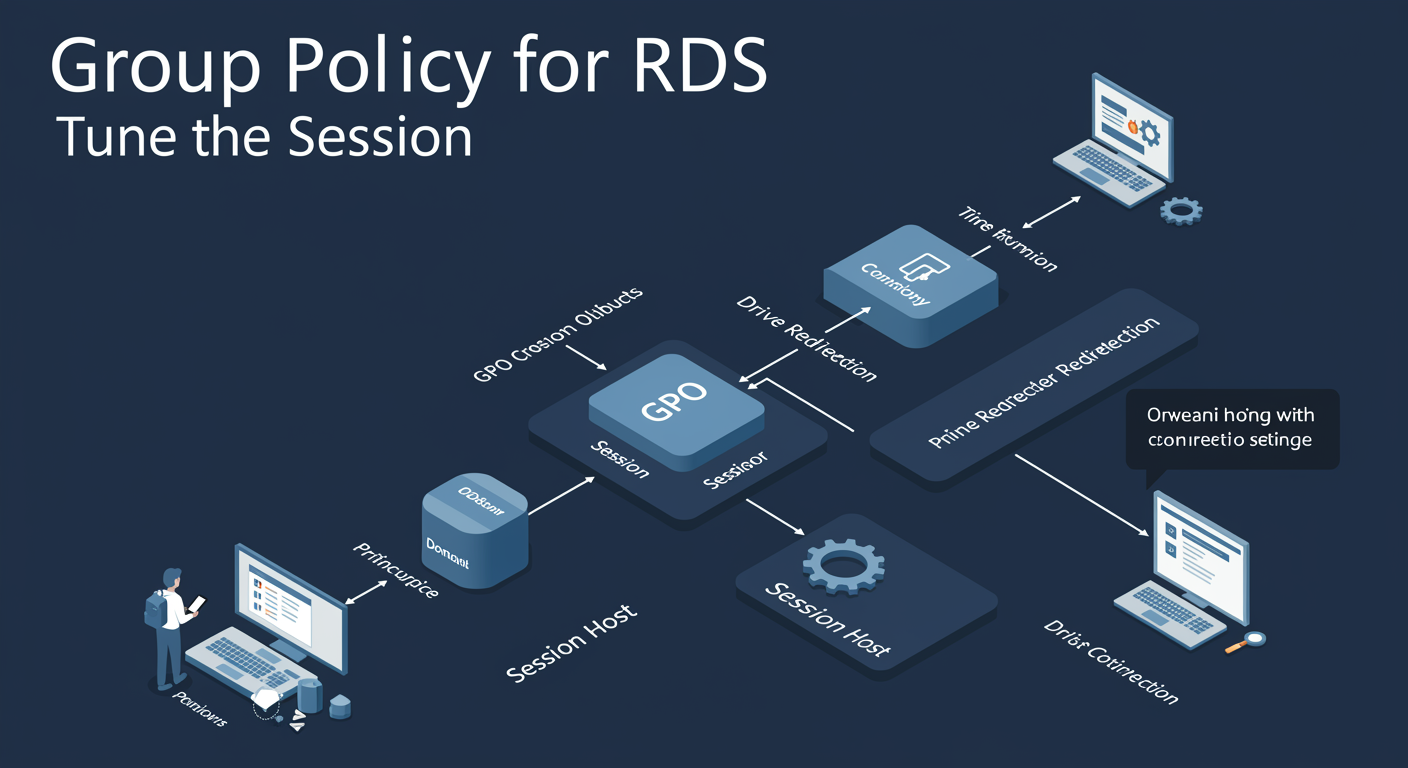
Group Policy for RDS: Tune the Session
Group Policy provides the per-session-level configuration knobs for RDS that the collection-level configuration does not cover. Settings are in two trees: Computer Configuration → Policies → Administrative Templates → Windows Components → Remote Desktop Services → Remote Desktop Session Host (machine-targeted) and the equivalent under User Configuration (user-targeted).
Session Time Limits. Set maximum disconnected session lifetime (disconnect for 30 min, then force logoff). Set maximum active session lifetime (e.g., 24-hour sessions force logoff at the 24-hour mark, even if active). Set idle session lifetime (no input for 15 min, force disconnect). These are GPO settings that override the collection-level UI defaults; pick one source of truth (typically GPO) and stick with it.
Device and Resource Redirection. Allow/Deny: clipboard, drive, audio, smart card, USB, COM/LPT port redirection. Settings here override the collection-level redirection. Common pattern: collection allows everything, GPO denies USB and COM redirection for security. The most restrictive setting wins.
Connections. Limit maximum concurrent connections per user (default unlimited). Restrict the number of sessions per user (1 session, prevent the same user from opening multiple sessions on different hosts).
RD Gateway redirection. Force clients to use a specific Gateway, override client-supplied Gateway settings. Useful when you want to ensure even on-premises connections route through Gateway for logging/auditing.
Licensing. Specify the License Server. Set the Licensing Mode (Per-User or Per-Device). These should match Deployment Properties; GPO is the enforcement mechanism if a Session Host gets out of sync.
Profiles. Set the Remote Desktop user-profile path, the Remote Desktop home folder. Pre-FSLogix/UPD legacy way to put user data on the network.
The order. Group Policy applies on top of collection settings on top of Session Host defaults. Use collection settings for the baseline; use GPO for cross-collection or domain-wide overrides. Document where you set what; future you will not remember.
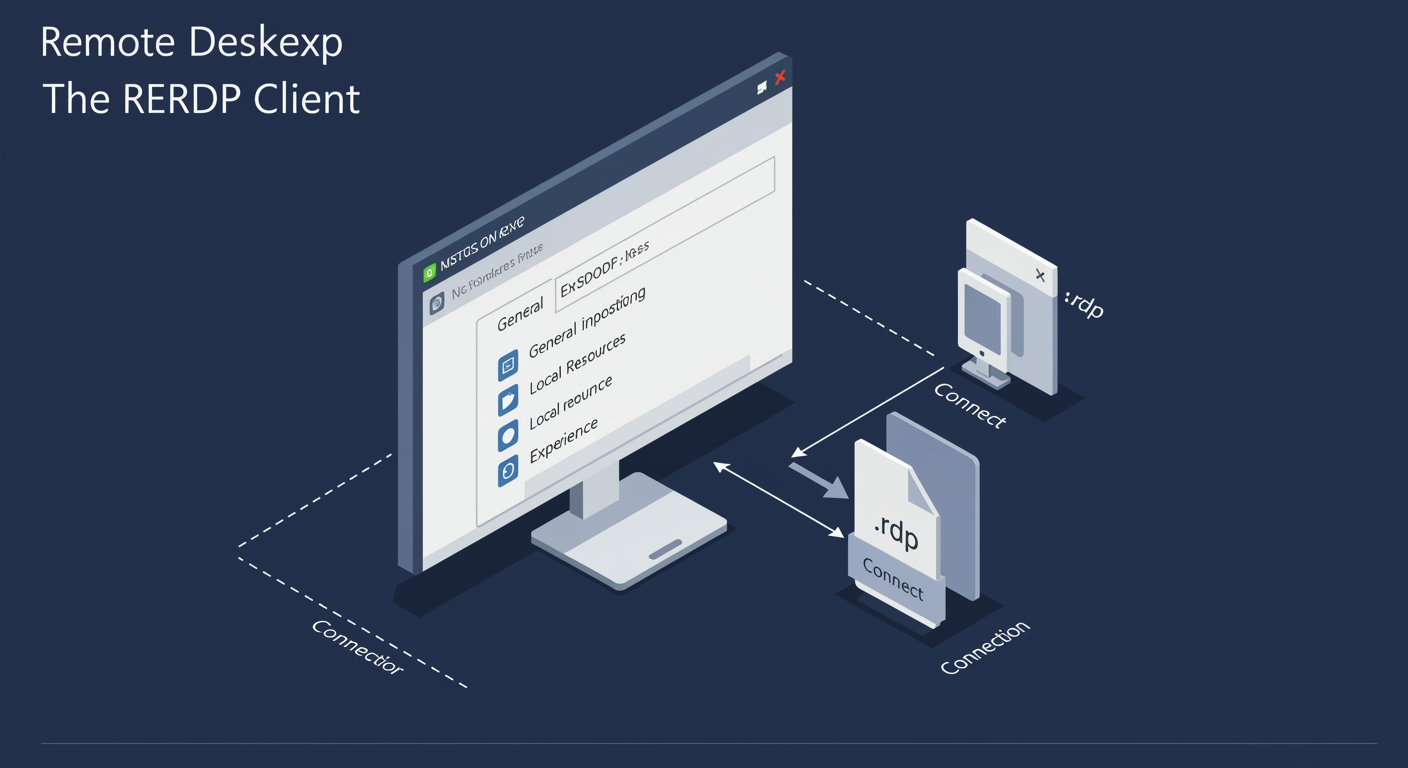
Remote Desktop Connection: mstsc.exe
The Windows-built-in RDP client. Ships with every Windows install. Launches as mstsc.exe. The same client connects to a single Session Host (direct connection), to an RD Gateway (HTTPS-tunneled connection), or launches a saved RemoteApp (single-app session). Knowing the client well speeds up troubleshooting because most user-reported issues end up being a client-side configuration.
The General tab. Computer (the FQDN or IP of the target), Username (the AD user to log on as), Save / Open / Save As (manage .rdp files). The .rdp file is a plaintext config file that captures every setting from every tab; saving lets users (or admins) distribute pre-configured connection profiles.
The Display tab. Resolution (a slider from 640x480 to full-screen and even multi-monitor). Color depth. Full-screen vs windowed. Display the connection bar in full-screen mode (the small bar at the top that lets users minimize, restore, close).
The Local Resources tab. Audio playback (where audio plays: remote, local, none). Keyboard (Windows-key combos go to remote vs local). Local devices and resources: printers, clipboard, drives, smart cards, ports. These are the user-side toggles; the server may have GPO/collection-level restrictions that override.
The Experience tab. Performance optimizations based on connection speed: visual styles, desktop background, font smoothing, persistent bitmap caching. Critical for slow connections (cellular, low-bandwidth WAN). The "Modem" preset turns off everything for max throughput; LAN preset keeps everything on.
The Advanced tab. Server authentication settings (warn, connect anyway, do not connect on certificate mismatch). RD Gateway settings: which Gateway to use, credentials to use for the Gateway, "use my RD Gateway credentials for the remote computer" toggle. This is where Gateway routing gets configured if not pre-set in the .rdp file.
.rdp file authoring. The format is simple key=value pairs. IT departments distribute pre-configured .rdp files to users so users do not have to remember settings. Sign .rdp files with a code-signing certificate so end-users can verify authenticity; broker-published files are auto-signed by the broker.
RDS Session Management: Connect, Disconnect, Reconnect
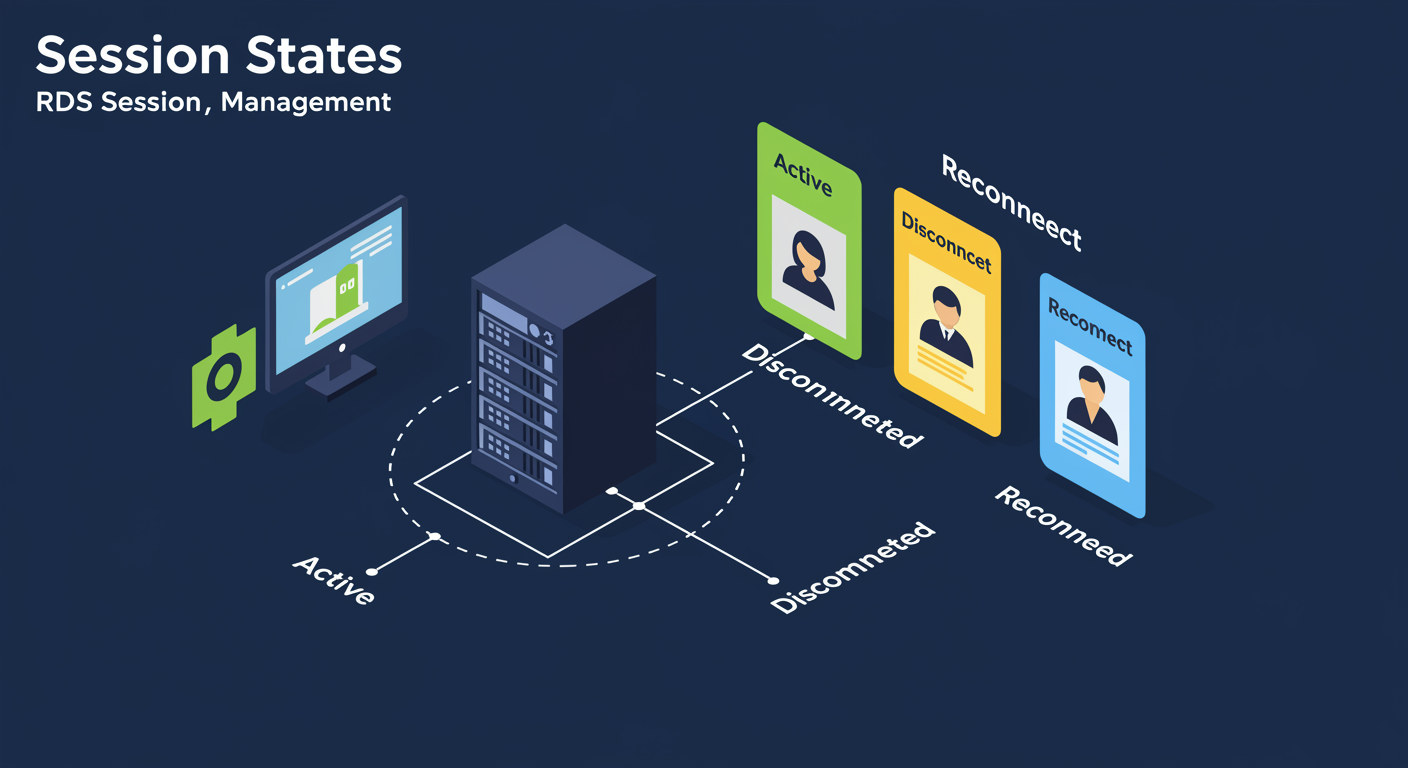
RDS sessions have a lifecycle distinct from local desktop sessions. Understanding the states (active, disconnected, reconnected) and the broker's role in routing reconnects is what makes RDS feel reliable to users.
Connect. First time a user connects, the Connection Broker chooses a Session Host based on the load-balancing weights (Relative Weight per host in the collection's Load Balancing settings) and the current session count. The chosen Host allocates a new session for the user, runs the user's logon scripts, mounts the User Profile Disk if configured, and presents a desktop or RemoteApp.
Disconnect. The user closes the client window or the network drops. The Session Host KEEPS the session running, marked "Disconnected." Applications continue to execute (long-running batch jobs, downloads). The user's UPD remains mounted. From the user's perspective, "I closed my RDP client and walked away."
Reconnect. The user starts mstsc again and connects to the same Gateway/Broker. The Broker recognizes the user, looks up which Session Host hosts the disconnected session, and routes the new connection back to that SAME Host. The session re-attaches; the user sees their applications exactly where they left them. This is the "stateless RDS" illusion that makes Session-Based deployments tolerable.
Disconnected session limits. A disconnected session does not consume CPU but consumes RAM and license slots. Production policy: disconnected sessions force logoff after N hours (typical: 4-24h). Configure via collection → Session settings → Idle/Disconnected timeouts, or via Group Policy.
Active session limits. Even an active, in-use session has a max lifetime in many deployments. After 24 hours, force logoff to ensure sessions do not become orphaned. The user reconnects and starts fresh; UPD preserves their data.
Broker outage behavior. If the Broker is down when a user attempts to reconnect, the Broker cannot look up their session. The client connects directly to whichever Session Host the .rdp / DNS resolves to, allocates a NEW session there, and the user does NOT reconnect to their previous session. This is the operational impact of Broker downtime; HA Brokers (covered next slide) eliminate the risk.
Inspecting sessions. qwinsta (query winstation) and rwinsta (reset winstation) at the command line on a Session Host. Get-RDUserSession -ConnectionBroker RDCB in PowerShell. Server Manager → Remote Desktop Services → Collections → Connections also shows current state.
High Availability: Redundant Roles, Shared SQL
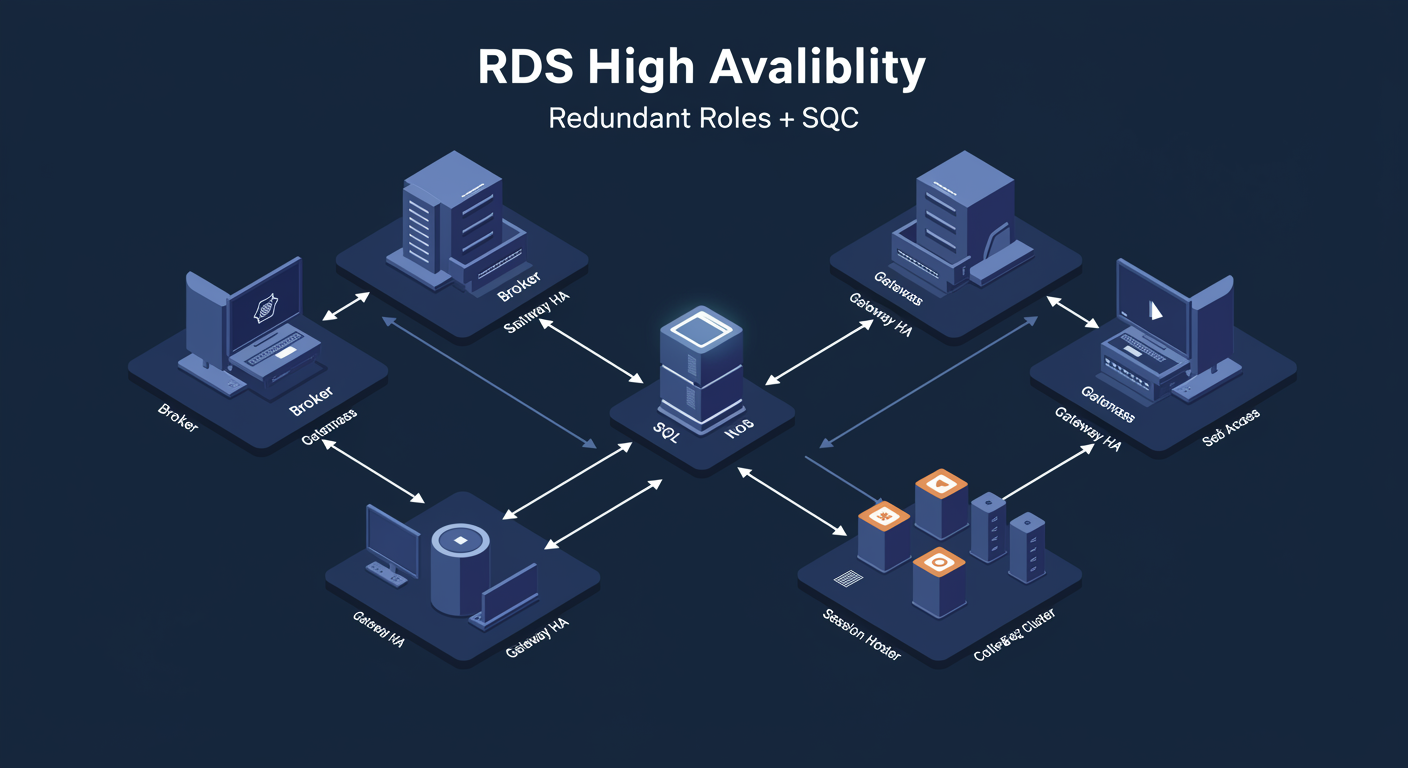
A single Broker is the single point of failure in a default RDS deployment: lose the Broker, lose the ability to route new connections AND lose the ability to reconnect disconnected sessions back to their original host. Production-grade RDS adds redundancy to each role. The design is straightforward but the configuration is detail-heavy.
Broker HA. Two or more Brokers, both active (active-active). The session database moves OUT of the local Windows Internal Database and INTO a shared SQL Server (Standard or Enterprise). Both Brokers read/write the same SQL DB and stay in sync. Clients reach the Broker cluster via a shared DNS name that round-robin-resolves to both Broker IPs. Lose one Broker, the other keeps routing connections.
Gateway HA. Two or more Gateways behind an external load balancer (F5, Azure Load Balancer, KEMP, etc.). The load balancer presents one external FQDN that clients use; it distributes traffic across the Gateways. Loss of one Gateway is transparent to clients; the load balancer routes around it.
Web Access HA. Two or more Web Access servers, also behind a load balancer (often the same one as Gateway). Web Access servers share a publishing configuration sourced from the Broker; both serve the same RemoteApp list to clients.
Session Host scale-out. Multiple Session Hosts in each collection, sized for peak concurrent sessions. The Broker load-balances across hosts. Loss of one Session Host disconnects its current users (who reconnect via Broker and land on a surviving host); new connections route to surviving hosts.
Licensing HA. RD Licensing supports pointing Session Hosts at multiple license servers. The first license server attempted gets the request; the next is tried on failure. Run two Licensing servers, both pre-loaded with CALs.
The SQL gotcha. The SQL Server hosting Broker HA's session DB itself becomes a single point of failure unless ALSO clustered (AlwaysOn Availability Group, Failover Cluster Instance). For full HA, plan SQL HA in parallel with Broker HA. Many "highly available" RDS deployments quietly skip this and have a single SQL VM, which is the actual single point of failure.
Test the failover. Document and rehearse: kill one Broker, verify the other keeps routing. Stop one Gateway, verify load balancer health-checks remove it from the pool. Drain and kill one Session Host, verify sessions migrate. The first time you test failover should NOT be during the actual outage.
RD Web Access: Portal and Subscribed Feed
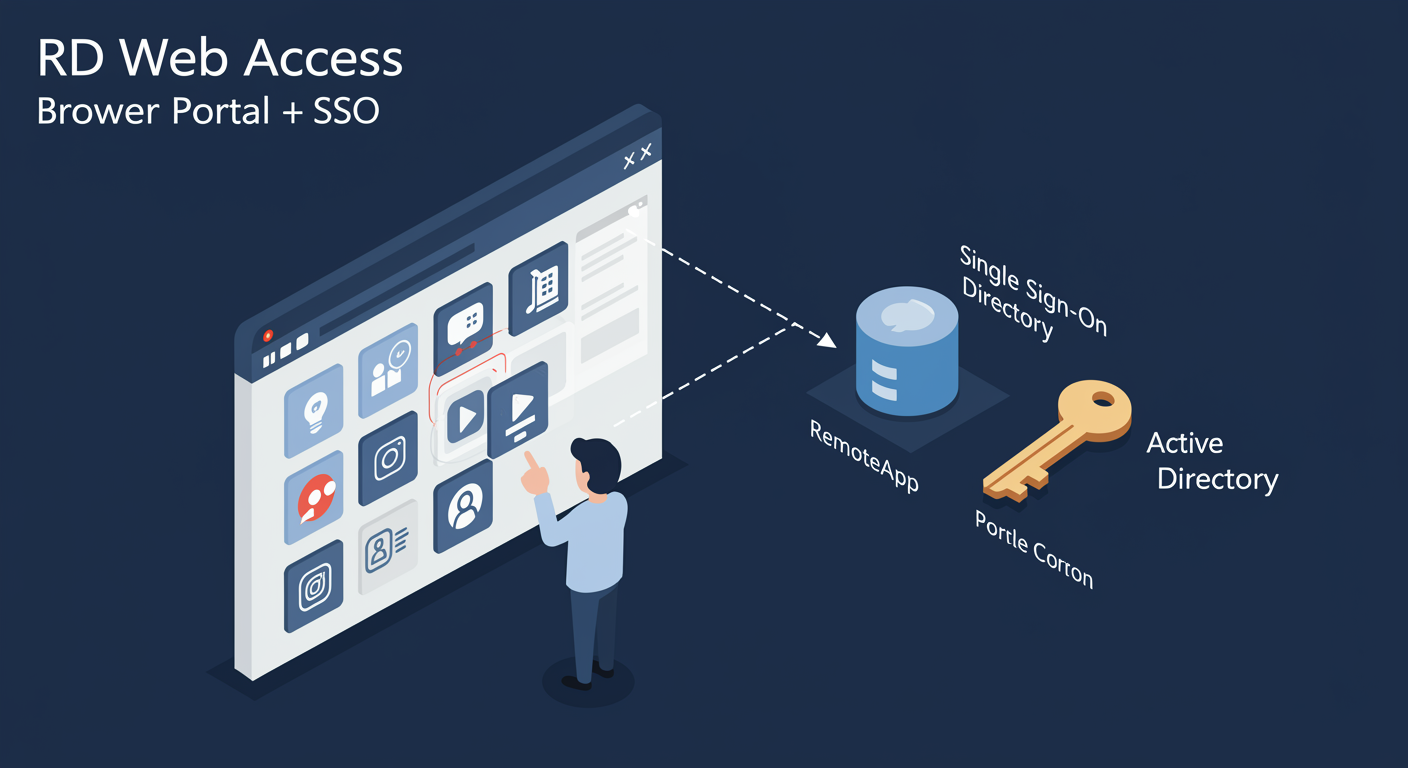
RD Web Access is the user-facing entry to RDS. A browser-accessible HTML portal (and a feed URL for the modern Remote Desktop client) that lists every published RemoteApp and every published Desktop available to the user. Users sign in with their AD credentials, see what they have access to, click to launch.
The portal URL. Default is https://gateway.contoso.com/RDWeb/. The user is prompted for credentials (AD user/password). The portal authenticates against AD, queries the Broker for the user's available resources (which RemoteApps and Desktops the user's group membership unlocks), and renders them as tiles.
The user experience. One screen of icons, each representing a RemoteApp or Desktop the user can launch. Clicking an icon downloads a .rdp file (configured with Gateway routing); the client opens it and starts a session. The portal does not stream the session itself; it is purely a launcher.
The subscribed feed (modern client). Instead of opening the portal in a browser each time, users subscribe ONCE to the feed URL (https://gateway.contoso.com/RDWeb/Feed/webfeed.aspx) in the Microsoft Remote Desktop client. The client polls the feed, registers each published RemoteApp as a local Start menu entry, and refreshes the list periodically. Users launch RemoteApps from the Start menu without ever visiting the portal again. This is the recommended UX in modern deployments.
Single sign-on. If clients are domain-joined or use Web SSO with the Gateway, the user signs in once at the portal/feed level and does NOT re-enter credentials when launching individual RemoteApps. Achieved via CredSSP credential forwarding, configured at the Web Access server and trusted by Session Hosts via Group Policy.
Customization. The portal page is customizable (different banner image, custom CSS), useful for branding when RDS is consumer-facing. Edit %windir%\Web\RDWeb\Pages\ files; back up before changes.
HTML5 client. Modern RDS supports a fully browser-based HTML5 client (no client install required). Useful for kiosks, Chromebooks, BYOD scenarios where the user cannot install the full mstsc client. Performance is lower than the native client; reserve for cases where the native client is not available.
RD Gateway Policies Deep Dive: CAP and RAP
CAP and RAP were introduced at high level on the earlier Gateway slide. This slide is the configuration depth: how the policies compose, common patterns, and the traps that result in "users cannot connect through the Gateway" tickets.
CAP composition. Multiple CAPs can exist on one Gateway. They are evaluated in order; the FIRST matching CAP grants or denies the connection. A connection that matches no CAP is denied (default-deny). Typical patterns: one CAP per user-group with different settings (a "Standard Users" CAP allows clipboard and printer redirection; an "External Contractors" CAP denies both).
CAP fields. User Groups (AD groups whose members the policy applies to), Client Computer Groups (AD groups of computer objects, the client machine must also be in this group for stronger trust; rarely used), Supported Authentication Methods (password, smart card), Device Redirection (allow or deny per resource type: drives, printers, clipboard, etc.), Timeouts (idle timeout, session timeout enforced at the Gateway).
RAP composition. Multiple RAPs per Gateway, evaluated in order. Each RAP says "if user belongs to GROUP and target host belongs to GROUP, allow the connection." Default-deny: no matching RAP means no access.
RAP fields. User Groups (which AD groups the policy applies to), Network Resource group (either a static list of FQDNs, an AD computer group, or "any computer"), Allowed Ports (default 3389; can restrict to standard RDP only, or open to non-standard ports for special cases).
The common trap. A user has a valid CAP (authentication passes) but no RAP that covers the target host. They authenticate, then get "your computer cannot connect to the remote computer because the Remote Desktop Gateway server's policy does not allow you to use the source computer." Action: add a RAP that covers the user's group and the target group.
NPS = the policy engine. CAPs are stored as Network Policy Server policies. The Gateway calls NPS to evaluate each connection. To add MFA: edit the NPS policy backing the CAP and add a RADIUS extension for the MFA provider. NPS calls the MFA provider; user approves; NPS returns success; Gateway proceeds with the connection.
Auditing CAPs and RAPs. Event log: Microsoft → Windows → TerminalServices-Gateway. Each connection attempt logs which CAP and RAP matched (or didn't), what the auth result was, and when the session closed. Critical for forensic review after an incident.
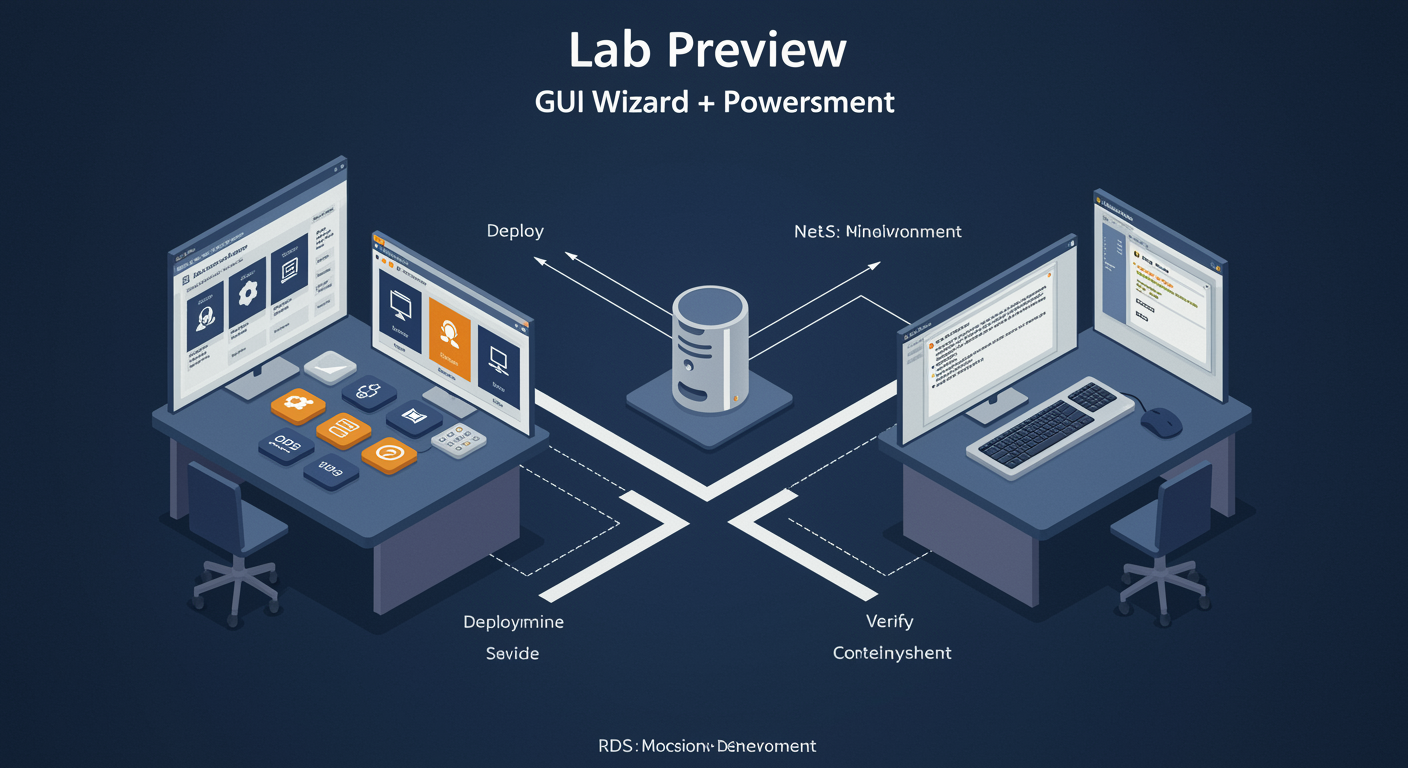
Lab Preview: What You Will Practice
The module ends with two hands-on labs covering the same RDS deployment from two complementary angles, so you build muscle memory in both surfaces.
Lab 1, Server Manager (Graphical). The Server Manager wizard for RDS is the canonical first-time deployment path. You will:
- Run the RDS quick deployment or standard deployment wizard, choosing role placement
- Install Session Host, Broker, Web Access, and Licensing roles across one or more servers
- Create a Session Collection, add Session Hosts, configure user groups
- Publish a RemoteApp from the collection (e.g., Notepad or a stock app for demonstration)
- Configure RD Licensing in Per-User mode, install evaluation CALs
- Configure RD Gateway with CAP and RAP for an external scenario
- Verify reachability via RD Web Access portal and via mstsc.exe direct
Lab 2, PowerShell. The same RDS deployment as a repeatable script. You will:
New-RDSessionDeploymentto bootstrap rolesNew-RDSessionCollection+Set-RDSessionCollectionConfigurationfor the collection and its tuningNew-RDRemoteAppto publish individual applicationsSet-RDLicenseConfiguration+Add-RDServer -Role RDS-LICENSINGfor licensingSet-RDDeploymentGatewayConfigurationfor Gateway routingGet-RDUserSession+Invoke-RDUserLogofffor session troubleshooting
Do both in sequence: Server Manager first to build the mental model and see the role layout, PowerShell second to make the deployment scriptable for the next ten environments you stand up.