Module 11: IIS — Internet Information Services
The web server that has hosted half the internet's enterprise apps. Configure it, isolate it, secure it, automate it.
What you'll learn
- Architecture, HTTP.sys + WAS + W3SVC + w3wp pipeline
- Sites + bindings, virtual hosting with IP + port + hostname + SNI
- App pools ★, the isolation boundary; overlapped recycling for zero downtime
- TLS, cert binding, protocol hardening, HSTS, HTTP-to-HTTPS redirect
- Auth ★, five methods (Anonymous, Windows, Basic, Forms, Digest), stacked patterns
- web.config + PowerShell, inherited config + WebAdministration cmdlets
IIS Architecture: The Request Pipeline
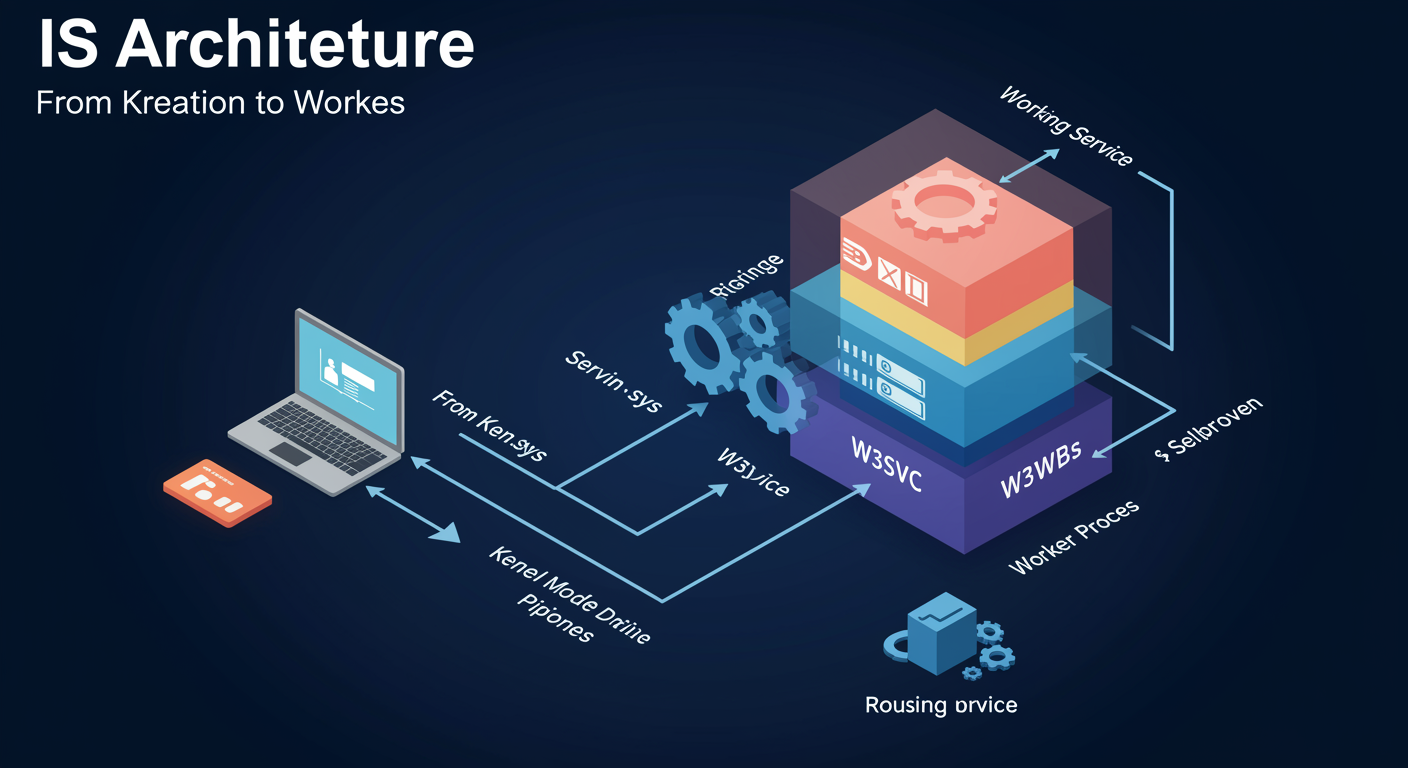
IIS is not one program. It is a chain of services that hand a request off to each other, each operating in a different memory space with a different responsibility. Knowing where each component sits, and what it owns, is the difference between debugging IIS in twenty seconds and debugging it for two hours.
HTTP.sys is the bottom layer. It is a kernel-mode driver, in the same address space as Windows itself. It owns the TCP port (80, 443), binds the listener, queues incoming requests, and provides a kernel-mode response cache that can serve static content without ever waking a user-mode process. When you bind a website to a port, you are telling HTTP.sys to listen there.
WAS (Windows Process Activation Service) reads applicationHost.config, the master configuration file. It decides which application pool owns the URL the request is targeting and starts the worker process for that pool on demand if it is not already running. WAS does not handle traffic; it manages worker lifecycles.
W3SVC (World Wide Web Publishing Service) is the HTTP listener service. It owns the HTTP.sys request queues and routes each request to the worker process WAS started for the matching app pool.
w3wp.exe is the worker process. One per app pool. It loads the module pipeline (native and managed modules), processes the request through that pipeline, and writes the response. When w3wp crashes, only the requests inside that single pool are affected, the kernel keeps queueing new requests until the pool is replaced.
Websites, Bindings, and Virtual Hosting
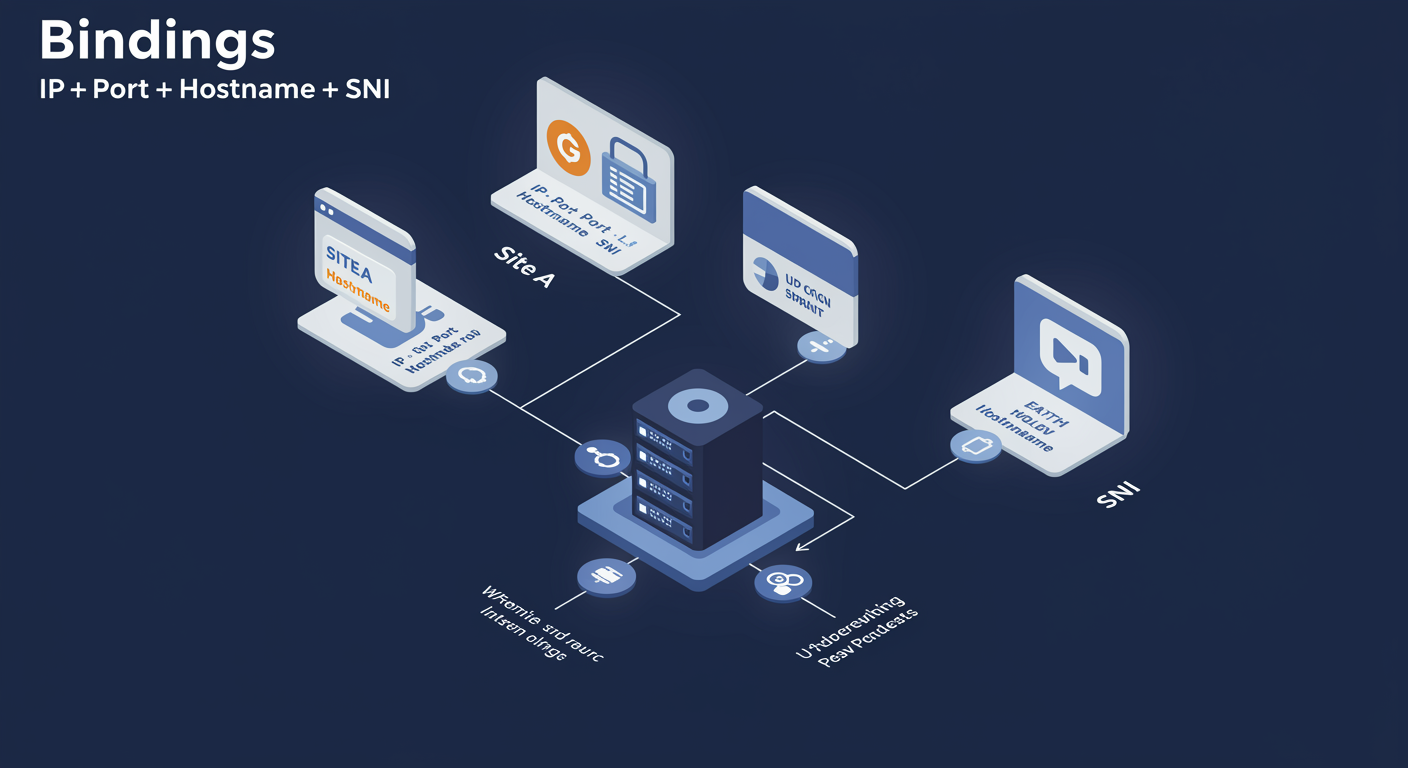
A binding is the triple that tells IIS, "this combination of IP address, port, and host header belongs to this website." A website without a binding is a configured-but-unreachable site. A binding without an explicit hostname captures every request to that IP+port. Three slots, with very different consequences depending on how you fill them.
IP address. Either a specific IP or "All Unassigned." Specific IP isolates the site to one network interface; All Unassigned takes anything the server hears on that port that no other site has claimed by IP.
Port. 80 for HTTP, 443 for HTTPS. Each port can host many sites if the next slot, hostname, is also set.
Hostname (HOST header). The hostname slot enables name-based virtual hosting. Multiple sites can share one IP+port if they have distinct hostnames. IIS reads the HTTP Host header on each request and routes it to the matching site. This is how a single Windows Server hosts www.contoso.com, app.contoso.com, and api.contoso.com on the same port 80 without conflict.
SNI (Server Name Indication) is the TLS equivalent. Without SNI, each HTTPS site needs its own IP because TLS is negotiated before the HTTP Host header is even visible. With SNI (check the box in the binding dialog), the client sends the hostname during the TLS ClientHello, and IIS selects the correct certificate. SNI is the difference between hosting 1 HTTPS site per IP and hosting hundreds.
The default rule. When two sites have overlapping bindings (same IP+port, no hostname or duplicate hostname), only one site will start. The other reports "the binding is already in use." Most "my new site won't start" tickets resolve to a binding collision.
Websites vs Web Applications vs Virtual Directories
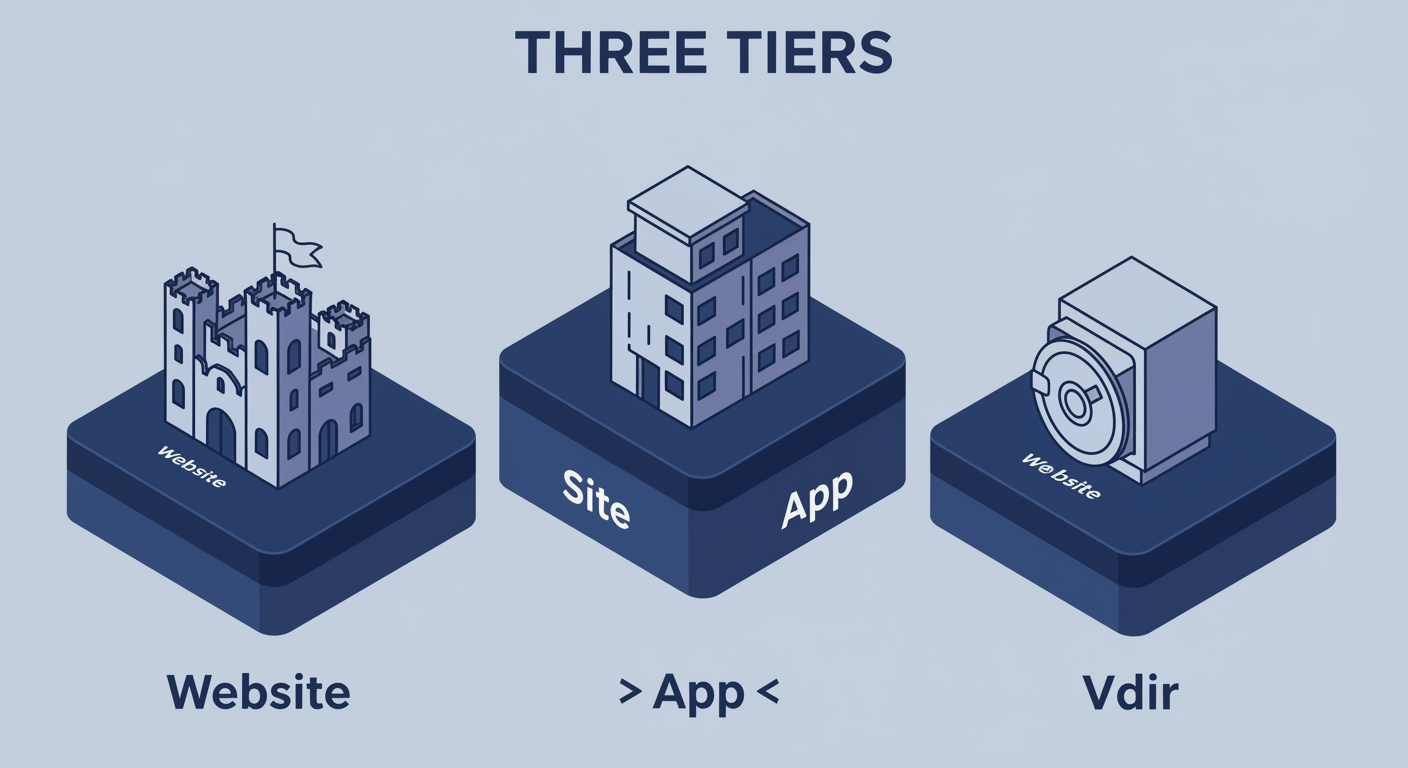
IIS uses three nested concepts that look similar in the tree but behave very differently when requests arrive. Confusing them is the most common source of "why is my web.config not applying?" tickets.
Website. The top-level container. Owns the bindings. Has its own root folder (physical path). Runs in exactly one application pool, the one assigned to the website itself. Example: www.contoso.com as a website.
Web Application. Lives under a website at a specific URL path. Has its own application pool (can differ from the parent's pool, this is the isolation win), its own root folder, and its own web.config root for inheritance purposes. Example: /api as a web application under the contoso site runs ASP.NET 8, while the parent site still runs ASP.NET Framework 4.8. Each app starts a separate worker on first request.
Virtual Directory. An alias for a folder path. Does NOT have its own app pool, it inherits the containing application's pool. Useful for: pointing a URL segment at a folder outside the site root (e.g., /images pointing at D:\shared-assets\images), or aliasing a long physical path under a clean URL. web.config inside a virtual directory does not behave like the root of an app, it is treated as a subfolder.
The visual cue in IIS Manager. Globe icon = website. Folder-with-gear = web application. Plain folder = virtual directory. If you cannot tell which level a piece of config lives at, hover over the icon: that one glance saves you most of the time.
Application Pools: The Isolation Boundary
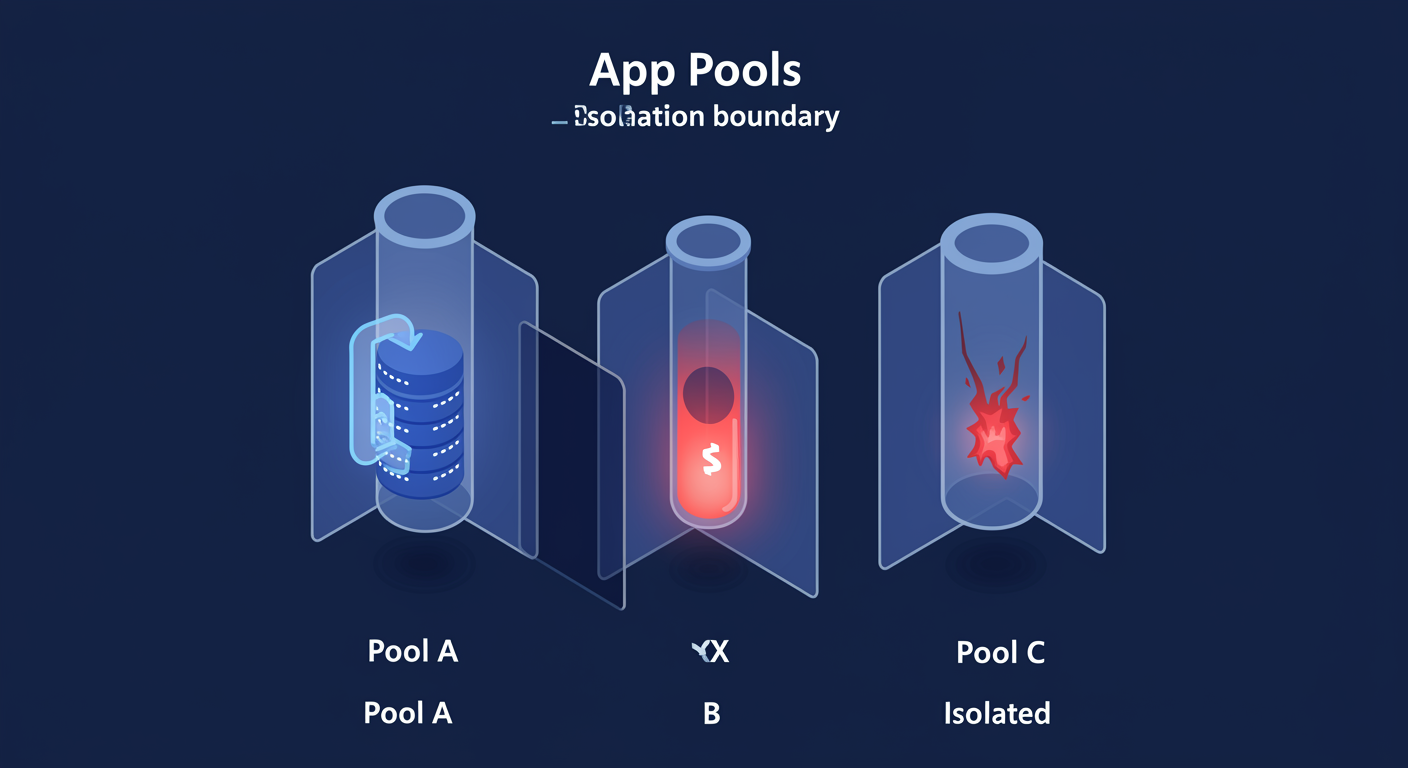
An application pool is a w3wp.exe worker process. Plus the policies that govern that process: identity, runtime version, memory limits, recycling triggers. Each app pool is its own crash domain. When the worker dies, only the apps in that pool die with it; the rest of IIS keeps serving.
Identity. Each pool runs as a Windows user account, the identity. Default is ApplicationPoolIdentity, a virtual account scoped to the pool. Use it where possible: it gets its own per-pool ACL identity (IIS APPPOOL\YourPoolName), automatically managed, no password to rotate. Switch to NetworkService or a domain account only when you need shared identity across processes or specific file/registry access the virtual account cannot grant.
.NET CLR version. Each pool targets one CLR: v4.0 (.NET Framework 4.x) or No Managed Code (for non-.NET workloads or .NET Core / .NET 5+ which runs out-of-process). You cannot run Framework and Core in the same pool. This is THE reason apps end up in separate pools: version isolation.
Pipeline mode. Integrated (default since IIS 7) lets managed modules participate in the IIS pipeline. Classic mimics the old IIS 6 behavior where ASP.NET sat behind aspnet_isapi.dll, almost no reason to use Classic today except legacy app compatibility.
Why isolation matters. One pool, one crash domain. If api.contoso.com and www.contoso.com share a pool and the API has a memory leak, the website goes down with the API. Separate pools mean the leak only kills the API; the website keeps serving. Default operational pattern: one pool per app, named to match.
App Pool Recycling: Overlapped Recycle, Zero-Downtime Pattern
Long-lived worker processes accumulate problems. Memory leaks, fragmented heaps, stale handles, accumulated session state. App pool recycling is the periodic-restart pattern that resets the worker without taking traffic offline. The IIS team built this in because nobody trusts a w3wp that has been running for 30 days without a refresh.
Triggers. A recycle can fire on any of: a regular time interval (default 1740 minutes = 29 hours), a private-memory threshold (e.g., w3wp grew past 2 GB), a request count, a fixed schedule (e.g., 3 AM daily), a configuration change, or an explicit on-demand recycle from IIS Manager. Every pool has all of these knobs; you usually pick one or two and leave the others off.
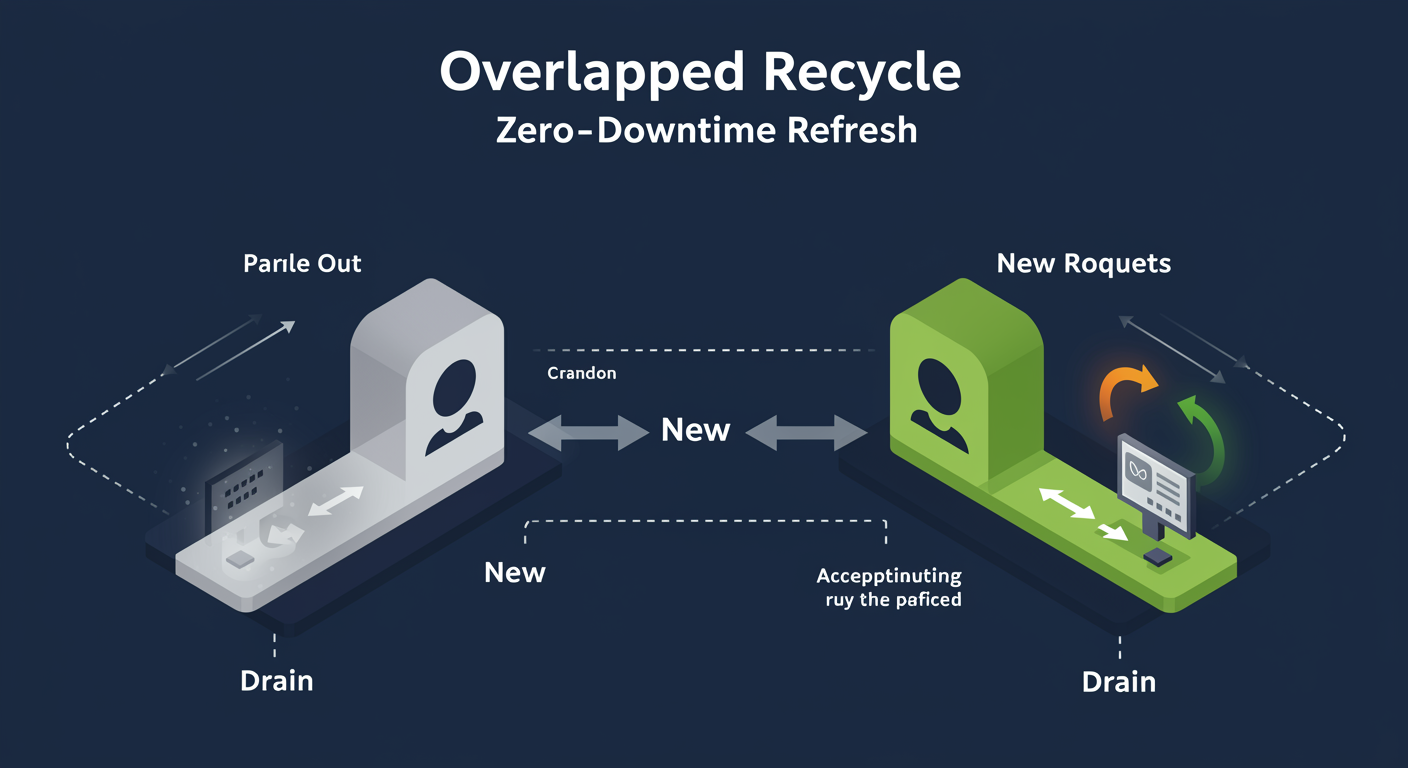
Overlapped Recycle (the magic). Recycling does NOT mean "stop the current worker, then start a new one." It means: start a new w3wp first, route new incoming requests to the new worker, let the old worker finish its in-flight requests, then let the old worker exit. For a window of seconds, two workers for the same pool are alive at the same time. Clients see no downtime; in-flight requests finish on the old worker; new traffic lands on the new one.
When overlap breaks. Some apps cannot tolerate two processes alive at once: file locks on a shared file, named mutexes, single-instance hardware handles. For these, set disallowOverlappingRotation to true, IIS will fully drain the old worker before starting the new. You accept a brief request queue (HTTP.sys keeps queueing) in exchange for serial worker lifetime.
Recycling is not restarting IIS. The W3SVC service stays running. The HTTP.sys listener never stops accepting connections. Existing TCP connections are not torn down. From the client's perspective, recycling is invisible. From the application's perspective, the AppDomain unloads and reloads, in-memory caches and Session state held in process memory are lost. Cache and Session should not live in process for any non-trivial app.
Default Documents and Directory Browsing
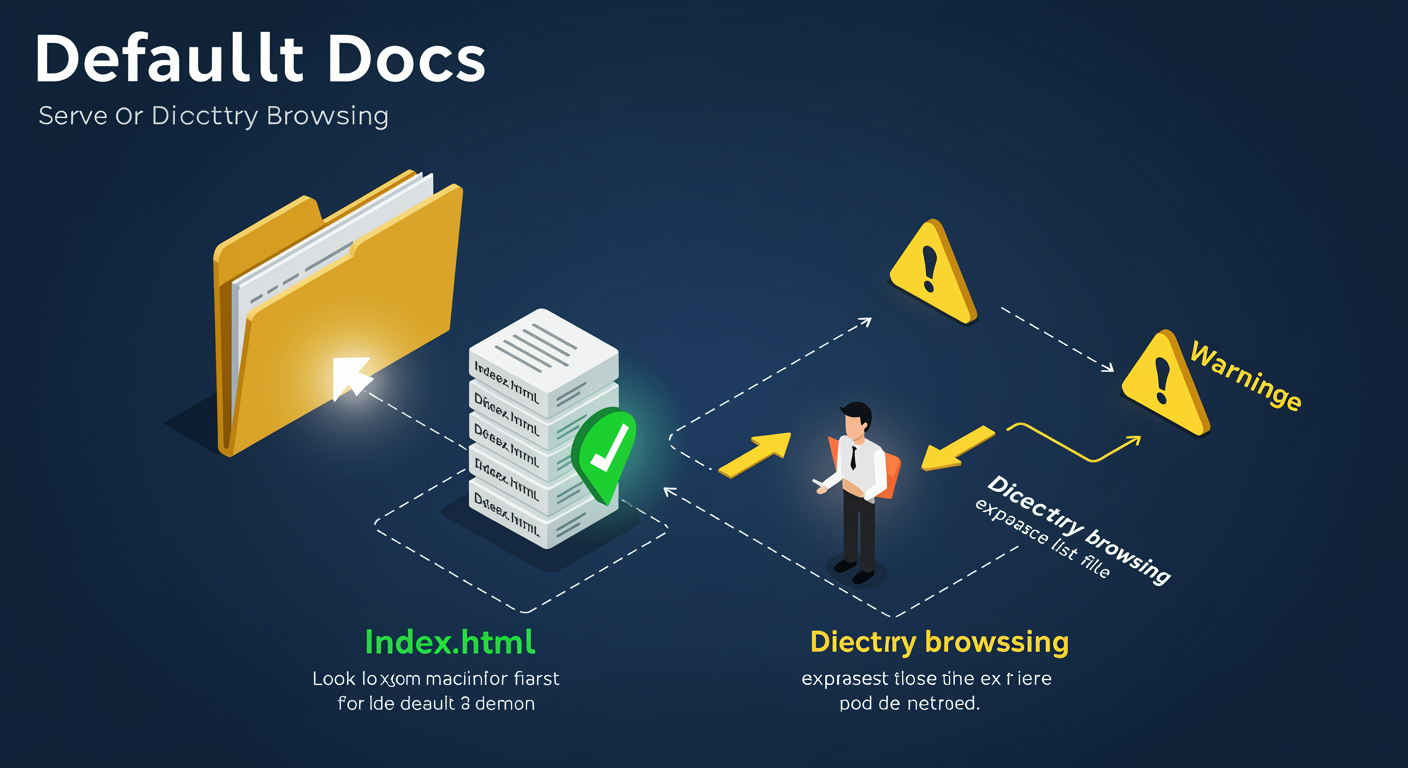
When a request comes in for a URL that ends at a folder (e.g., https://contoso.com/about/ rather than /about/page.html), IIS needs to decide what to serve. The answer is a two-stage decision: first look for a default document; if none found, either serve a folder listing or return a 404.
Default documents are an ordered list of filenames IIS searches for, in priority order. The default list is Default.htm, Default.asp, index.htm, index.html, iisstart.htm, default.aspx. IIS walks the list top to bottom; the first file that exists in the target folder is served. You can add more (e.g., home.html) and you can reorder. Per-site and per-folder overrides through web.config are common when one section of a site uses a different default filename.
Directory browsing is what happens when NO default document is found. By default it is disabled, which means IIS returns a 403.14 "Web server is configured to not list the contents of this directory." Turning it on shows the user a listing of the folder's contents (HTML page of links). Useful for static asset folders (download mirrors); a security and information-disclosure risk almost everywhere else.
The combined behavior. Both default documents and directory browsing can be on at the same time. IIS still tries default documents first. Only if none are found AND directory browsing is enabled does the user see the folder listing. The most common production setting: default documents ON with a small whitelist (index.html, default.aspx), directory browsing OFF everywhere except dedicated download folders.
The /admin slip-up. A folder accidentally created with no default document, with directory browsing on at the site level: anyone can enumerate the files. Audit for "Directory Browsing: enabled" on every site after install. Default install state in modern IIS is "disabled," but third-party apps sometimes flip it.
SSL/TLS Binding and Configuration
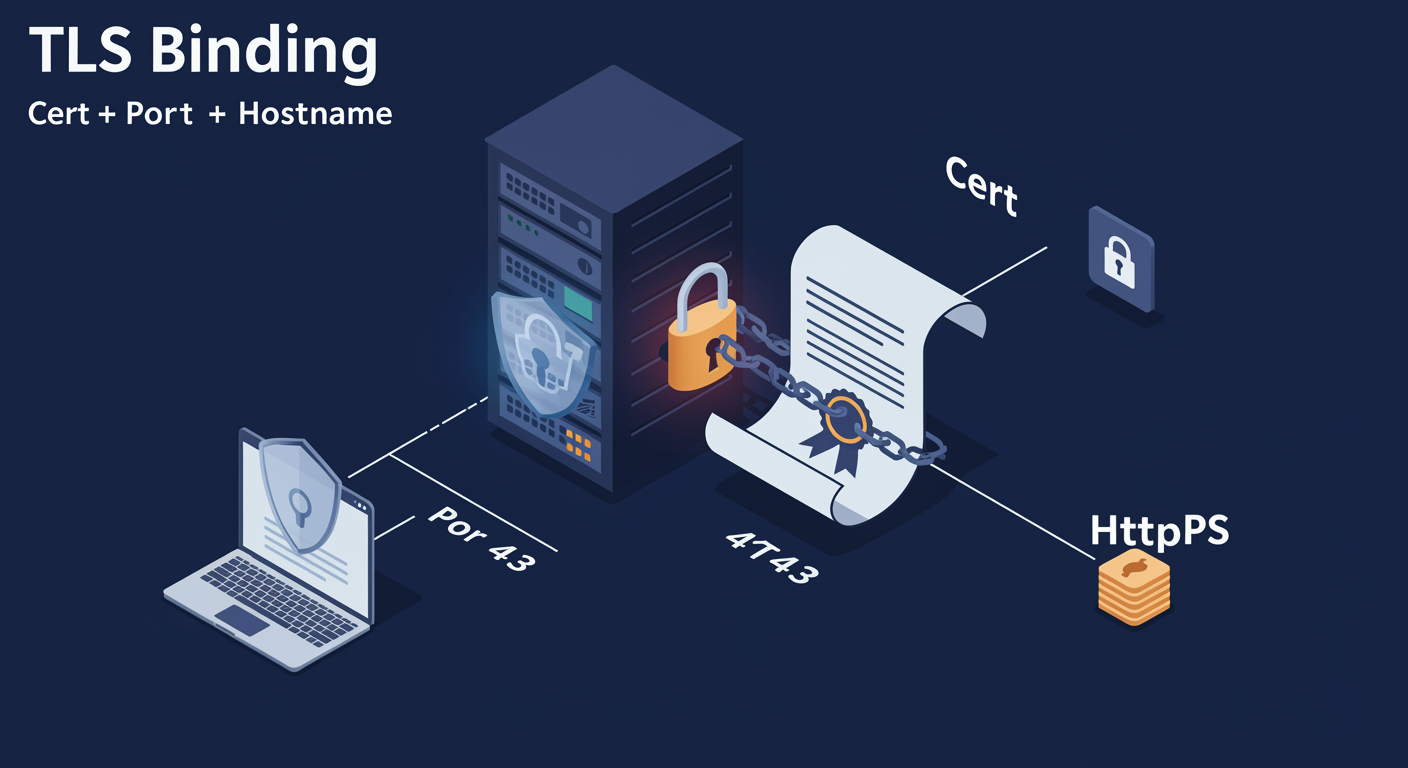
Adding HTTPS to an IIS site is three steps: get a certificate into the right store, bind that certificate to a port on the website, and configure the redirect/enforcement layer so the world actually uses HTTPS. Each step has gotchas that consume time when missed.
The certificate has to be in the Computer / Personal store. Not the user store; IIS runs as a Windows service and reads certificates from the machine store. The certificate must have a private key (it would have been imported with the private key if you generated the CSR on this machine), and the IIS_IUSRS group needs read access on the private key (default after import; check if HTTPS fails with "certificate not found"). Import via Server Certificates feature in IIS Manager, or via PowerShell.
Bind the certificate to the site. Edit Site Bindings, add an HTTPS binding on port 443, pick the certificate from the dropdown. Check "Require Server Name Indication" if this site shares its IP with other HTTPS sites, that is how multiple certs coexist on one IP+port.
Force the redirect. Having HTTPS bound does not stop the world from using HTTP. URL Rewrite (an IIS extension, ships separately) is the standard way: a rule on the HTTP binding that 301-redirects to the HTTPS URL. After URL Rewrite, add HSTS (HTTP Strict Transport Security) so browsers refuse to talk HTTP to you in the future. HSTS is a single HTTP response header sent on HTTPS responses; IIS 10+ has native HSTS configuration in Site Bindings.
HSTS gotcha. Once a browser sees HSTS for a domain, it remembers it for the duration the header specified, even if you remove the header. Start with a short max-age (1 hour, 1 day) and ramp up to the recommended 1 year only after you are sure the entire site is reachable on HTTPS. Locking yourself out of HTTP on your own domain is an embarrassing afternoon.
SSL/TLS Hardening: Protocols and Ciphers
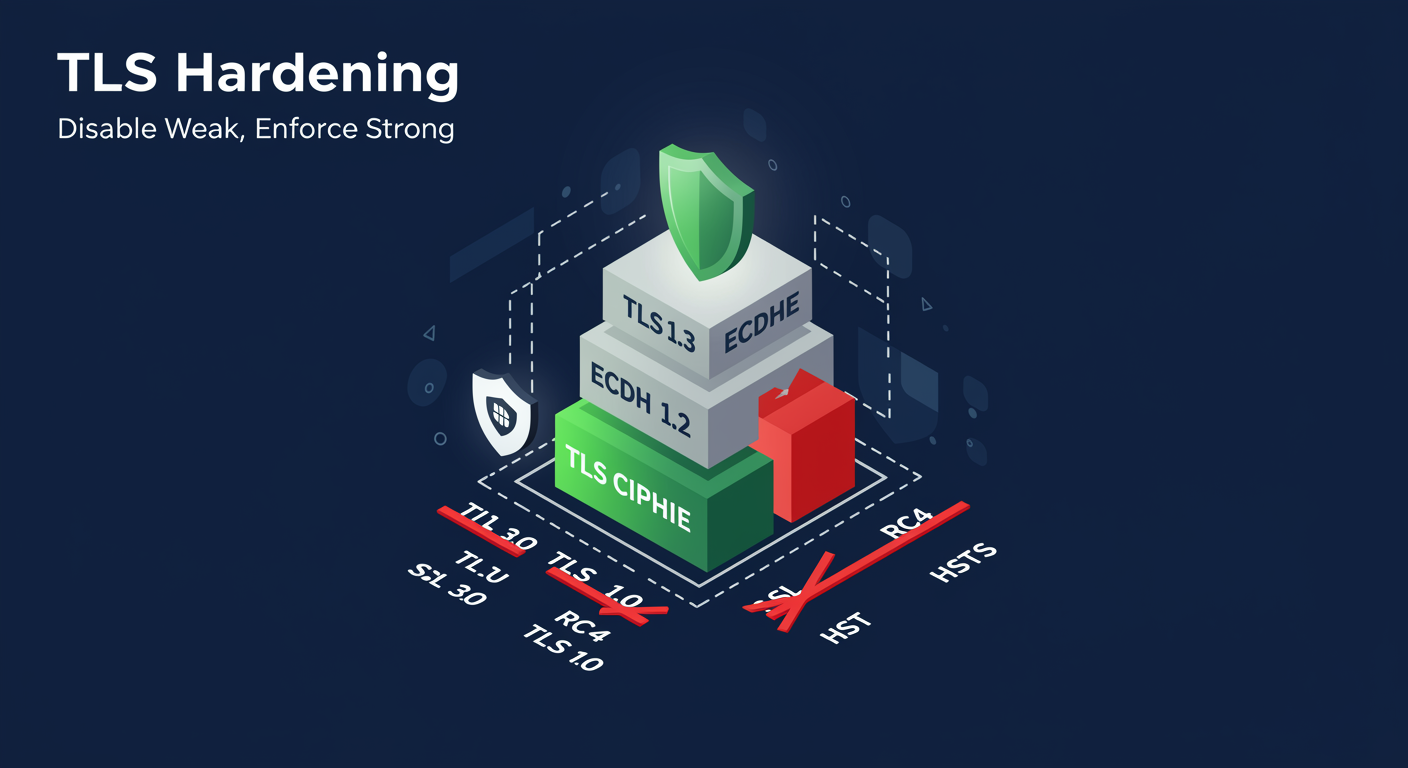
A bound certificate is the easy part. Hardening the protocol set and cipher suites so the negotiation produces a SECURE connection (not just any connection) is the next layer. By default, Windows enables a relatively wide range of protocols and ciphers for backward compatibility, and most production guidance is to narrow that range significantly.
Disable obsolete protocols. SSL 2.0, SSL 3.0, TLS 1.0, TLS 1.1 should all be disabled on a hardened server. They have known cryptographic weaknesses (POODLE, BEAST, etc.) and modern browsers no longer negotiate them. Keep TLS 1.2 and TLS 1.3 only. Protocol toggle is in the registry under HKLM\System\CurrentControlSet\Control\SecurityProviders\SCHANNEL\Protocols, with subkeys per protocol per role (Client and Server).
Disable weak cipher suites. Export-grade, NULL ciphers, RC4, 3DES, anything with MD5 or SHA-1 for signing. Prefer cipher suites with Perfect Forward Secrecy (PFS), suites that use ECDHE for key exchange. Ordering matters: clients pick from the first suite they support in your list, so put the strongest suite first.
The cipher suite list lives in Group Policy: Computer Configuration → Administrative Templates → Network → SSL Configuration Settings → SSL Cipher Suite Order. Set it once via GPO; do not edit the registry directly unless you understand the format.
HSTS at the binding. IIS 10+ has native HSTS configuration in Site Bindings. Enabling it adds Strict-Transport-Security: max-age=... to every HTTPS response. Pair with includeSubDomains for full coverage, and consider HSTS Preload (submission to the browser preload list, requires meeting strict criteria).
Tools to validate. IIS Crypto (a free GUI from Nartac) sets protocols and cipher suites correctly without registry archaeology. Get-TlsCipherSuite shows what is currently negotiable. SSL Labs (ssllabs.com/ssltest) gives a graded report on your public endpoint, the standard externally-facing benchmark.
Authentication Methods: Five Options
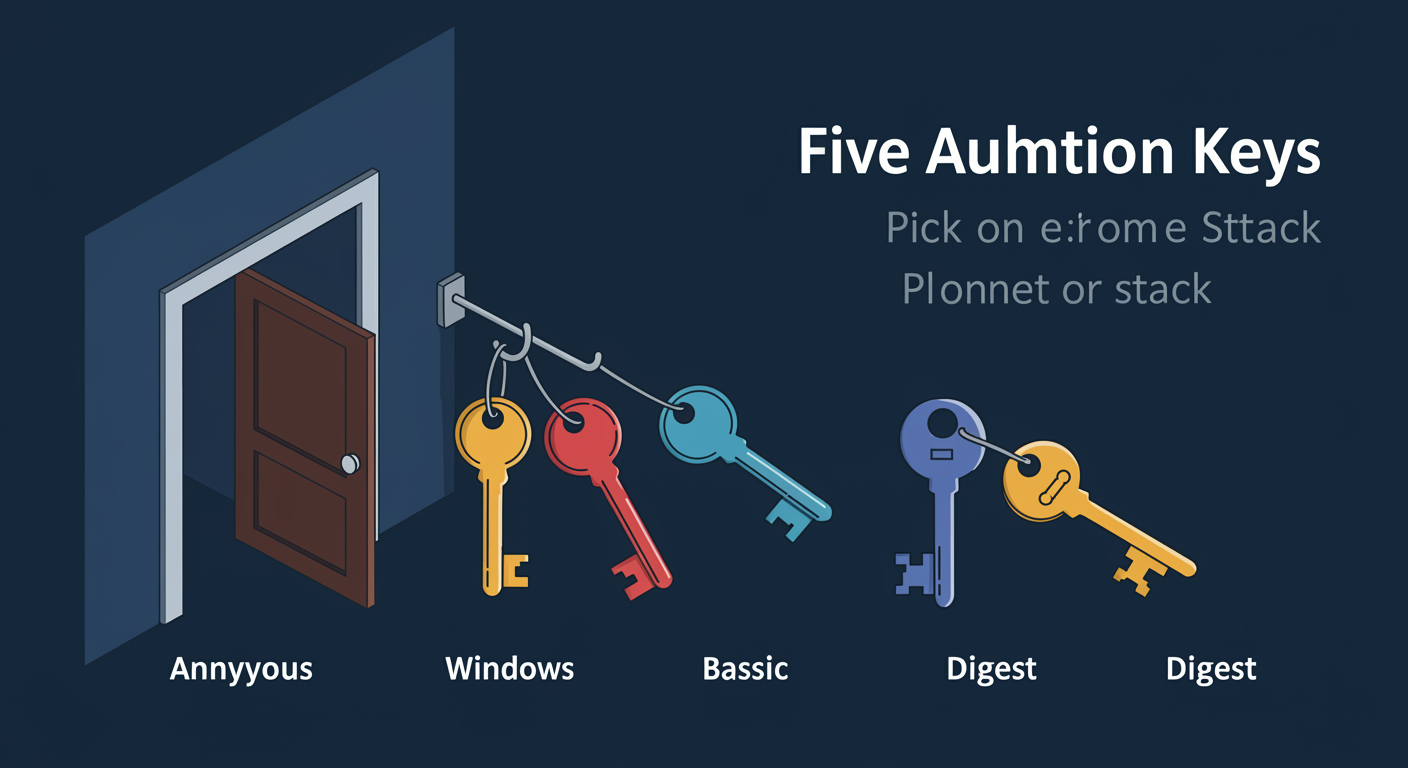
IIS supports five built-in authentication methods. You pick by client type, network topology, and what you can require the user to install or use. Most production apps end up with TWO methods stacked: Anonymous on by default for public content, with a stronger method covering the protected paths.
Anonymous. No authentication. Required to be ON for any content the public should be able to reach without logging in. The site runs under the IUSR account (or the configured anonymous user identity). Most public web traffic on most internal sites is anonymous in mode, even if individual paths require something stronger.
Windows Authentication. Kerberos (preferred) or NTLM. The best fit for intranet applications where the client is domain-joined. Single sign-on: the browser sends the user's domain credentials transparently; no login prompt. Requires SPN registration for Kerberos to succeed, otherwise it falls back to NTLM and you see a 401 sometimes. The single most common "intranet auth" pattern in Microsoft shops.
Basic. Username and password in the Authorization header, encoded as base64 (NOT encrypted). Without HTTPS, basic auth is plaintext on the wire, an immediate security failure. With HTTPS, basic is fine as a bridge to non-Windows clients (cURL, simple API consumers). The browser shows the native HTTP login prompt.
Forms (Form-Based) Authentication. The app provides a login HTML form; the framework (ASP.NET) issues a cookie after credential check; subsequent requests are authenticated via that cookie. Used for public-facing apps where you need a custom login UI. Cookie security flags (HttpOnly, Secure, SameSite) and expiration policy are configured in web.config.
Digest. Password-hashed challenge-response. Better than Basic without HTTPS, but rarely used today (Kerberos won the intranet, Forms+TLS won the internet). Mentioned here because it appears on the exam and on legacy apps.
Stacking patterns. Anonymous + Windows for "public site with admin paths." Anonymous + Forms for "public app with member login." Anonymous + Basic for "API where Postman/cURL need to authenticate." Multiple methods stacked just means IIS tries them in order; the first that produces an authenticated user wins.
URL Authorization and Request Filtering
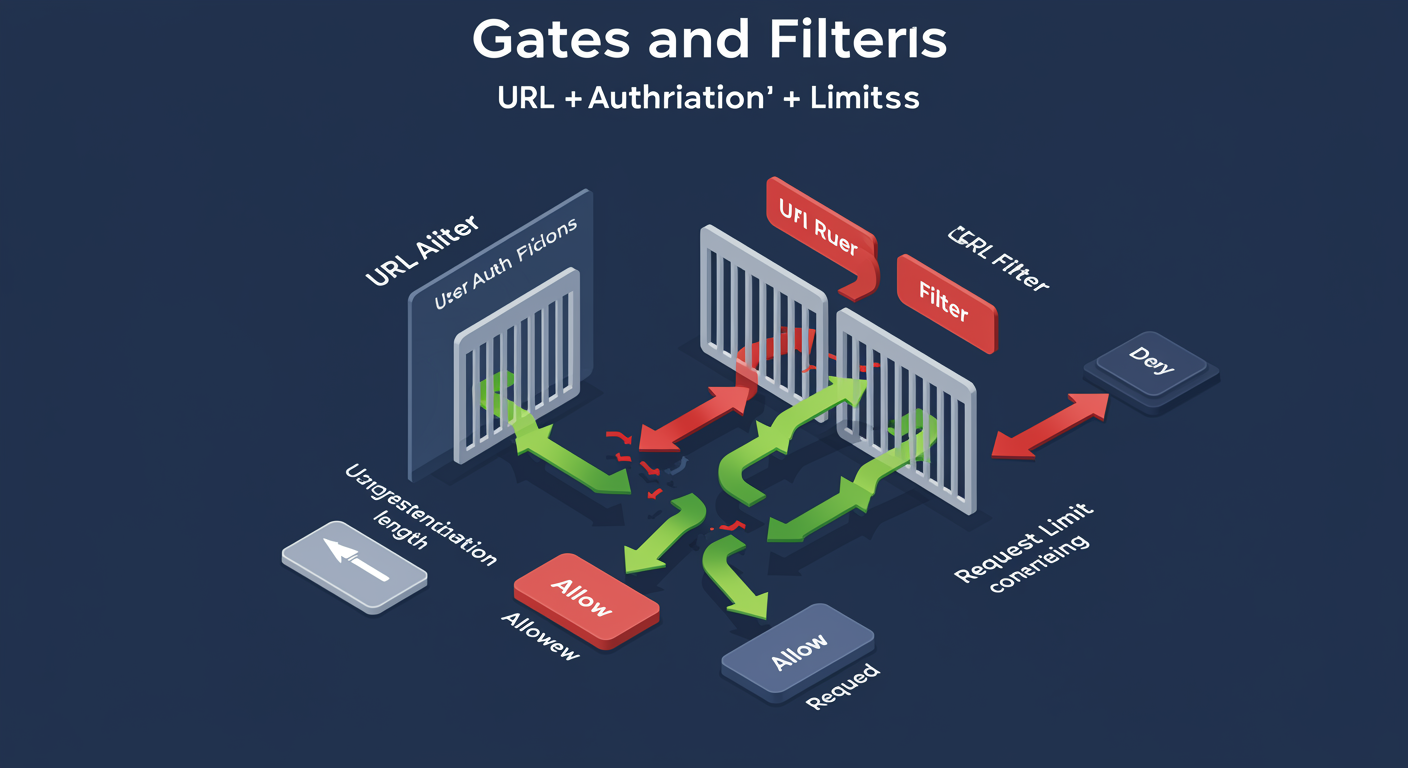
Authentication identifies WHO the user is. Authorization decides WHAT the user can reach. IIS layers two distinct authorization mechanisms, plus a third layer of request filtering that pre-screens requests before they ever reach app code.
URL Authorization. Rules that grant or deny access to URL paths based on user identity, role, or HTTP verb. Lives in web.config under system.webServer/security/authorization. You write rules like "Allow Users=admin@contoso.com for path /admin," "Deny Users=* for verb DELETE." Rules cascade: more specific paths override less specific. Authorization happens AFTER authentication but BEFORE the request reaches application code.
Request Filtering. A pre-authentication gate. Before IIS even tries to authenticate the user, Request Filtering decides whether to accept the raw HTTP request. It blocks by file extension (deny .config, .bak from ever being served), URL length (reject URLs over N characters), maximum content length (reject uploads over N bytes), request limits (max query string length, max URL segment count), suspicious patterns (double-encoded characters, hidden segments), and HTTP verbs (deny TRACE, OPTIONS).
Why both exist. Request Filtering is fast and runs before authentication, useful for DDoS-style scenarios where you do not want to spend CPU authenticating obviously-bad requests. URL Authorization runs after authentication and supports identity-based decisions, useful for application-level access control.
Default Request Filtering rules in modern IIS already cover most exposure: .config, .cs, .bak, .bin, double-encoding, hidden segments. Verify they are still enabled after any web.config import or app deploy that touches the security section.
Request Handling: Modules and Pipeline Hooks
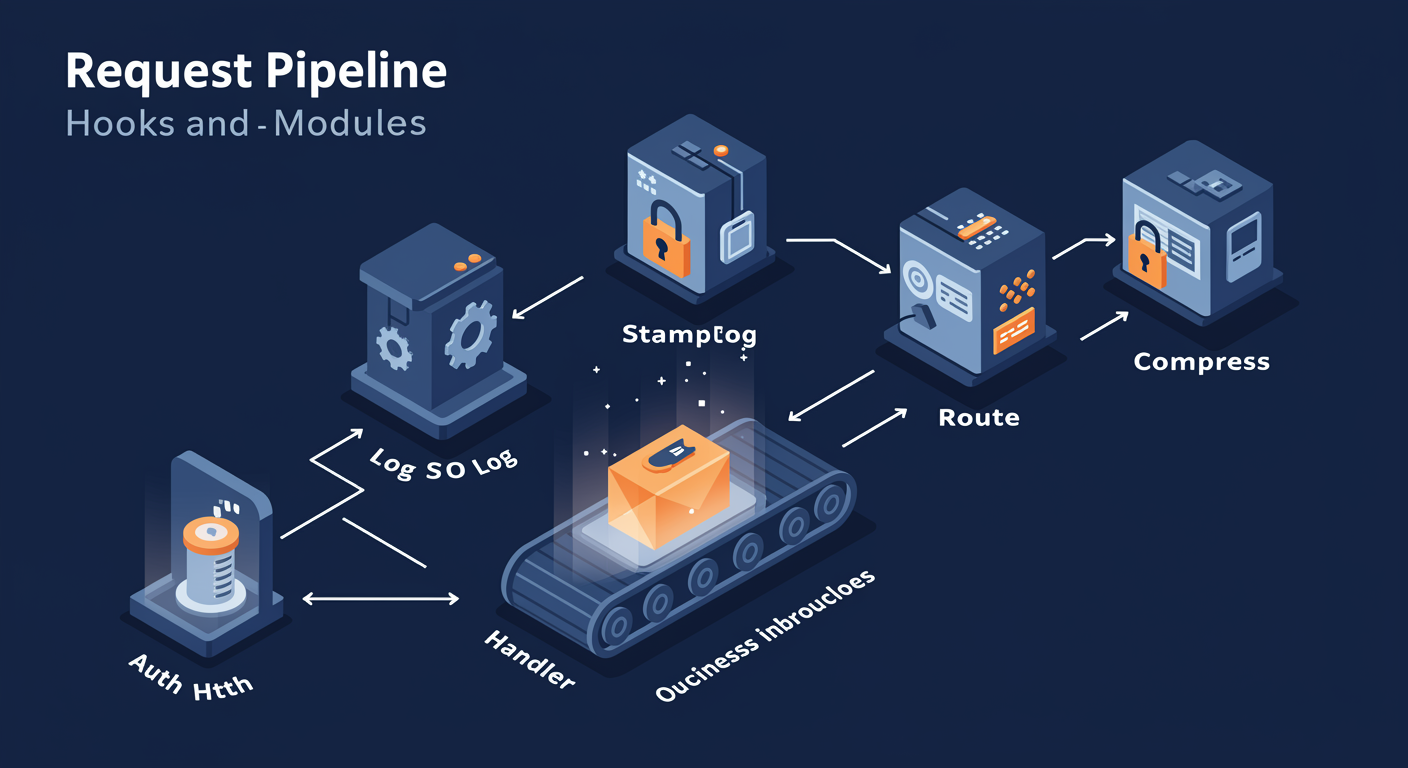
Inside w3wp, the request flows through an ordered pipeline of modules, each of which can inspect or modify the request and response. Understanding this pipeline is what lets you reason about WHERE in the request lifecycle a problem is occurring, and what lets you write custom modules for cross-cutting concerns like custom logging or response transformation.
Native modules are C++ DLLs that load into w3wp on startup. Examples: StaticFileModule (serves files from disk), DefaultDocumentModule (looks up default docs), HttpLoggingModule (writes W3C log entries), RequestFilteringModule (enforces the rules above). Native modules run for every request, regardless of language. They are fast and have full access to the IIS API.
Managed modules are .NET classes (implement IHttpModule) that subscribe to pipeline events. Examples: ASP.NET's FormsAuthenticationModule, SessionStateModule, custom modules that authenticate against a database or transform response headers. Managed modules run only when the request enters the managed pipeline (CLR loaded for the pool).
Pipeline events. The pipeline fires named events in a fixed order: BeginRequest, AuthenticateRequest, AuthorizeRequest, ResolveRequestCache, MapRequestHandler, AcquireRequestState, PreRequestHandlerExecute, ExecuteRequestHandler (this is where your app code runs), ReleaseRequestState, UpdateRequestCache, LogRequest, EndRequest. Modules subscribe to whichever events they care about.
Handlers are the terminal stage: one handler executes per request, the thing that actually produces the response. StaticFile handler for static content, ExtensionlessUrl-Integrated-4.0 for ASP.NET MVC routes, etc. The mapping happens during MapRequestHandler and is configurable via web.config's handlers section.
Failed Request Tracing (FREB) is the diagnostic tool that captures EVERY module's contribution to a slow or failing request. Turn it on (per-site, per-condition), reproduce the issue, examine the resulting XML trace to see exactly where time is being spent in the pipeline.
HTTP Logging: What IIS Records
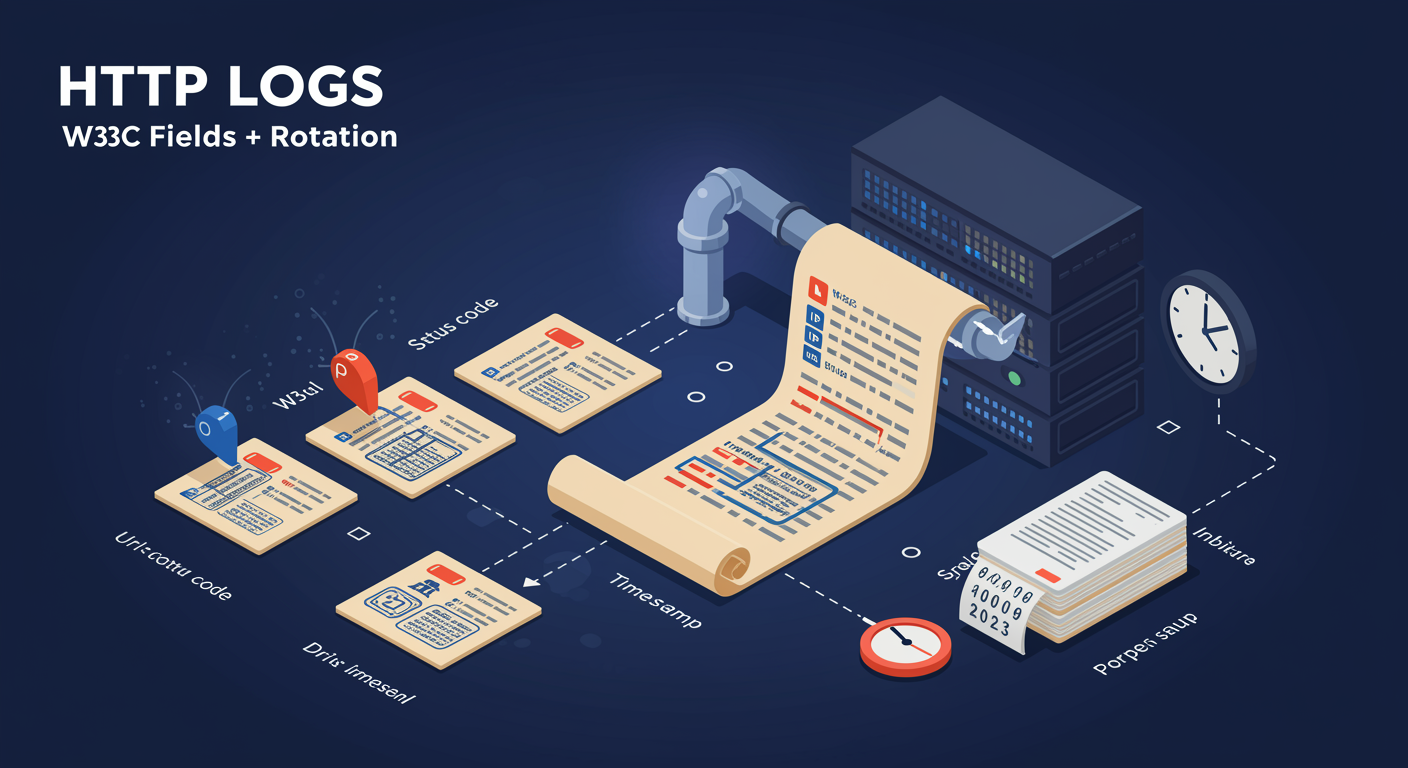
Every request IIS handles can leave a log entry. Standard logging is the W3C extended format: one line per request, fields configurable. Logs are the post-incident timeline. They are also the second-largest disk consumer on a busy IIS server, after the content itself.
The default fields are date, time, client IP, server IP, method, URI stem, URI query, HTTP status, substatus, Win32 status, time-taken (ms), user agent. The fields the SOC most often asks for that are NOT in the default set: X-Forwarded-For (the real client when behind a load balancer or proxy), Host header (which site the request was for, useful when one log captures multiple bindings), Referer, request bytes, response bytes. Add these in IIS Manager → Logging → Select Fields, or via web.config.
Per-site logs vs per-server. Default is per-site: each site gets its own log file under %SystemDrive%\inetpub\logs\LogFiles\W3SVCn\. Centralized logging consolidates all sites into a single log directory, useful when you want one feed into a SIEM, less useful when you need fast forensics on a single site.
Rotation. Logs rotate daily by default (one file per UTC day). Choices: Hourly (large sites), Daily (default), Weekly, Monthly, "When file size reaches N MB," or "Do not create new log files" (one growing file, do not pick this). Rotation also lets you set local time vs UTC for the rollover boundary.
The disk problem. A site averaging 200 requests/second writes roughly 17 GB/day at the default field set. Log retention policy and offload-to-archive are operational essentials. Most production sites pipe logs to a centralized log store within minutes of write, then delete local files within days.
Failed Request Tracing writes a different log format, structured XML per traced request. Use it for diagnosis, not bulk telemetry. It can produce a lot of data fast; set the trigger condition narrowly (status code, time-taken) so only the requests you care about are captured.
IIS Manager Navigation
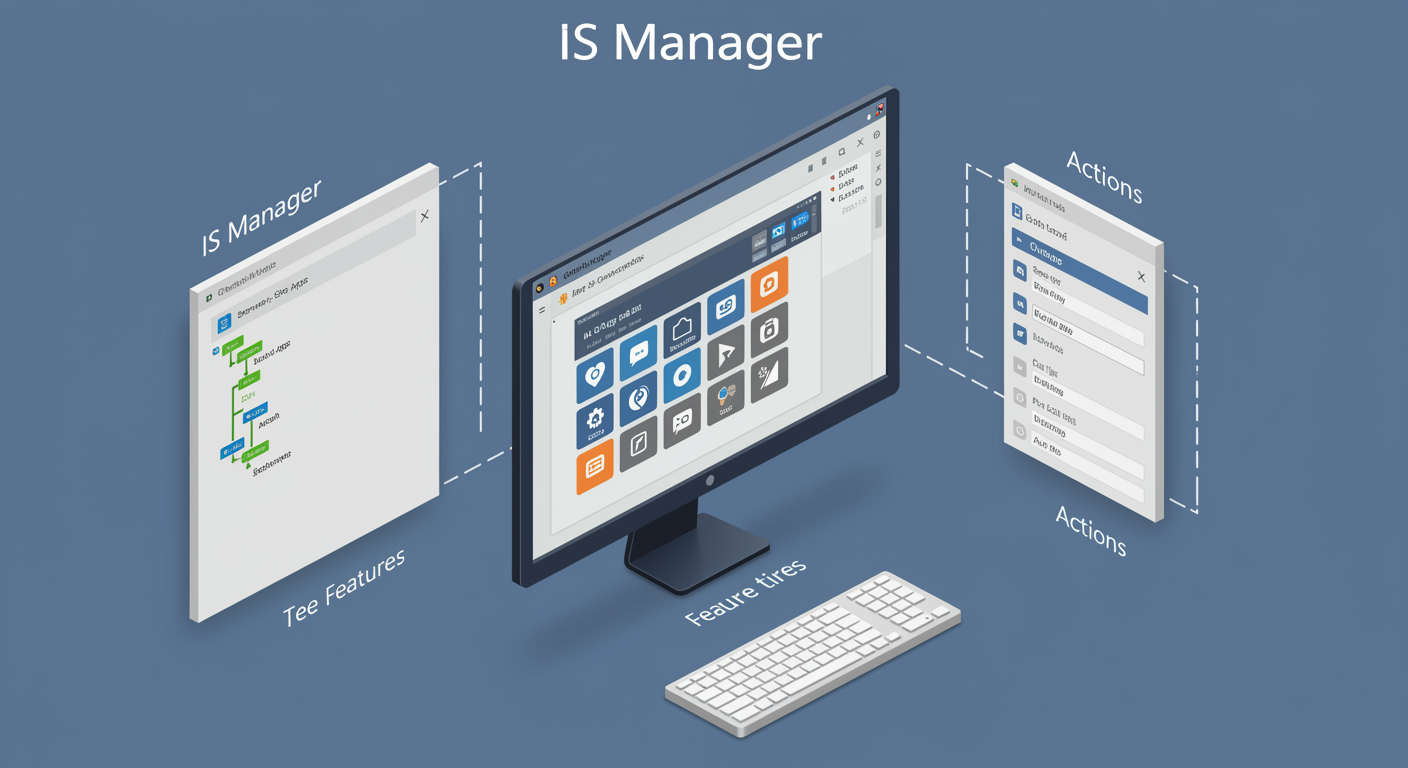
IIS Manager (InetMgr.exe) is the GUI you reach for first when you do not remember the cmdlet. Three panes, the same layout every time. Learning the layout is what lets you walk in cold to a strange IIS server and find the setting you need in 30 seconds.
Left pane: the tree. Server at the top, then Application Pools, then Sites, then per-site nesting (apps, virtual directories). Selecting a level scopes the middle pane to that level's features.
Middle pane: the Features view. Large icon grid showing every configurable feature available at the selected scope. The icons are grouped: ASP.NET (CLR-related), HTTP (default doc, MIME types, response headers), Security (authentication, authorization, request filtering, SSL), Management (configuration editor, IIS Manager users), Performance (compression, output caching). Each icon opens a per-feature configuration dialog.
Right pane: Actions menu. Context-specific actions for the selected level. At server level: Start/Stop/Restart, View Application Pools. At site level: Browse, Edit Bindings, Basic Settings, Limits. At pool level: Recycle, Start/Stop, Advanced Settings. The Actions pane mirrors what is available; everything else is grayed out.
Content View vs Features View toggle. Bottom of the middle pane has a tab toggle. Content View shows the physical files in the selected folder. Features View shows the IIS settings for that folder. Most work happens in Features View; Content View is occasionally useful for confirming the right files are present.
Configuration Editor. The escape hatch when a setting is not surfaced by a GUI feature icon. It exposes the raw applicationHost.config / web.config tree as a navigable XML editor with type-aware inputs. Use it when the documentation says "set this property under system.webServer/X/Y" and no UI exists for X/Y.
The shortcut you will use forever. Right-click a site, "Manage Website → Browse." Opens the site in your default browser at the bound URL. Instant smoke test after every change.
web.config: The Configuration Backbone
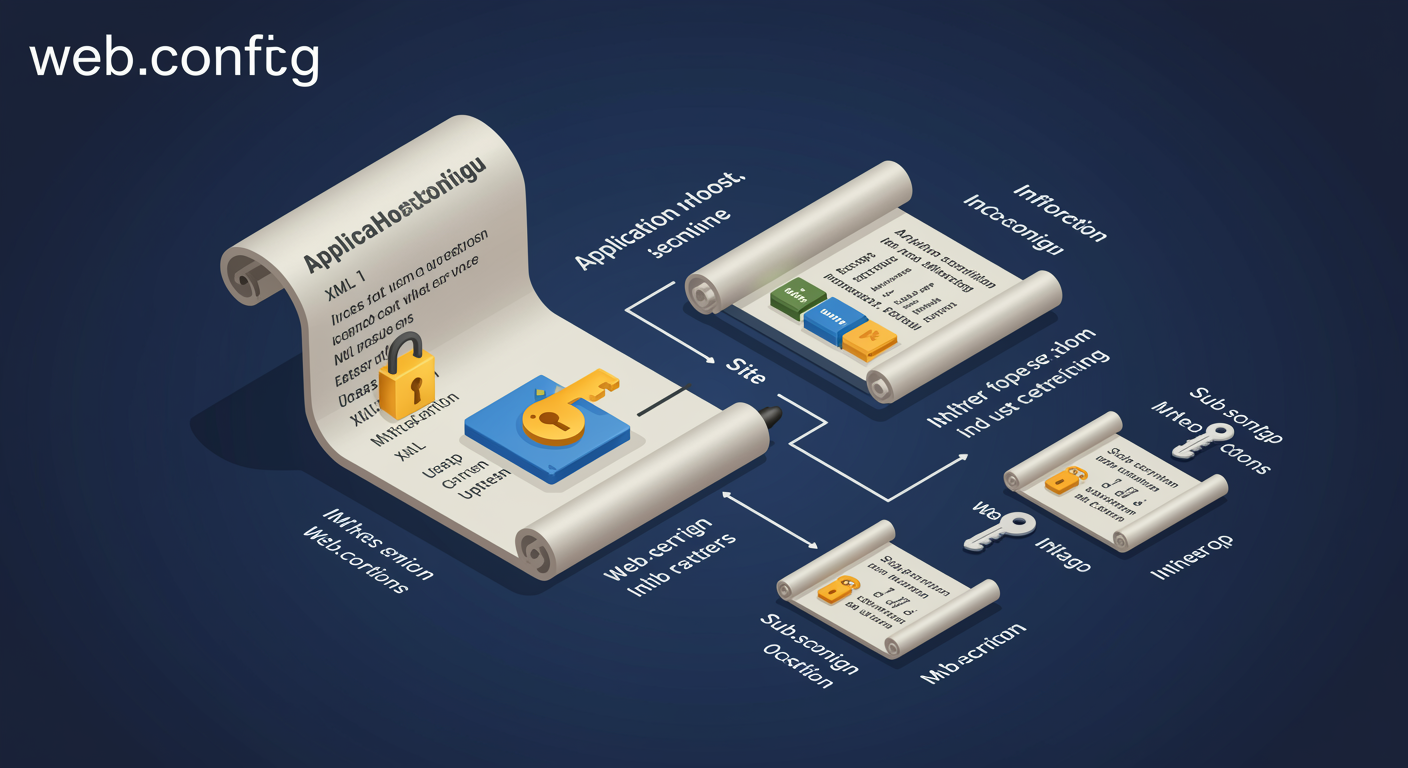
IIS configuration is layered. At the top, the machine-wide applicationHost.config. Below that, per-site or per-app web.config files inherit from the layer above and may override what the parent did not lock. Understanding the inheritance and locking rules is what saves you when "my web.config has the setting but it is not applying."
applicationHost.config lives at %SystemRoot%\System32\inetsrv\config\applicationHost.config. Contains the master IIS schema, the list of all sites, the global default settings, and the LOCK settings that determine which sections sites can override. Edit it carefully; a broken applicationHost.config takes IIS down server-wide.
web.config at the site root inherits all of applicationHost.config plus any settings the site needs to override. web.config in a subfolder inherits from the site root plus the parent folder's web.config. The cascade goes down: every folder in the URL path can have its own web.config that overrides the parent.
Locking. Sections in applicationHost.config can be locked with overrideMode="Deny", which means lower-level web.config files CANNOT override that section. If a lower web.config tries, IIS throws a 500.19 "configuration locked" error. Locking is how the server admin keeps individual apps from disabling security policies they cannot opt out of.
delegateAccess and Feature Delegation. The IIS Manager UI for unlocking sections per-site. "Feature Delegation" at the server level shows every section with Read-Only or Read/Write status; flipping a feature to Read/Write effectively unlocks it for sites to override.
The most common 500.19. A web.config copied from a developer's machine that includes a section the production server has locked. Look at the error: it tells you which section and which line. The fix is either unlock at server level (if the policy allows) or remove the section from the app's web.config.
FTP and WebDAV: Beyond HTTP
IIS is best known as a web server, but the same management surface also hosts an FTP server and a WebDAV publishing endpoint. Both are install-on-demand features. Both have legitimate use cases and serious security pitfalls.
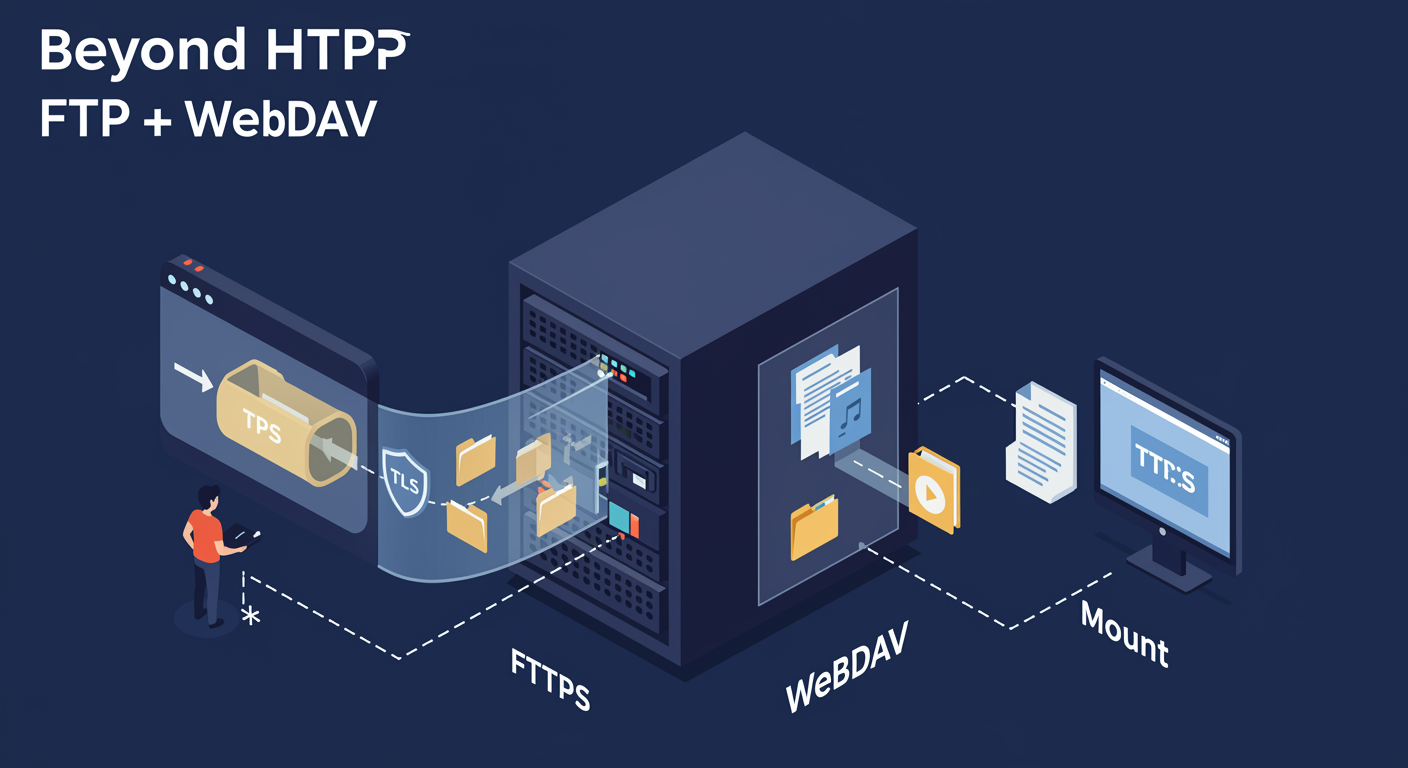
FTP. Install the FTP Server feature (Server Manager → Web Server (IIS) → FTP Server). FTP sites appear in IIS Manager beside Web Sites. Bind to port 21 (FTP control) and a passive-mode port range. Authentication options: anonymous, basic, IIS Manager users, custom (e.g., AD-backed). FTP over TLS (FTPS) is the only acceptable mode in 2026: vanilla FTP sends credentials in plaintext. Bind a certificate and set "Require SSL" to Yes for both control and data channels.
FTPS vs SFTP. Different protocols. FTPS is FTP + TLS (still uses port 21). SFTP is a subsystem of SSH (port 22). IIS does NOT speak SFTP; the SFTP world lives on OpenSSH for Windows. If you need SFTP, install the OpenSSH Server feature and configure its sftp-server subsystem.
WebDAV. An HTTP extension (RFC 4918) that turns an HTTP endpoint into a writable filesystem. Clients can PUT/MKCOL/DELETE/LOCK at URLs and treat the result like a mounted network drive. Native Windows Explorer can map a drive letter to a WebDAV URL.
WebDAV install. Server Manager → Web Server (IIS) → Common HTTP Features → WebDAV Publishing. Enable WebDAV on the site (IIS Manager → WebDAV Authoring Rules), define which URL prefix is writable, define authoring rules (which users get Read or Write or Source access), pair with strong authentication and TLS.
The security ground rule. Both FTP and WebDAV are file-upload endpoints. They should be: behind authentication (never anonymous unless serving deliberately public read-only content), require TLS, scoped to specific folders that are NOT in any web-served path, and audited regularly. Casual installs of FTP for "easy file transfer" are a recurring incident-investigation finding.
IIS PowerShell Module: Automation
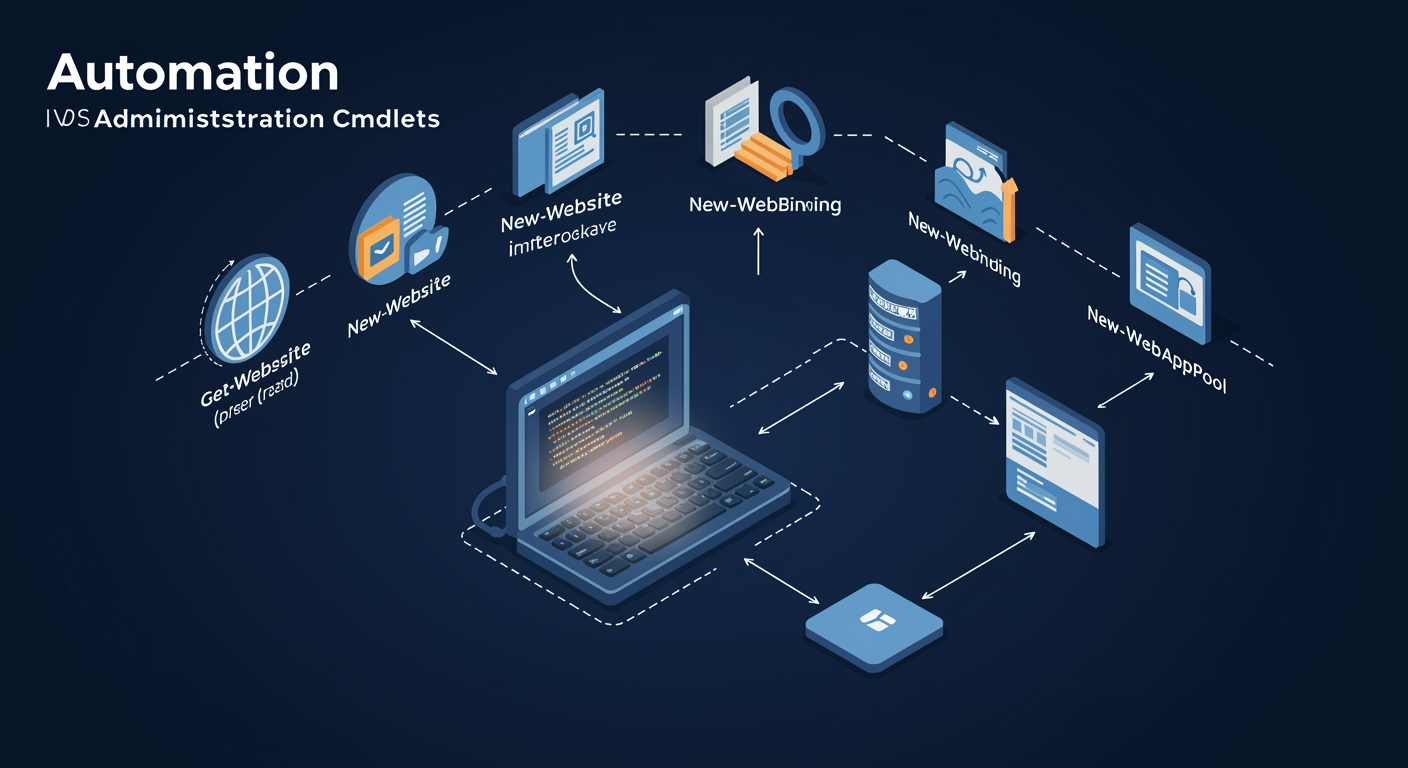
Everything IIS Manager does with mouse clicks, the WebAdministration and IISAdministration PowerShell modules do from a script. Once you have ten IIS servers, the GUI is the slow path. PowerShell is what lets you deploy a site, bindings, app pool, and TLS cert in one repeatable script that runs in seconds.
WebAdministration is the older module, loaded automatically when IIS is installed. Exposes IIS: as a PowerShell drive: cd IIS:\Sites, cd IIS:\AppPools, browse like a filesystem. Cmdlets cover sites, apps, virtual directories, app pools, bindings, and the configuration tree. Stable across server versions.
IISAdministration is the newer module, added in IIS 10 / Windows Server 2016. Object-model API rather than a PowerShell drive. Cmdlets like Get-IISSite, New-IISSite, Get-IISConfigSection. Recommended for new automation; both modules can coexist on the same server.
The common operational pattern. Pipeline-style: get a config section, modify it, write it back, restart the affected component. Modifying applicationHost.config through these cmdlets is safer than editing the XML by hand because the cmdlets validate the schema and the lock state.
Remote management. The IIS Management Service (WMSvc) listens on port 8172 and accepts remote management connections from IIS Manager. The PowerShell modules also work remotely via PowerShell Remoting (Invoke-Command) targeting the IIS server. Pair with a constrained endpoint (JEA) so the remote caller can only run the IIS cmdlets you intend.
Lab Preview: What You Will Practice
The module ends with two hands-on labs covering the same material from two complementary angles, so you build muscle memory in both surfaces.
Lab 1, IIS Manager (Graphical). The GUI is the path of least resistance for first-time work and ad-hoc troubleshooting. You will:
- Install the Web Server role with the Management Tools feature
- Create a new website with a unique IP + port + hostname binding
- Create a dedicated application pool, assign it to the site, configure recycling triggers
- Import a TLS certificate and bind it to a 443 binding with SNI enabled
- Configure authentication: Anonymous on, Windows on, on a restricted path
- Verify reachability via "Browse" and via an external client
Lab 2, PowerShell. The same configuration as a repeatable script. You will:
Install-WindowsFeature Web-Server -IncludeManagementToolsfor the roleNew-WebAppPool+Set-ItemProperty IIS:\AppPools\...for the pool configNew-Website+New-WebBindingfor the site and bindingsNew-Item IIS:\SslBindings\!443!...for TLSSet-WebConfigurationPropertyfor authentication and authorization- Wrap the whole thing in a function with
-WhatIfsupport for change management
Do both in sequence: GUI first builds the mental model, PowerShell second builds operational scale.