Module 06: Failover Clustering
When one server is not enough, you cluster. Group nodes, share storage, vote for who is alive, and keep services online when a node dies.
What you'll learn
- Cluster fundamentals, nodes + heartbeat + shared storage + clustered roles
- Quorum ★, vote-counting modes and what keeps the cluster alive
- Witness + CSV ★, disk/file-share/cloud witness; Cluster Shared Volumes and I/O modes
- Clustered roles, VMs, File Server, SQL, generic services
- CAU, Cluster-Aware Updating: patch in rotation, stay online
- PowerShell + troubleshooting, New-Cluster, Test-Cluster, Get-ClusterLog
What Is Failover Clustering? Nodes, Heartbeat, Shared Storage
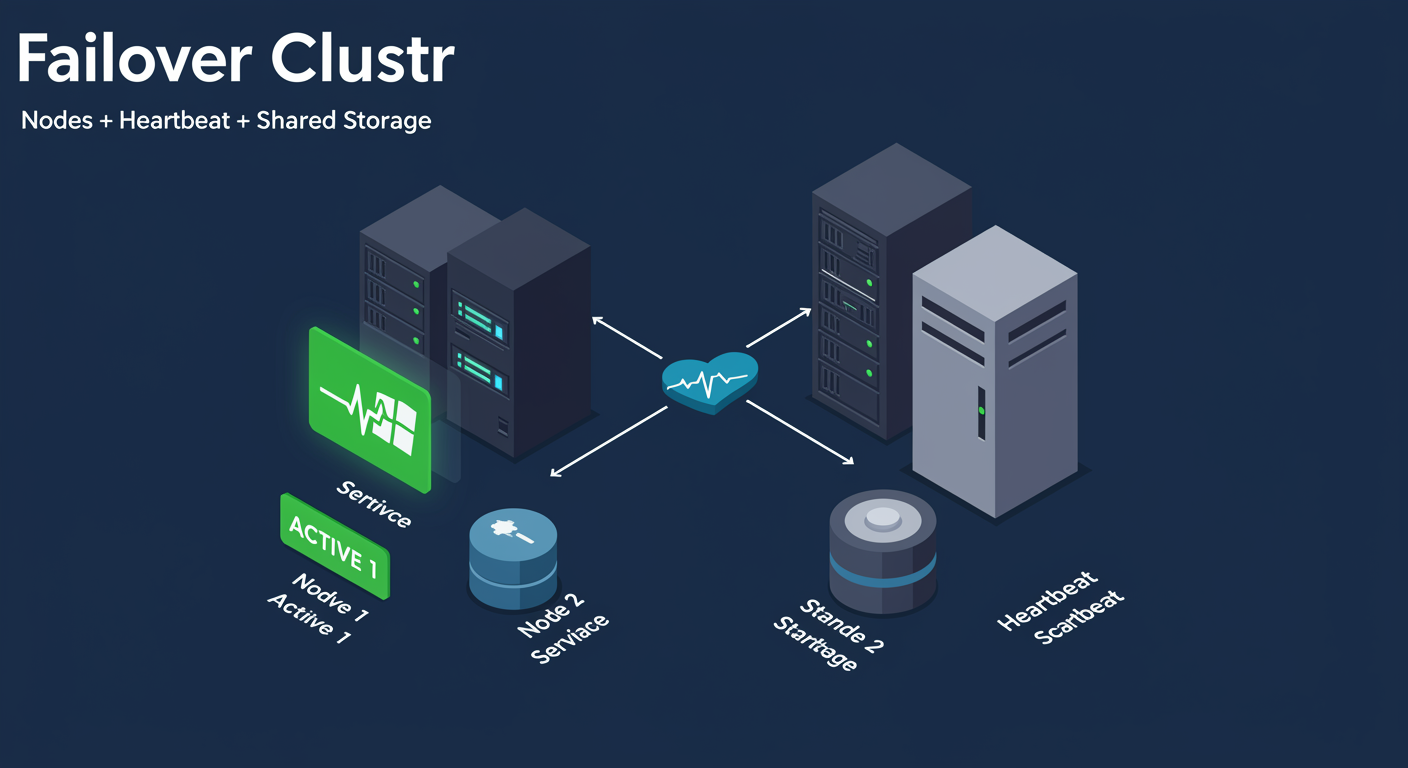
A failover cluster is a small group of independent servers (called nodes) that act together as a single fault-tolerant system. The goal is not to remove downtime entirely, it is to make downtime brief and recoverable. When a node fails, the workloads it was hosting move automatically to a surviving node and the service stays online from the client's perspective.
The four ingredients. Every Windows Failover Cluster has the same four parts. Nodes: the physical or virtual servers, typically 2 to 16 of them, all members of the same Active Directory domain. Heartbeat network: a dedicated network path the nodes use to verify each other's health by exchanging small heartbeat packets several times per second. Shared storage: a disk subsystem all nodes can reach (SAN, iSCSI, SMB 3, or Storage Spaces Direct). Clustered roles: the services or VMs that the cluster makes highly available.
The failure detection loop. Each node broadcasts a heartbeat. Other nodes track those heartbeats. When a node's heartbeat goes silent for the configured threshold (default 5 seconds; tunable), the surviving nodes declare that node down. The cluster's resource owner is reassigned, the workload restarts on the new owner, and the client typically reconnects within 3 to 10 seconds (long enough for TCP retransmits to recover the connection, short enough that most users do not notice).
Goal: high availability, NOT zero downtime. A failover cluster is not magic. There is a small failover window during which the service is unavailable. The cluster's job is to make that window short and automatic, not zero. For zero-downtime, you need a fundamentally different architecture (load-balanced stateless services). For most enterprise workloads, a few-second failover is enough.
What you are NOT doing. Clusters do not scale capacity, they scale availability. Adding a node does not double your throughput, it doubles your tolerance to single-node failure. For capacity scaling, you need a different model (web farm, Storage Spaces Direct, Kubernetes).
Quorum: The Vote-Counting Model
Quorum is the rule that decides whether the cluster has enough votes to be allowed to keep running. The problem it solves: when communication between nodes breaks (network partition), each side of the partition might think the other has failed and try to take ownership of the same workloads. Two nodes both writing to the same disk is the worst-case outcome, called "split brain." Quorum prevents it by demanding a majority of votes before any side is allowed to operate.
The math. Total votes > 50% = cluster stays online. Total votes ≤ 50% = cluster shuts itself down (better dead than corrupted). The exact vote total depends on the quorum MODE, which is the cluster's policy for who gets a vote.
Node Majority. Each node has one vote. Best for clusters with an ODD number of nodes (3, 5, 7). A 5-node cluster needs 3 nodes online to maintain quorum. Lose 3 nodes (cluster drops to 2), the surviving 2 nodes do not have majority (2 of 5 = 40%), and the cluster goes down. Use Node Majority when you have odd node counts and stable enough infrastructure that you do not need a tiebreaker.
Node and Disk Majority. Each node has one vote PLUS a witness disk has one vote. Best for even-node clusters (2, 4, 6). A 4-node cluster with a witness disk has 5 votes total; 3 votes = quorum. If a 2-node cluster is split 1-1, the side that owns the witness disk wins. Use this when you have shared storage you trust.
Node and File Share Majority. Like the disk version but the witness is an SMB share on a third server (in a different site if possible). Use when you do not have shared block storage (small clusters, multi-site clusters where shared storage is impractical).
No Majority: Disk Only. Cluster runs as long as the witness disk is online, nodes have no votes. Almost never the right choice in modern designs; legacy 2003-era pattern.

Dynamic Quorum and Witness Types
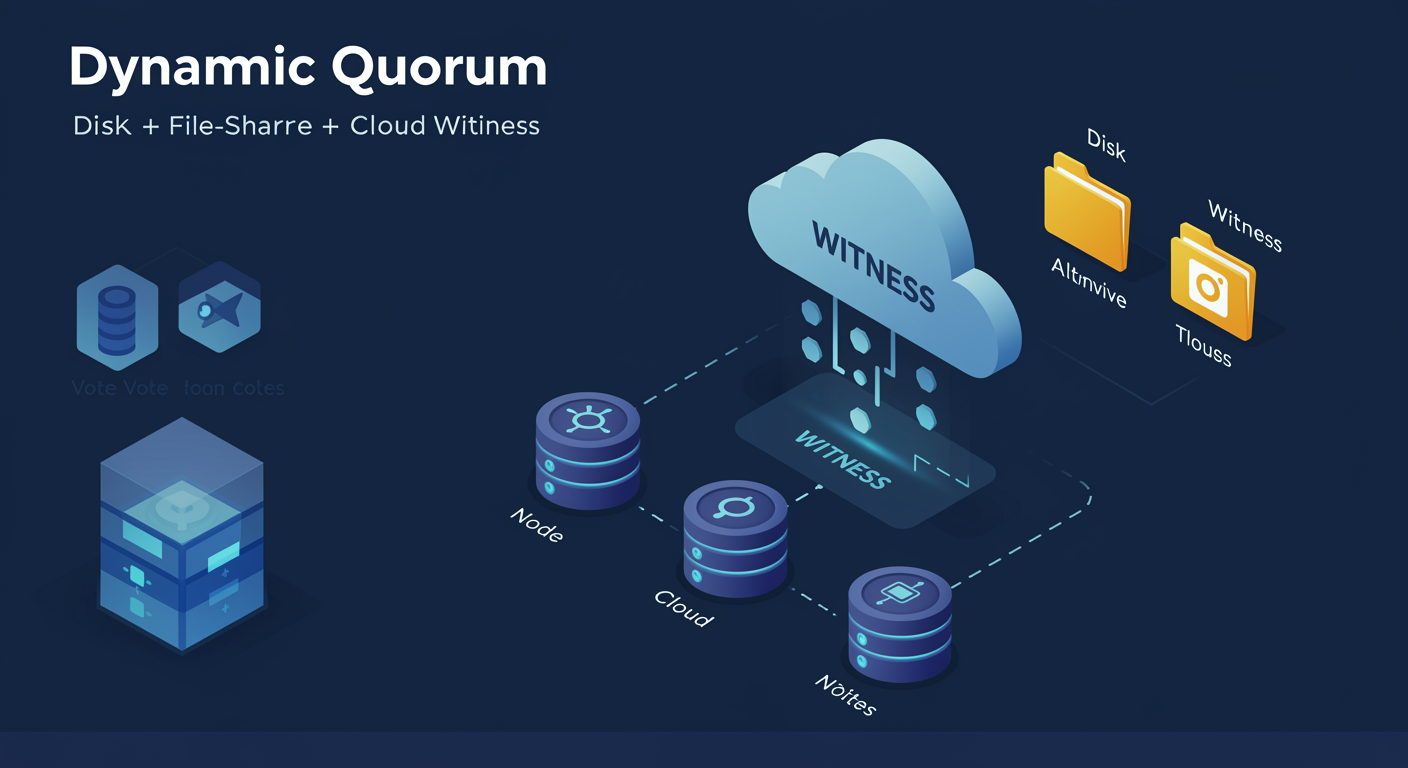
Static quorum modes have a flaw: if you start losing nodes, the remaining cluster fails closed before you can recover. Dynamic Quorum (introduced in Windows Server 2012 R2, default since 2016) fixes this by ADJUSTING the vote count automatically as nodes leave gracefully.
Dynamic Quorum. When a node is gracefully removed (rebooted, evicted), its vote is REVOKED from the cluster's vote total. So a healthy 5-node cluster gradually losing nodes one at a time stays quorate longer: 5/5 nodes online (3 needed), then 4/4 online (3 needed), then 3/3 online (2 needed), then 2/2 online (2 needed), then 1/1 online (1 needed). The cluster survives down to a single node when the failures are graceful.
Dynamic Witness. Companion feature: when the cluster has an ODD number of nodes, the witness vote is automatically suppressed (because it is not needed and could cause a tie). When node count drops to EVEN, the witness vote is automatically re-enabled. The administrator does not have to switch quorum modes; the cluster does it dynamically.
Cloud Witness (introduced in Server 2016). The witness is a small blob in an Azure Storage Account. Useful when neither shared disk nor a third-site file share is available, especially in multi-site / multi-cloud deployments where the third location is the public cloud. Configure with an Azure Storage Account name + access key; the cluster reads/writes a tiny witness blob to determine survival.
Disk Witness vs File Share Witness vs Cloud Witness. Disk: best performance, requires shared block storage, single-site usually. File Share: works without shared block storage, requires a third location and SMB server. Cloud: works anywhere with internet, no on-prem third location needed.
Operational guideline. Modern clusters (Server 2016+) should run with Dynamic Quorum + Dynamic Witness + ONE witness configured (disk, file share, or cloud). The choice of witness type follows the topology: single-site = disk witness, multi-site on-prem = file share witness, multi-site cloud-spanning = cloud witness.
Cluster Networks: Heartbeat and Client Paths
Every Windows Failover Cluster has multiple network interfaces, and the cluster classifies each interface based on what kind of traffic it is allowed to carry. Configuring this correctly is what keeps a node-loss event from being misinterpreted as a real failure.
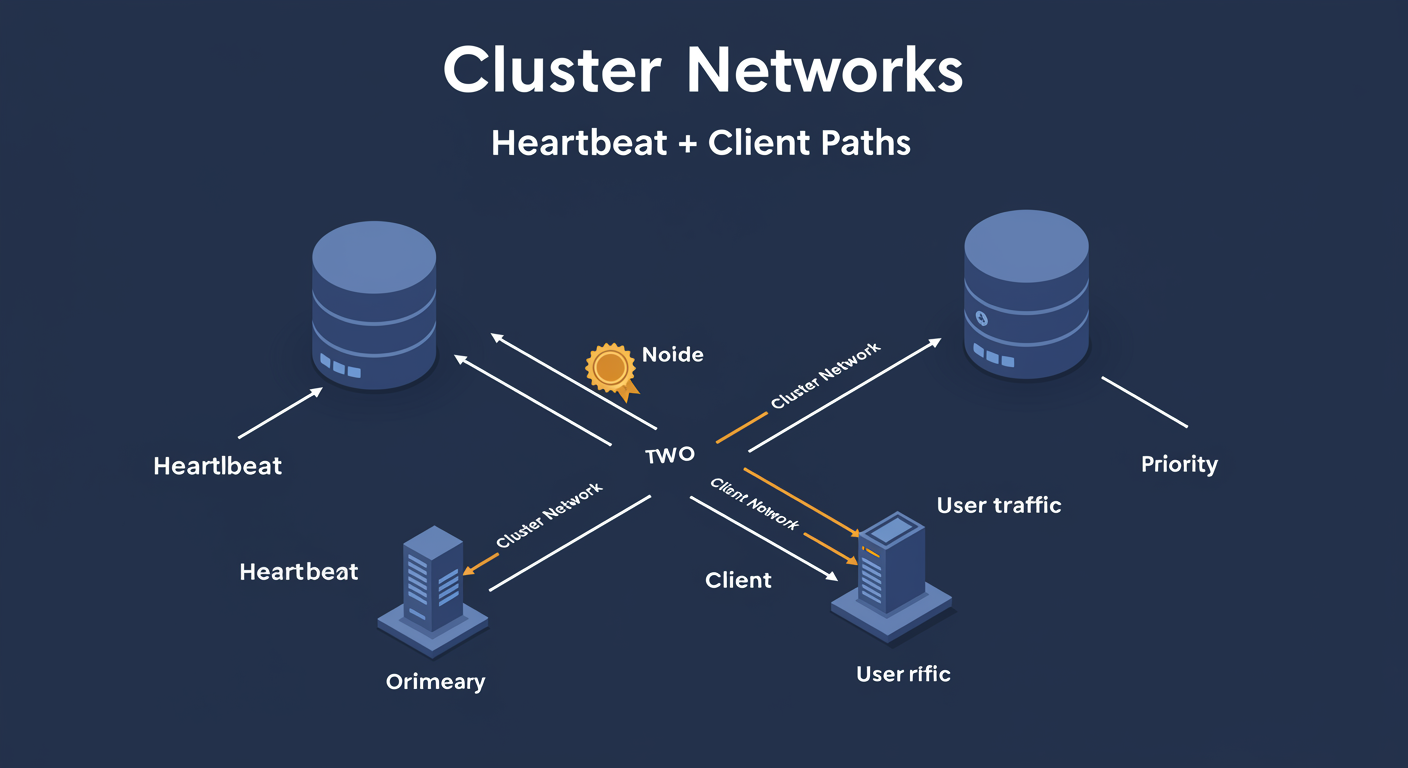
Cluster Network Roles. Each subnet/interface gets one of three roles: Cluster Only (heartbeat and intra-cluster communication only, NO client traffic), Cluster and Client (both heartbeat AND client connections, the catch-all), None (the cluster ignores this interface entirely, useful for management or storage networks you do not want clustered).
The dedicated heartbeat pattern. The recommended topology: at least TWO physical network interfaces per node. One is "Cluster Only" carrying heartbeat between nodes on a private, low-latency VLAN. The other is "Cluster and Client" carrying user traffic. Keeps the heartbeat from being starved by client traffic and prevents brief network spikes from triggering node-down events.
Network metric and priority. The cluster orders networks by metric. Lower metric = higher priority for heartbeat. Use Get-ClusterNetwork to see current metric values, Set-ClusterNetwork to override. The cluster picks the lowest-metric "Cluster Only" or "Cluster and Client" interface for heartbeat first; if it goes down, it falls back to the next.
The "Cluster Network" Group Policy gotcha. Disabling NetBIOS or blocking ICMP on the heartbeat VLAN can cause false-positive failures. The cluster uses ICMP and SMB for heartbeat-adjacent traffic; do not lock down the heartbeat VLAN with the same firewall rules you use on client-facing VLANs.
Multi-site clusters. Multi-site clusters often have nodes in different subnets. The cluster must be configured to support multi-subnet failover. Clients must be able to discover the new active node's IP after failover (DNS update). Time-to-failover increases because clients must wait for DNS to repopulate.
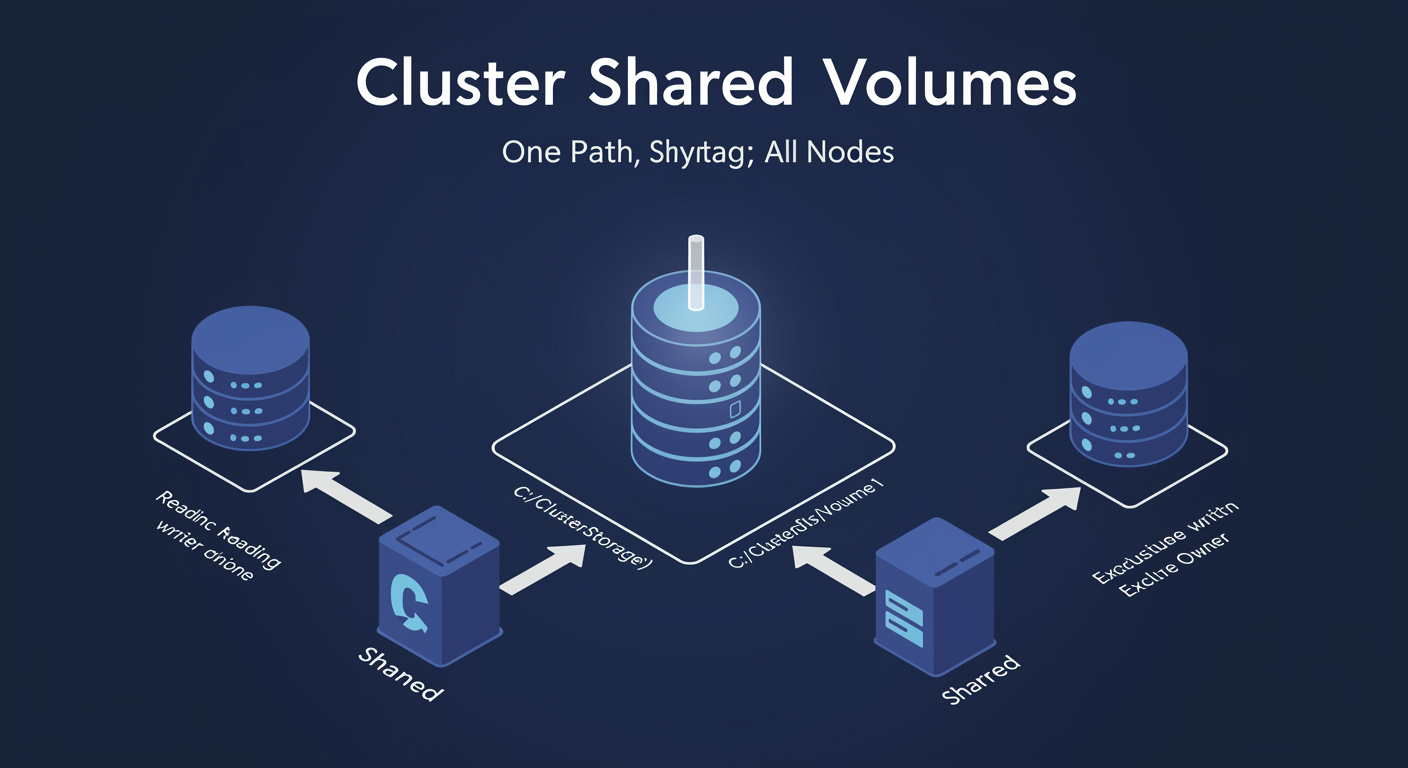
Cluster Shared Volumes: One Path, All Nodes
Traditional cluster disks are owned by ONE node at a time. To fail over a clustered role (a VM, say) from Node 1 to Node 2, the cluster has to unmount the disk from Node 1 and remount it on Node 2. That works, but it is slow and serial: every clustered VM on the same disk must move together, and live-migrating one VM forces a disk-ownership swap.
Cluster Shared Volumes (CSV). A reinvention of cluster disk ownership. With CSV, ALL nodes in the cluster have READ and WRITE access to the same volume simultaneously. The volume appears at the same path (C:\ClusterStorage\Volume1) on every node, every node can access it directly, and live-migrating a VM does NOT require an ownership swap.
The metadata coordinator. CSV is not magic; coordination is required for filesystem metadata (creating files, allocating extents). One node per CSV volume is designated the coordinator. The coordinator handles metadata operations; all other nodes read and write data directly to the volume but ask the coordinator before changing the filesystem structure. The coordinator role can move between nodes via the cluster; it is not pinned.
Why CSV transforms Hyper-V clusters. Before CSV, ten VMs on the same cluster disk had to all live-migrate together (they shared an ownership context). After CSV, each VM's VHDX file is independently accessible from any node, and live migration of a single VM is a clean operation that does not touch other VMs. Hyper-V on Failover Cluster without CSV is operationally painful; with CSV, it is the standard.
The single namespace. The volume shows up as C:\ClusterStorage\Volume1 on every node. The cluster intercepts filesystem operations on this path and routes them through the CSV stack. Clients running on Node 3 can open the same file as clients running on Node 1 because they are reading the same volume.
Filesystem. CSV requires NTFS (or ReFS). Cannot be used with FAT, exFAT, or non-Windows filesystems. The volume must be a basic disk (not dynamic).
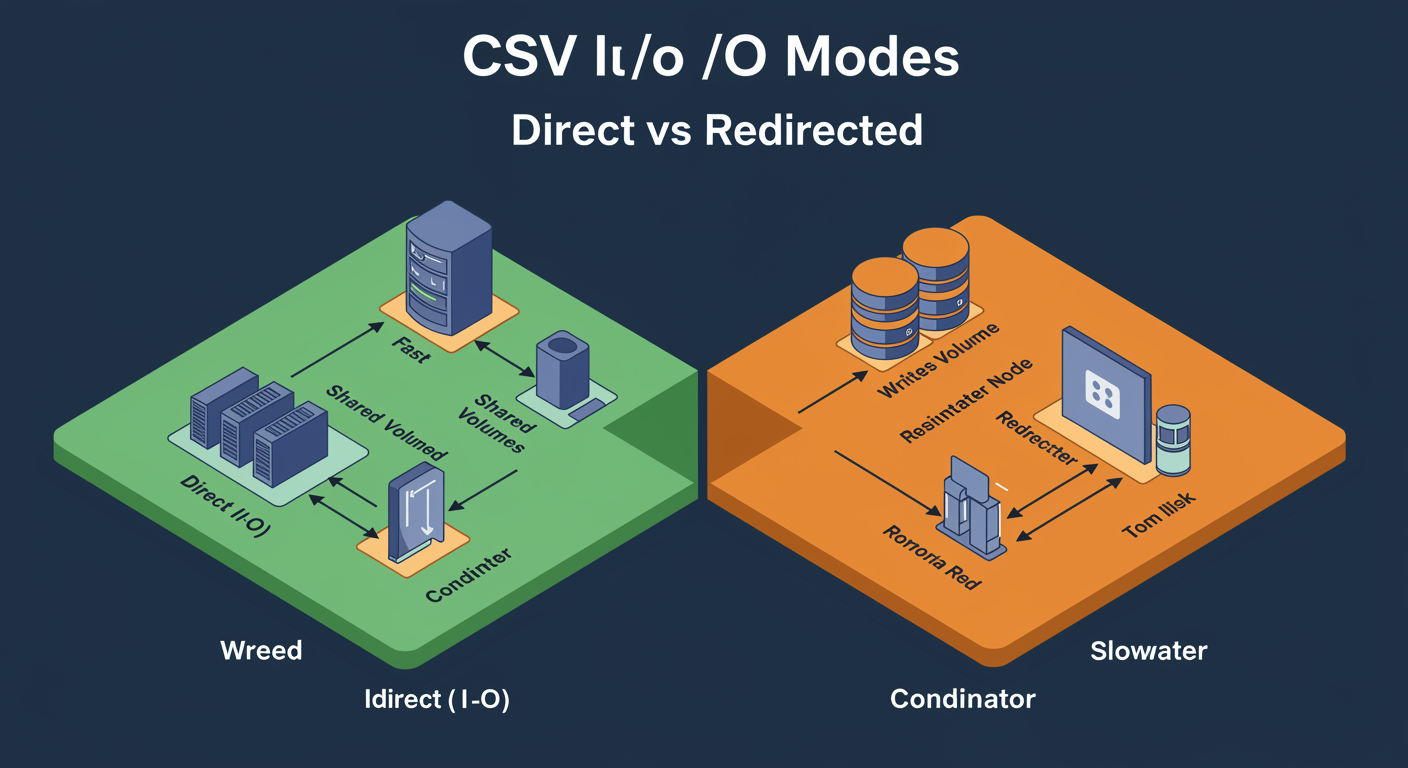
CSV I/O Modes: Direct vs Redirected
Once a CSV volume is live, CSV chooses one of two I/O modes for each node, based on connectivity. Knowing which mode is active and why is the single most important diagnostic when CSV "feels slow."
Direct I/O. The node writes directly to the underlying storage (SAN, iSCSI, S2D), bypassing all coordination. This is the fast path. Every node should normally be in Direct I/O for every CSV volume; that is what makes CSV fast.
Redirected I/O. The node CANNOT reach the underlying storage directly (lost SAN paths, lost iSCSI target, etc.). Instead, it sends its writes OVER THE NETWORK to the coordinator node, which then writes to the disk on the impaired node's behalf. The cluster keeps running but I/O is two-network-hops instead of one direct path. Slower.
When Redirected I/O triggers. Most commonly: SAN path failure (one node lost its FC link), iSCSI target unreachable from one node, backup software using VSS snapshots (some backup integrations force Redirected I/O for the duration of the snapshot). Redirected mode is the cluster's resilience mechanism: workload survives but performance degrades. Investigate quickly.
The coordinator's role under Redirected I/O. The coordinator becomes the single point of writes for any node in Redirected mode. Bandwidth from the affected node's network adapter, through the cluster network, to the coordinator's storage adapter, becomes the limit. A 10 GbE cluster network usually handles this fine; a 1 GbE network does not.
Diagnosing. Get-ClusterSharedVolume | Format-List * shows the State of each volume per node. State = "Online" means Direct I/O on that node. State = "Online (Redirected)" means Redirected I/O. (Get-ClusterSharedVolumeState) drills into specific volumes; Move-ClusterSharedVolume shifts the coordinator role if you suspect the current coordinator's path is the slow link.
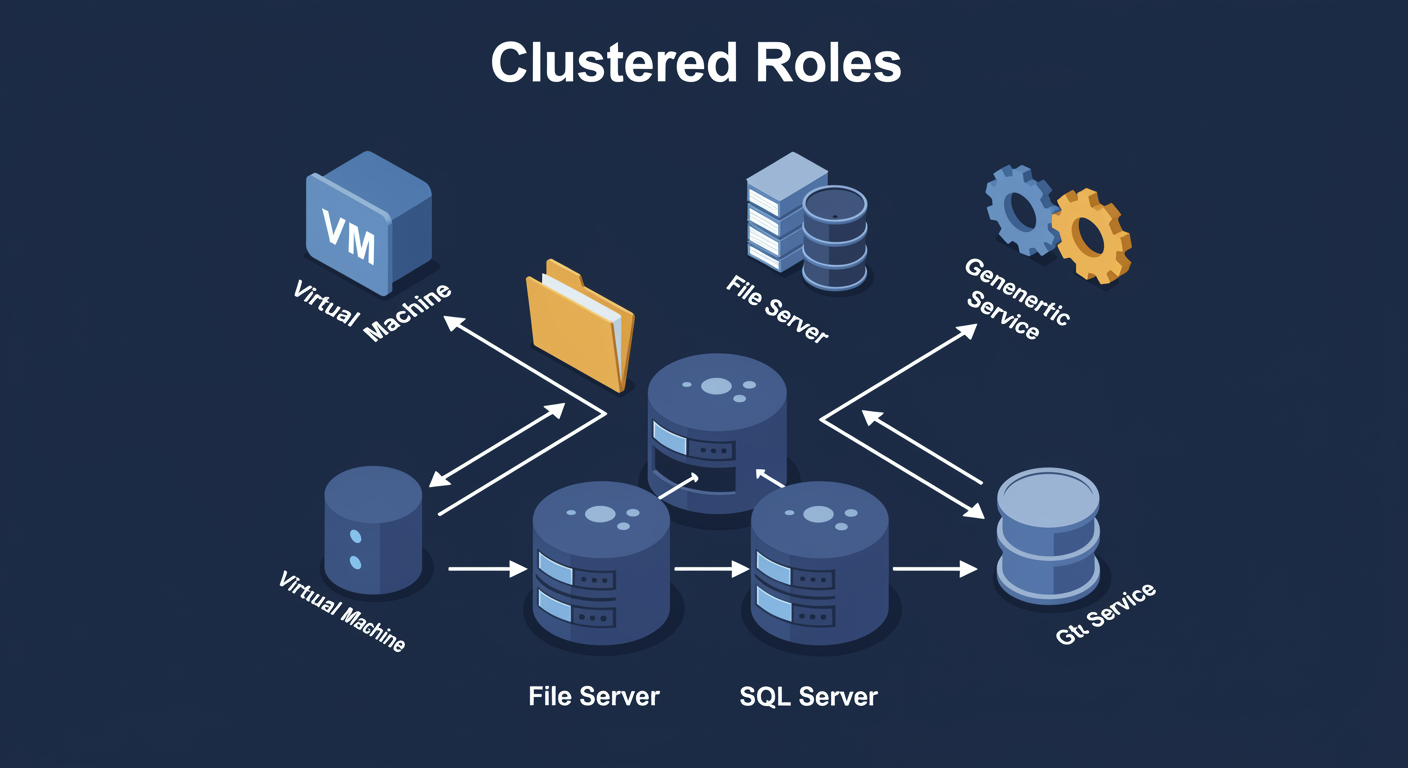
Common Clustered Roles: What You Make Highly Available
A cluster is infrastructure. By itself it does nothing. The value comes from the clustered roles you publish on top of it. A role is a resource group (a set of related cluster resources: a name, an IP, one or more disks, and the application itself) that the cluster will move atomically between nodes on failure.
Virtual Machine. The most common clustered role on Windows. Hyper-V running on Failover Cluster with CSV. Each VM is a clustered role; when a node fails, every VM that was running on it is restarted on a surviving node (typically 30-60 seconds for the VM to boot back up). Combined with live migration (zero-downtime planned moves), this is the modern Hyper-V deployment.
File Server. Two flavors. "File Server for general use" is a traditional clustered file server: one node owns a file server resource and clients connect via a shared name; failover moves the resource between nodes (brief disconnect). "Scale-Out File Server" (SoFS) is the active-active variant: every node accepts client connections simultaneously, used as a target for Hyper-V VHDX storage or SQL Server data files. Built on CSV.
SQL Server. Two clustering models. Always On Failover Cluster Instance (FCI) is the traditional shared-storage cluster: SQL Server installed on the cluster, one node owns the database files at a time. Always On Availability Groups (AG) is the shared-nothing model: each replica has its own copy of the database; the AG layer keeps them in sync. For new deployments, AG is usually preferred for read-scaling and DR flexibility; FCI is still used for simplicity.
Generic Service / Generic Application. Wrap an arbitrary Windows service or executable as a clustered resource. Cluster monitors via IsAlive / LooksAlive probes; if the service fails, the cluster restarts it (locally first, then on another node). Useful for COTS apps without native cluster support: small queue processors, legacy line-of-business services.
DHCP, DFS Namespaces, IIS, Print Server. All clusterable using the Generic Service / Generic Application templates. DHCP failover and DFS-N use this pattern for HA without requiring per-application clustering knowledge.
What is NOT a good clustering candidate. Stateless services (web servers behind a load balancer) do not need failover clustering; load balancing is the better mechanism. Compute-intensive scale-out workloads (Kubernetes) use a different model entirely.
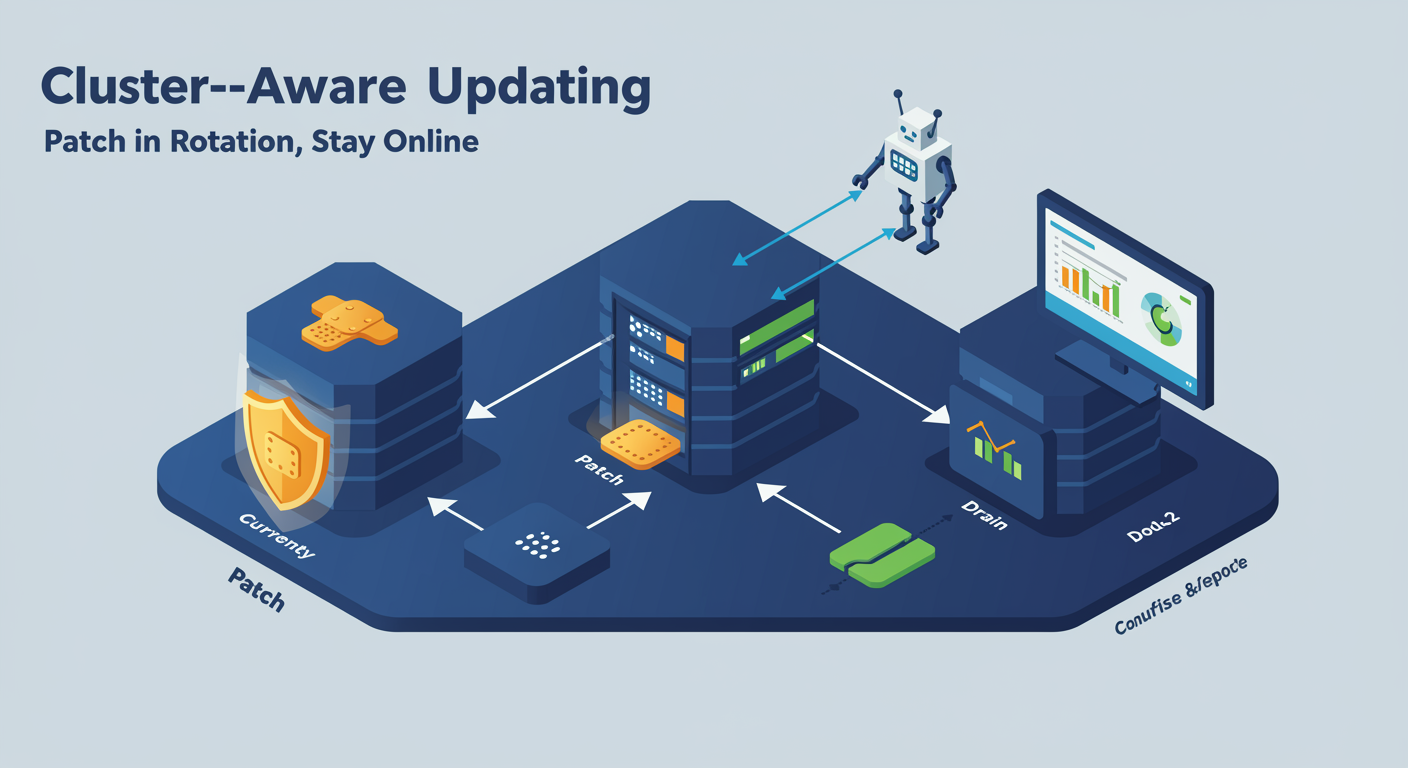
Cluster-Aware Updating: Patch in Rotation, Stay Online
Patching a cluster is a chicken-and-egg problem. Each node needs Windows Updates installed and a reboot. But you cannot reboot all nodes at once, the cluster goes down. Manually draining a node, patching, rebooting, then advancing to the next is correct but tedious. Cluster-Aware Updating (CAU) automates the whole sequence.
The CAU run. CAU connects to the cluster, lists the nodes, drains the FIRST node (live-migrates its clustered roles to surviving nodes), installs the available updates on that node, reboots it, waits for the cluster service to come back, returns the drained workloads, and then advances to the NEXT node. The cluster never loses more than one node at a time; service stays online.
Two CAU modes. Self-Updating: CAU runs ON THE CLUSTER itself via a clustered CAU role. Triggered by a schedule (e.g., second Tuesday at 2 AM). Convenient but the cluster patches itself, which means the CAU role itself has to move during the run. Remote-Updating: CAU runs from a DIFFERENT machine (a management workstation) and orchestrates the cluster. Cleaner for production: the orchestrator is independent of the cluster's state.
Update sources. WSUS, Windows Update directly, Microsoft Update Catalog, or a custom plugin. WSUS is the standard in enterprise environments because it lets the IT team approve updates centrally. CAU consumes the approved list and applies only those.
The pre-update and post-update scripts. CAU can run a PowerShell script BEFORE patching each node (e.g., to disable a monitoring agent) and AFTER (to re-enable it, run validation). Use to integrate with deployment tooling, monitoring suppression, or compliance reporting.
Common CAU failure modes. Node fails to drain because a VM cannot live-migrate (incompatible CPU feature). Node fails to reboot in the timeout window. A reboot triggers a CSV state issue. Run Test-CauSetup before the first CAU run to validate the cluster is CAU-ready; run Save-CauDebugTrace to capture a failed run for support.
Cluster PowerShell: Build, Add, Inspect
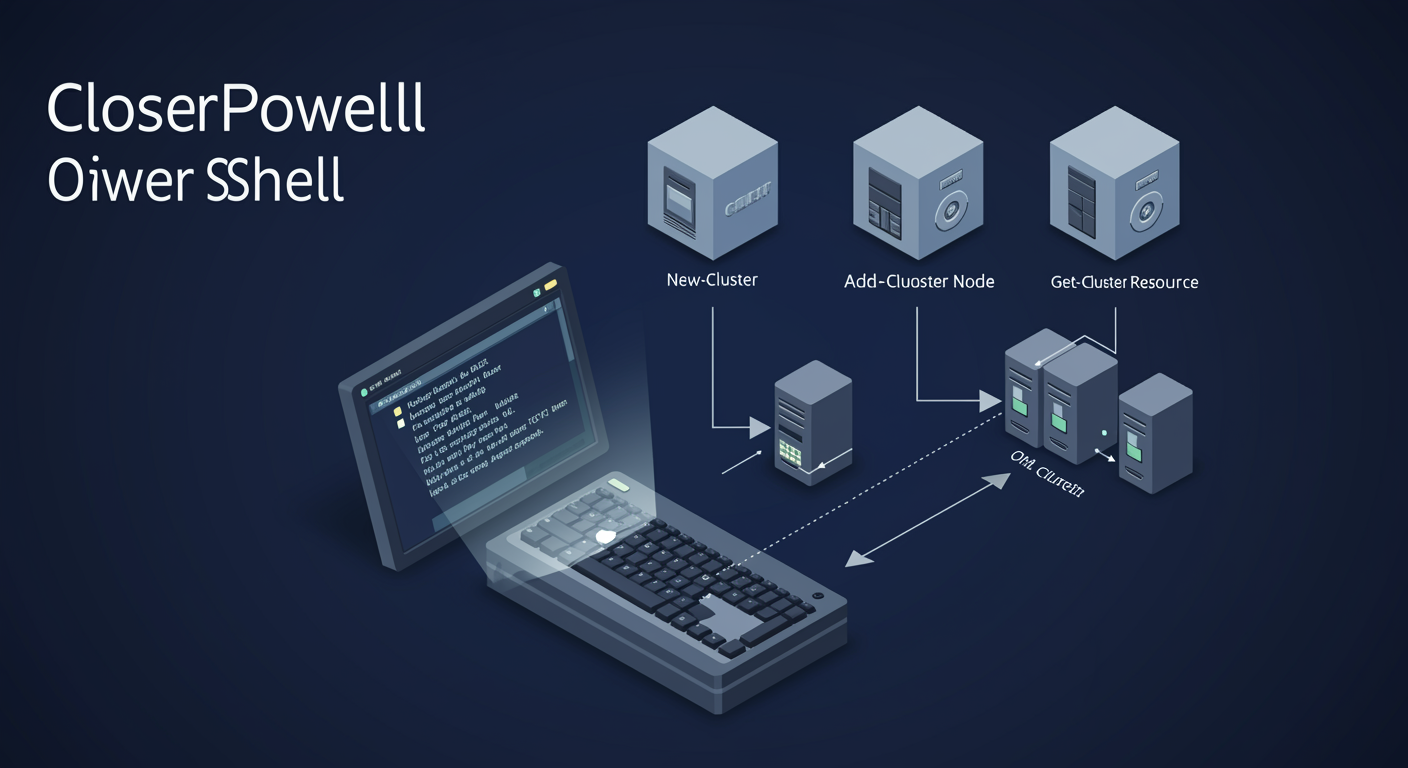
Failover Cluster Manager is the GUI; the FailoverClusters PowerShell module is the script surface. Production clusters are stood up via script (reproducible, version-controlled, change-managed). Daily inspection is faster via PowerShell than via the GUI. Mastering the cmdlets is what makes the difference between operating one cluster and operating ten.
Build. Test-Cluster runs pre-flight validation across a set of candidate nodes (covered in detail next slide). New-Cluster creates the cluster object once validation passes. The minimum syntax: cluster name, IP address, member nodes.
Grow. Add-ClusterNode adds an additional node to an existing cluster. The new node must already pass validation against the cluster's configuration. Remove-ClusterNode removes a node (gracefully if possible; -Force if the node is unreachable).
Inspect. Get-Cluster shows cluster-wide properties (name, quorum config, dynamic quorum state). Get-ClusterNode lists nodes with state (Up, Down, Paused, Joining). Get-ClusterResource lists every resource (IP, name, disk, role) and its current owner. Get-ClusterGroup shows resource groups (a.k.a. clustered roles) and their current owner.
Move and recover. Move-ClusterGroup migrates a clustered role to a specific node (for planned moves; failover happens automatically on failure). Move-ClusterSharedVolume shifts a CSV's coordinator node. Reset-ClusterNode recovers a node stuck in a bad state by re-joining it.
Diagnose. Get-ClusterLog captures the cluster debug log (verbose, used for support cases). Get-ClusterEventLog reads cluster events. Get-ClusterFault shows any open cluster-detected faults.
Cluster Validation: The Pre-Flight Test
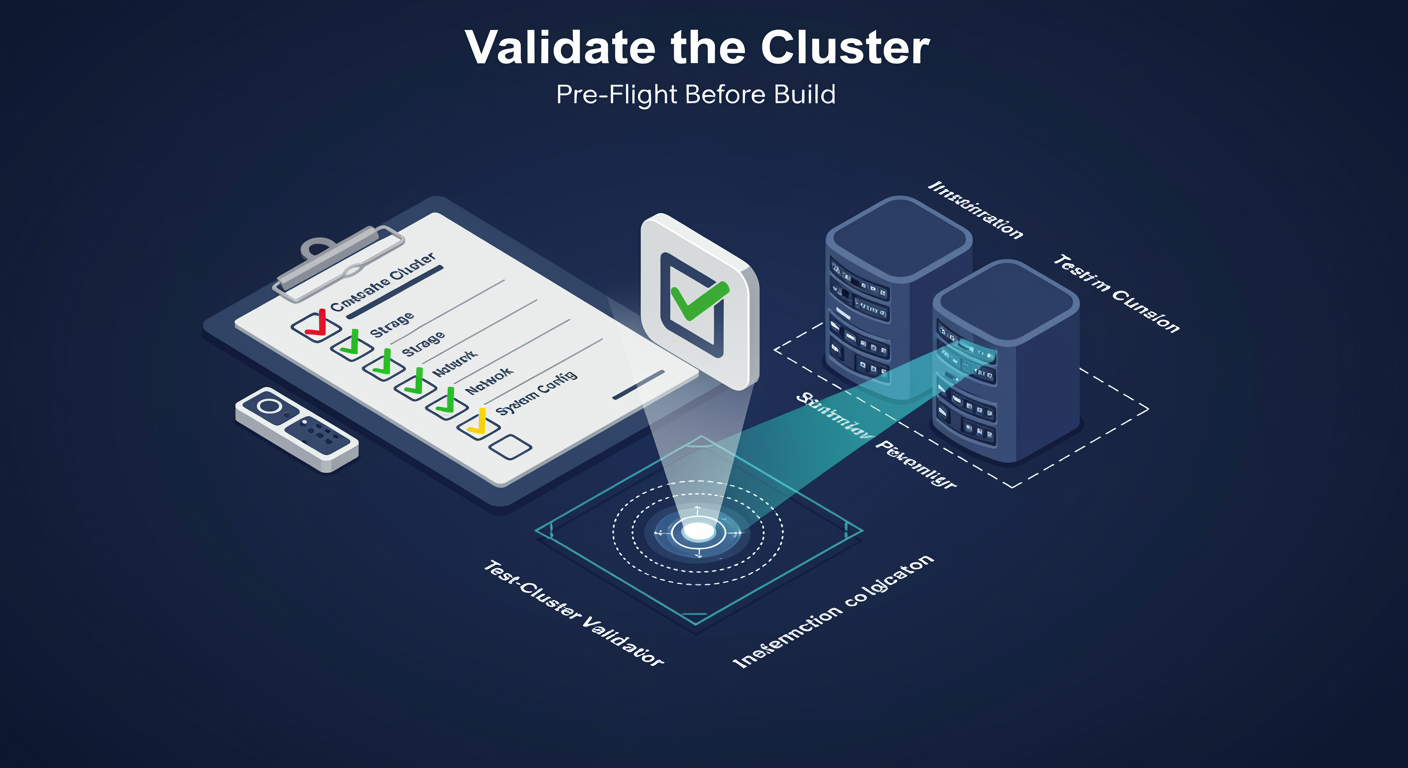
Test-Cluster is the validation wizard that checks whether a set of candidate servers can become a cluster, or whether an existing cluster's configuration is still valid. Microsoft requires validation to PASS before the cluster will be supported. Skipping validation produces an unsupported cluster, even if it appears to work.
Five categories of tests. Inventory: OS version, hotfixes, installed software comparisons across nodes. Network: network adapter counts, IP configurations, multi-subnet visibility, MTU consistency. Storage: shared disk visibility, persistent reservation support, mount-point consistency. System Configuration: domain membership, time sync, AD trust validity. Cluster Configuration (existing clusters only): quorum settings, resource health, replication state.
The HTML report. Test-Cluster writes a full report including every check, its result (Pass, Warning, Fail), and the underlying diagnostic data. The report lives at %temp%\Validation Report.html by default; use -ReportName to direct it elsewhere. Always read the report; warnings often turn into failures later.
Validating a SUBSET of tests. Validation is slow (5-30 minutes depending on cluster size). For routine drift checks you can run subsets: Test-Cluster -Include "Inventory","Network" skips the slow storage tests. For pre-build validation, run the FULL set; for routine drift detection, run subset.
Storage validation gotchas. The storage tests include "Validate Disk Failover," which actually takes a disk offline and brings it back up on another node to confirm SCSI-3 persistent reservations work. This briefly disrupts I/O. NEVER run storage validation on a production cluster during business hours; schedule it for a maintenance window.
Common warnings. "More than one network is enabled for cluster" (Warning, fine if both are intended). "Cluster service is not running on all nodes" (Failure, node is genuinely down). "Some disks do not support SCSI-3 persistent reservations" (Failure, those disks are not suitable for shared cluster storage).
Failover Scenarios: Planned vs Unplanned
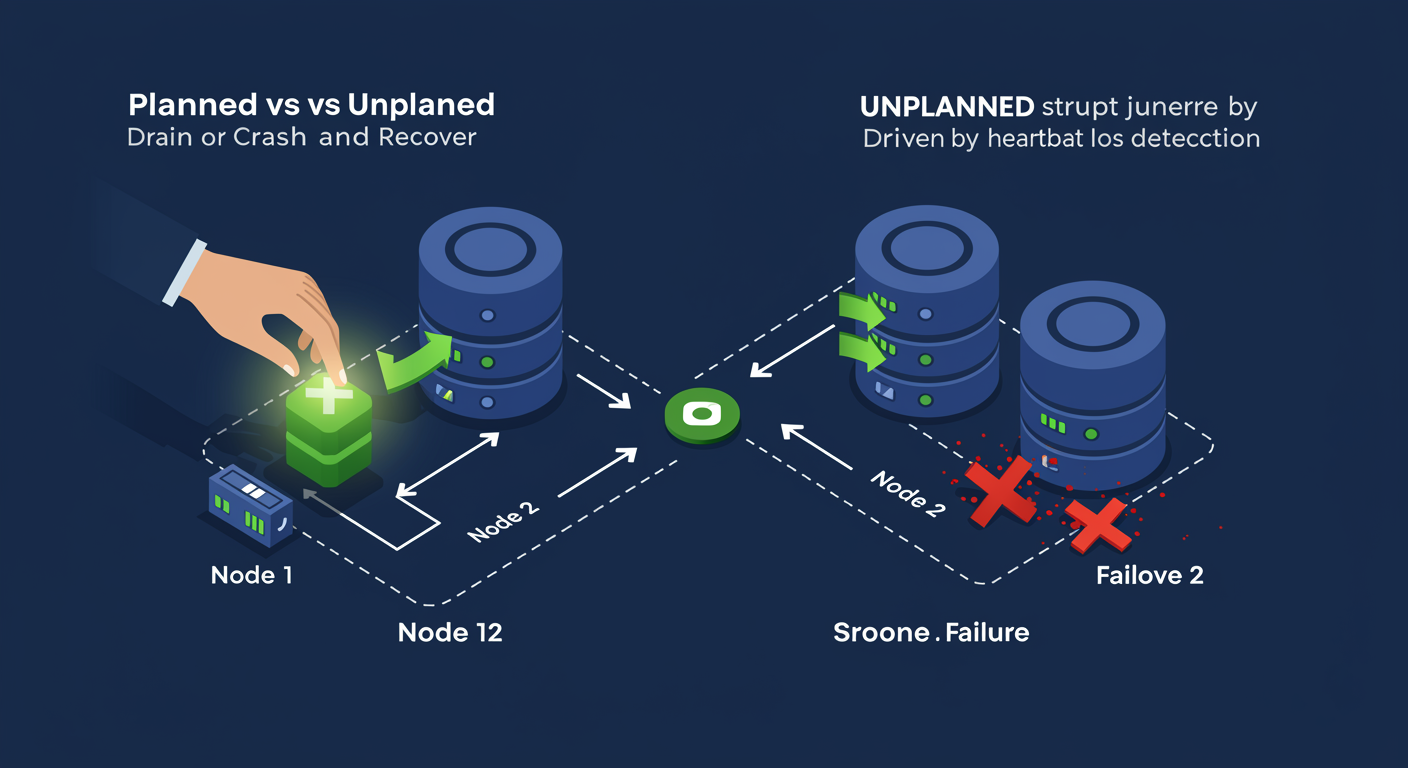
"Failover" actually covers two very different scenarios: the planned move (you choose to migrate a role to another node) and the unplanned failure (a node dies). Both end with the workload running on a different node, but the path to get there is different.
Planned failover. Administrator wants to move a clustered role for maintenance, load balancing, or capacity reasons. Move-ClusterGroup or right-click "Move" in Failover Cluster Manager. The cluster GRACEFULLY transitions: drains in-flight requests, pauses the resource on the source node, brings it online on the target node. For VMs, this is Live Migration (zero downtime); for File Servers, this is a brief disconnect (1-2 seconds).
Unplanned failover. A node dies (power loss, hardware failure, OS crash, network partition). The cluster detects heartbeat loss, declares the node down, and AUTOMATICALLY starts the failed node's clustered roles on a surviving node. For VMs, the VM is REBOOTED on the new node (10-60 seconds depending on workload). For File Servers, clients reconnect (1-10 seconds). Faster than planned for some workloads (no graceful drain) but with a service interruption.
The role's preferred owner. Each clustered role can have an ordered list of preferred owners. After a failure, when the failed node comes back, the cluster can choose to FAIL BACK the role to its preferred owner (or not). Configurable per role; default is "do not fail back." Some teams enable fail-back to keep load distribution as planned; others disable it to avoid a second disruption.
Drain on shutdown. Windows Server 2016+ added "Drain on Shutdown" by default: shutting down a clustered node automatically drains its roles to other nodes first. Saves administrators from forgetting to drain manually. Disable with (Get-Cluster).DrainOnShutdown = 0 if a node must shut down without drain (rare).
Quorum loss is the worst case. If failures take the cluster below quorum, the entire cluster shuts down, NOT just the failed nodes. The recovery path is forced quorum: Start-ClusterNode -PreventQuorum on a surviving node tells the cluster to ignore quorum and come up anyway. Only do this when you understand what's offline; otherwise you risk split-brain when the missing nodes return.
Cluster Troubleshooting: Log, Validate, Watch
Most "why is the cluster doing X" tickets resolve to one of three causes: a node-to-node communication problem (heartbeat), a quorum decision (vote math), or a resource-specific failure (one role's IsAlive probe). Three tools cover each in turn.
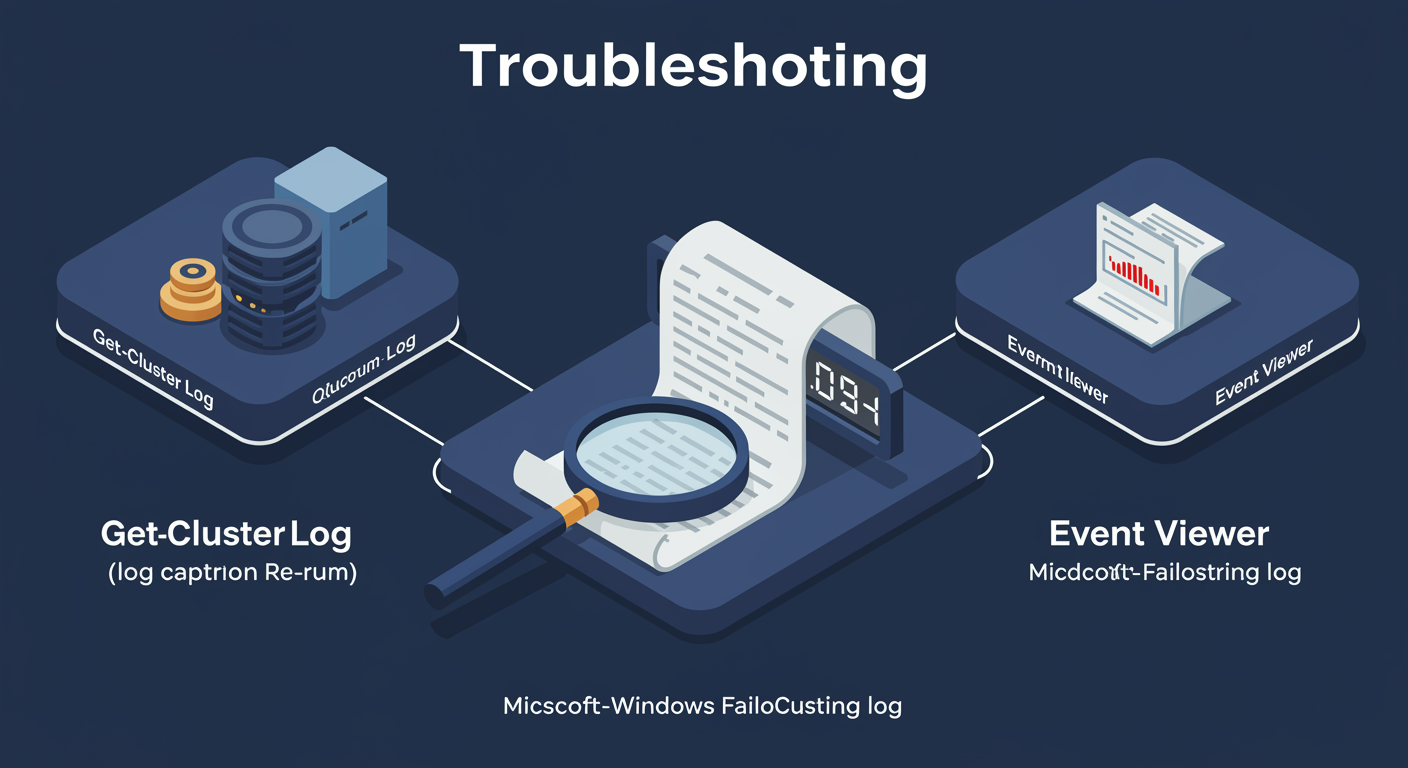
Cluster Log. Get-ClusterLog generates a high-detail log capture from every node. The log shows every cluster decision (resource transitions, heartbeat exchanges, quorum updates, network events) with microsecond timestamps. Generate before reaching out to Microsoft support; required for any escalated cluster case.
Cluster Validation Re-Run. If the cluster was working and is now misbehaving, re-running Test-Cluster often surfaces the change (a network adapter renamed, a node out of sync on patches, a disk that no longer presents persistent reservations). The validation report tells you what changed.
Event Viewer. Path: Applications and Services Logs → Microsoft → Windows → FailoverClustering → Operational. Higher level than the cluster log, easier to scan. Look here first when symptoms include role failures, quorum changes, or unexpected node moves.
Common symptoms and where to look. "Cluster keeps deciding a healthy node is down" → check heartbeat network metric and packet loss. "VM live-migration fails between nodes" → check CSV state on both source and target; check Hyper-V version match. "Resource fails to come online after planned move" → check the resource's dependency tree and the preferred owners list. "Quorum loss after losing one node in a 2-node cluster" → you did not configure a witness, fix the quorum config.
Cluster Validation NEVER runs against a production cluster during business hours. Repeating: storage tests cause brief I/O disruption. Run validation only during maintenance windows on production clusters.
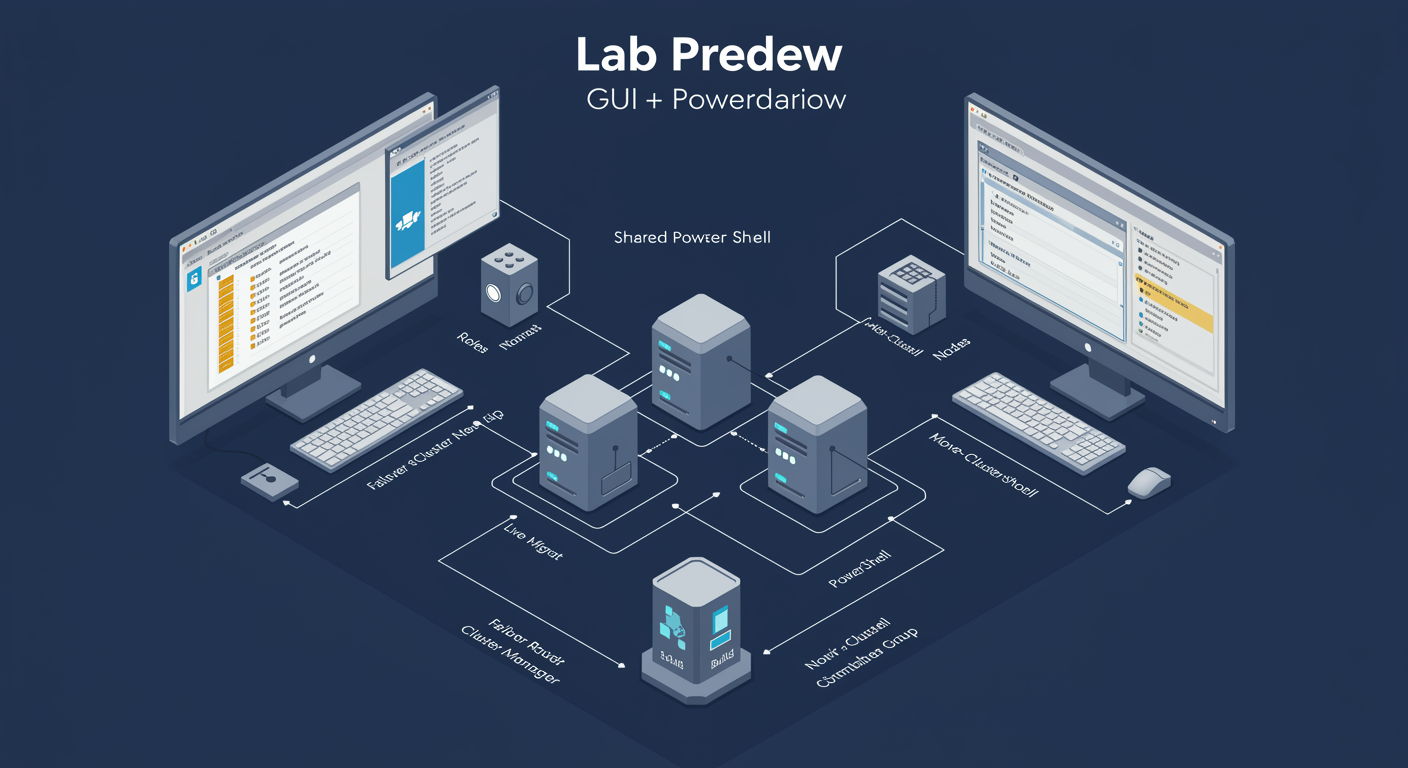
Lab Preview: What You Will Practice
The module ends with two hands-on labs covering the same cluster build from two complementary angles, so you build muscle memory in both surfaces.
Lab 1, Failover Cluster Manager (Graphical). The GUI is what most admins reach for first for ad-hoc operations. You will:
- Install the Failover Clustering feature on each candidate node
- Run Cluster Validation via the Validate a Configuration wizard, review the HTML report
- Create the cluster using the Create Cluster wizard, assign cluster name + IP
- Add a Disk Witness from Available Storage
- Add a CSV: right-click the disk → Add to Cluster Shared Volumes
- Create a clustered File Server role and test failover by moving it between nodes
- Configure Cluster-Aware Updating from the CAU console
Lab 2, PowerShell. The same build as a repeatable script. You will:
Install-WindowsFeature Failover-Clustering -IncludeManagementToolson each nodeTest-Cluster -Node ...to validate, save the reportNew-Cluster -Name ... -Node ... -StaticAddress ...to createSet-ClusterQuorum -DiskWitness ...to add the witnessAdd-ClusterSharedVolume -Name ...to enable CSVAdd-ClusterFileServerRoleto add a clustered file serverMove-ClusterGroupto test failover from the command lineInvoke-CauRunto trigger a CAU patch cycle
Do both in sequence: GUI first builds the mental model, PowerShell second builds operational scale.