Windows Server Administration
Monitoring

Event Viewer: the canonical log
If it happened on the system, it logged it somewhere.
Five log channels. Three severity levels. Filtering is the skill.
- Channels. Application, Security, System, Setup, Forwarded Events. Plus per-service Applications and Services Logs.
- Severity. Information, Warning, Error, Critical. Filter by severity first, then by source.
- Event IDs. Each event has a numeric ID. 4624 = successful logon, 4625 = failed logon, 7036 = service state change. Memorize 5-10 common ones.
- Custom views. Save your filter combinations. Most useful: "Errors and Criticals across all logs in the last 24h."
- Event Forwarding. Collect events from many machines onto one collector. Enables centralized SIEM-style analysis without buying a SIEM.
Performance Monitor + Resource Monitor
Counters, alerts, and the lightweight what-is-using-what view.
Perfmon counts things. Resmon shows what is using them right now.
- Perfmon. Long-running collector. Counters for CPU, memory, disk, network, per-process, per-service. Data Collector Sets save the config.
- Counters worth knowing.
Processor\% Processor Time,Memory\Available MBytes,PhysicalDisk\Avg. Disk sec/Read,Network Interface\Bytes Total/sec. - Resmon. Real-time "what is using what" panes. Use it when the box is slow right now. CPU pane shows per-process, Disk pane shows per-file-handle.
- Alerts. Perfmon can fire an action when a counter crosses a threshold. Useful for "page me when free disk drops below 10 GB."
WSUS: approval-driven update distribution
Patch the fleet on YOUR schedule, not Microsoft's.
WSUS — Windows Server Update Services — gives you central control over which updates reach which machines and when.
- The role. WSUS server syncs from Microsoft Update, holds the catalog, distributes approved updates to subscribed clients.
- Approval workflow. Updates arrive Unapproved. You decide which groups (Test, Prod) get which updates. Stagger to catch regressions before they bite the whole fleet.
- Computer groups. Pilot, Workstations, Servers-Tier1, Servers-Tier2, etc. Each group has its own approval state per update.
- Client side. Configure with Group Policy:
Specify intranet Microsoft update service location. Clients poll WSUS instead of Microsoft Update. - The newer story. Microsoft is deprecating WSUS in favor of Azure Update Manager + Windows Autopatch. For Server 2025+ exam content, know both.
PowerShell monitoring at the prompt
When the GUI is too slow or you need to script it.
Three commands cover most ad-hoc monitoring.
Get-EventLog -LogName System -Newest 10. Top 10 system events.Get-Counter '\Processor(_Total)\% Processor Time'. Sample a counter live.Get-Service | Where Status -eq Stopped. Services in unexpected states.Get-Process | Sort CPU -Desc | Select -First 5. Top CPU eaters.Get-WinEvent -FilterHashtable @{LogName='Security'; ID=4625}. Failed logons.
DNS
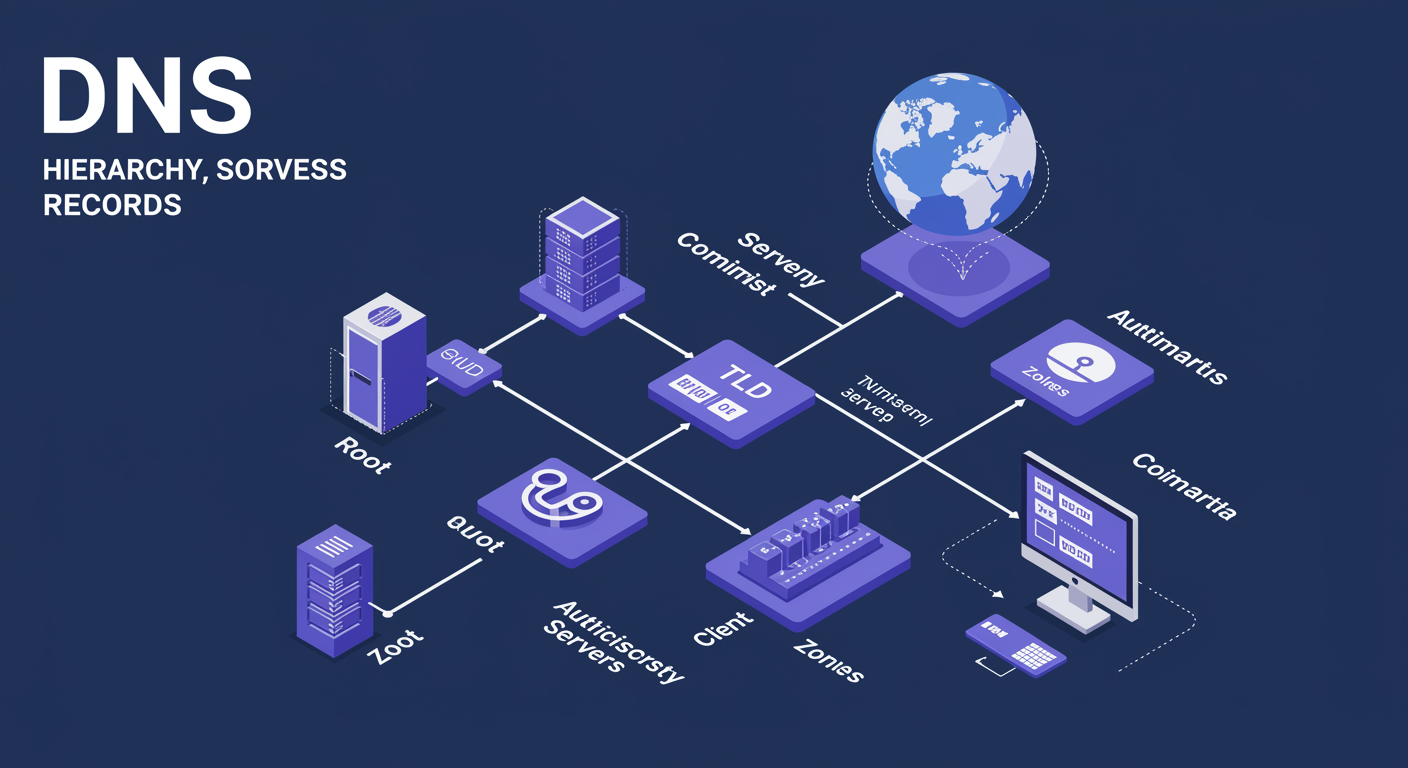
DNS hierarchy and zone types
Root, TLD, authoritative. Forward and reverse. AD-integrated vs primary/secondary.
DNS is one of the few protocols where the architecture is the lesson.
- Hierarchy. Root (.) at top, top-level domains (TLDs) below (com, net, org, edu), then domain owners (hexworth.com). Each level delegates downward.
- Resolution. Recursive resolver walks the tree. Iterative queries between resolvers and authoritative servers.
- Forward lookup. Name → IP. The common case (browser typing example.com).
- Reverse lookup. IP → name. Uses
in-addr.arpafor IPv4,ip6.arpafor IPv6. Used in logs, SMTP verification, ssh. - Zone types. Primary (writeable copy), Secondary (read-only from primary), Stub (just NS records of authoritative servers), AD-integrated (multi-master replicated via AD).
- AD-integrated is the answer. Multi-master, secure dynamic updates, replicates with AD. Use it for everything internal.
Journey of a DNS query
Watch one name resolve end to end: stub resolver to authoritative answer.
This is the Resolution step in motion: the recursive resolver walks the tree from root to TLD to the authoritative server.
The record alphabet
Eight record types cover 95% of what you will configure.
If you cannot recite these eight in your sleep, the exam will be hard.
- A. Hostname → IPv4 address. The bread-and-butter record.
- AAAA. Hostname → IPv6 address. "Quad-A". Required for modern apps.
- CNAME. Alias one name to another.
www.example.com → example.com. - MX. Mail exchanger. Where email for this domain should be delivered. Priority value picks the order.
- NS. Name server. Which DNS servers are authoritative for this zone.
- PTR. Reverse pointer. IP → name. Lives in the reverse zone.
- SOA. Start of Authority. One per zone. Contains the primary server, contact email, serial number, refresh/retry/expire/TTL.
- SRV. Service location. Critical for AD:
_ldap._tcp.dc._msdcs.hexworth.localpoints to domain controllers.
Forwarders and resolution paths
Decide what queries leave your network and where they go.
Three ways your DNS server can resolve names it does not own.
- Root hints. Server walks the hierarchy itself from root down. Default. Works but slower; you do the work.
- Forwarders. Server hands all unknown queries to a designated upstream resolver (8.8.8.8, your ISP, internal DNS). Faster, easier to log, easier to filter.
- Conditional forwarders. "Anything for partner.com goes to 10.50.0.5. Everything else goes to my regular forwarders." Useful for site-to-site tunnels and partner integrations.
- Recursion off. Authoritative-only mode. Server only answers for zones it hosts. Used on public-facing DNS to avoid being abused as an open resolver.
DNS troubleshooting: three commands you will type forever
When DNS breaks, everything breaks. Have these in your fingers.
If you can resolve a name three different ways, you can isolate where DNS is wrong.
nslookup name [server]. Classic. Bypasses cache. Specify a server to target it directly.Resolve-DnsName name -Server X. PowerShell. Returns structured objects you can pipe.ipconfig /flushdns. Clear the client resolver cache. After a record changes, the local cache holds stale data until the TTL expires or you flush.Clear-DnsClientCache. The PowerShell equivalent.Get-DnsClientCache. Inspect what is currently cached. Useful for "did my last lookup just stay in cache?"
DHCP
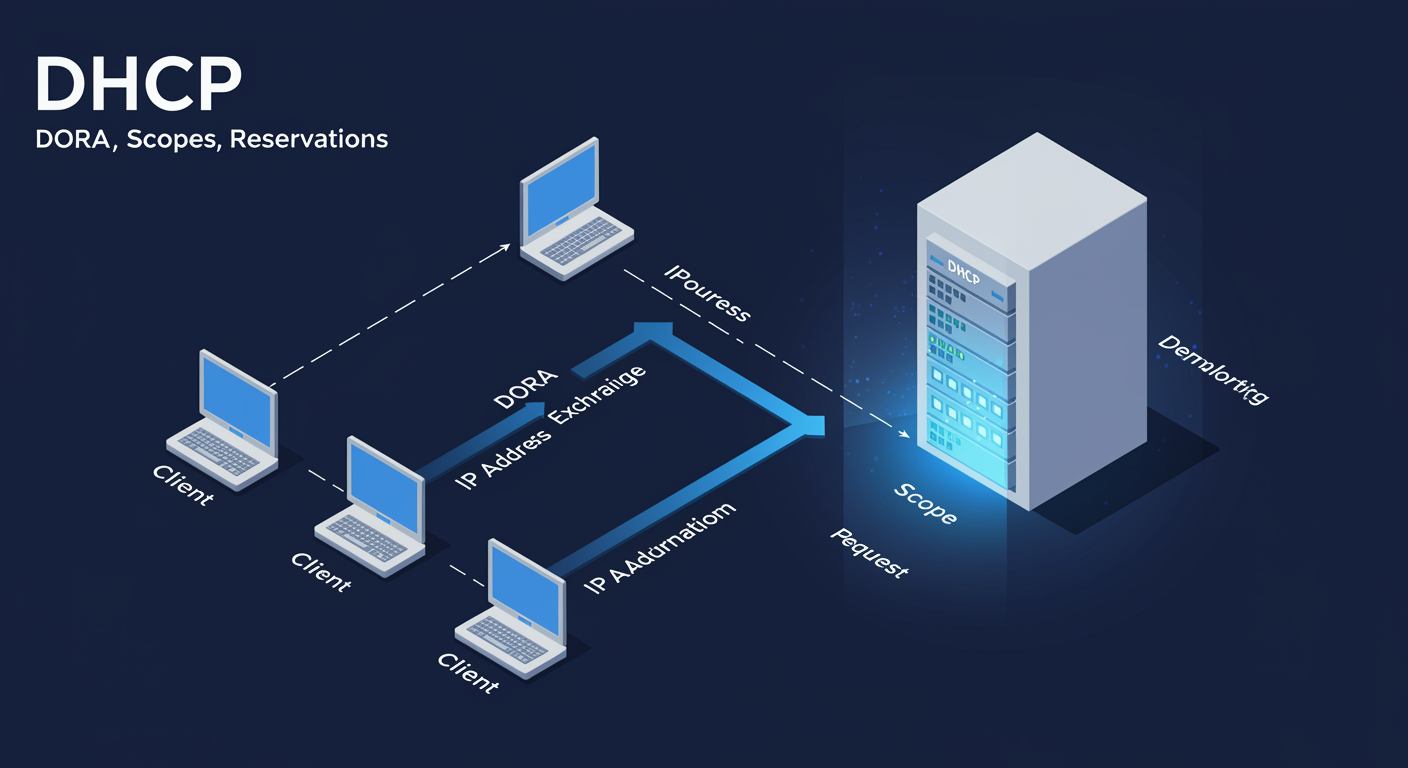
The DORA exchange
Four messages. One IP lease. Memorize the order.
Every IP a DHCP client receives goes through this four-step handshake.
- D, Discover. Client broadcasts
DHCPDISCOVER. "Anyone got an IP for me?" Source 0.0.0.0, dest 255.255.255.255. - O, Offer. DHCP server replies
DHCPOFFERwith a proposed IP, subnet, lease duration, options. - R, Request. Client broadcasts
DHCPREQUESTformally requesting the offered IP. (Broadcast so OTHER offering servers know they were not picked.) - A, Ack. Server replies
DHCPACK, lease is confirmed. Client commits the IP and starts using it. - Renewal. At 50% of lease time, client unicasts a Request directly to the server. At 87.5%, it broadcasts again ("rebinding").
DORA, watch it happen
The full DORA handshake, from initial broadcast to confirmed lease: Discover, Offer, Request, Acknowledge.
The same DORA handshake from the previous slide, played through: client broadcasts Discover, server sends Offer, client Requests, server Acknowledges the lease.
Scopes, reservations, and options
A scope is a range. A reservation pins one address. Options ship configuration along with the lease.
Most DHCP work happens at the scope level. Reservations and options are the polish.
- Scope. A range of addresses (10.0.0.100 to 10.0.0.200), a subnet mask, a lease duration. Defines where the server hands out leases.
- Exclusions. Holes inside the range that the server will NOT hand out. Use for statically-assigned devices (printers, switches, the DHCP server itself).
- Reservations. "Always give MAC
00:1A:2B:...the IP 10.0.0.150." Used for printers, IoT devices, servers that need a stable address but get it via DHCP for centralized management. - Options. Configuration data delivered along with the IP lease. 003 Router (default gateway), 006 DNS Servers, 015 Domain Name, 066 TFTP Boot Server (for PXE).
- Option levels. Server-level, scope-level, reservation-level. More specific overrides less specific. Reservation options win.
DHCP failover: hot standby vs load balance
Two servers, one scope, no single point of failure.
Server 2012+ has built-in DHCP failover. Use it. Always.
- The problem. One DHCP server. The server goes down. Clients cannot renew. Eventually the whole subnet loses network. Bad day.
- Hot Standby mode. Primary server handles all leases. Partner is passive backup. When primary dies, partner takes over after the configured MCLT (Maximum Client Lead Time) expires. Use for branch → HQ pairs.
- Load Balance mode. Both servers actively hand out leases, split by a configurable ratio (50/50, 70/30). Use when both servers are co-located and you want to spread load.
- Synced state. Failover partners replicate scope state continuously. When one dies, the other already knows which leases exist.
- NOT a cluster. No shared storage, no virtual IP. Just two DHCP servers talking to each other and answering for the same scope.
DHCP + DNS integration
DHCP updates DNS records on behalf of clients. Sometimes badly.
Dynamic DNS updates are the source of most "my hostname does not resolve" tickets.
- The setup. DHCP can register clients' A and PTR records in DNS automatically when they get a lease. Modern AD-joined Windows does this itself; legacy clients need DHCP to do it for them.
- Three modes. Always update (A + PTR), Update only if requested, Never update. Most environments: Always update.
- Credentials. DHCP uses a service account to register records. Configure under IPv4 properties → Advanced → Credentials. Forget this in failover setups and you get permission errors.
- The DnsUpdateProxy group. Members can update records they did not create. Add the DHCP server account here OR you will fight stale records forever.
- Common bug. Stale PTR records pointing to a different hostname after a client's IP changes. Fix: DHCP must own the records, or enable scavenging in DNS.
Group Policy
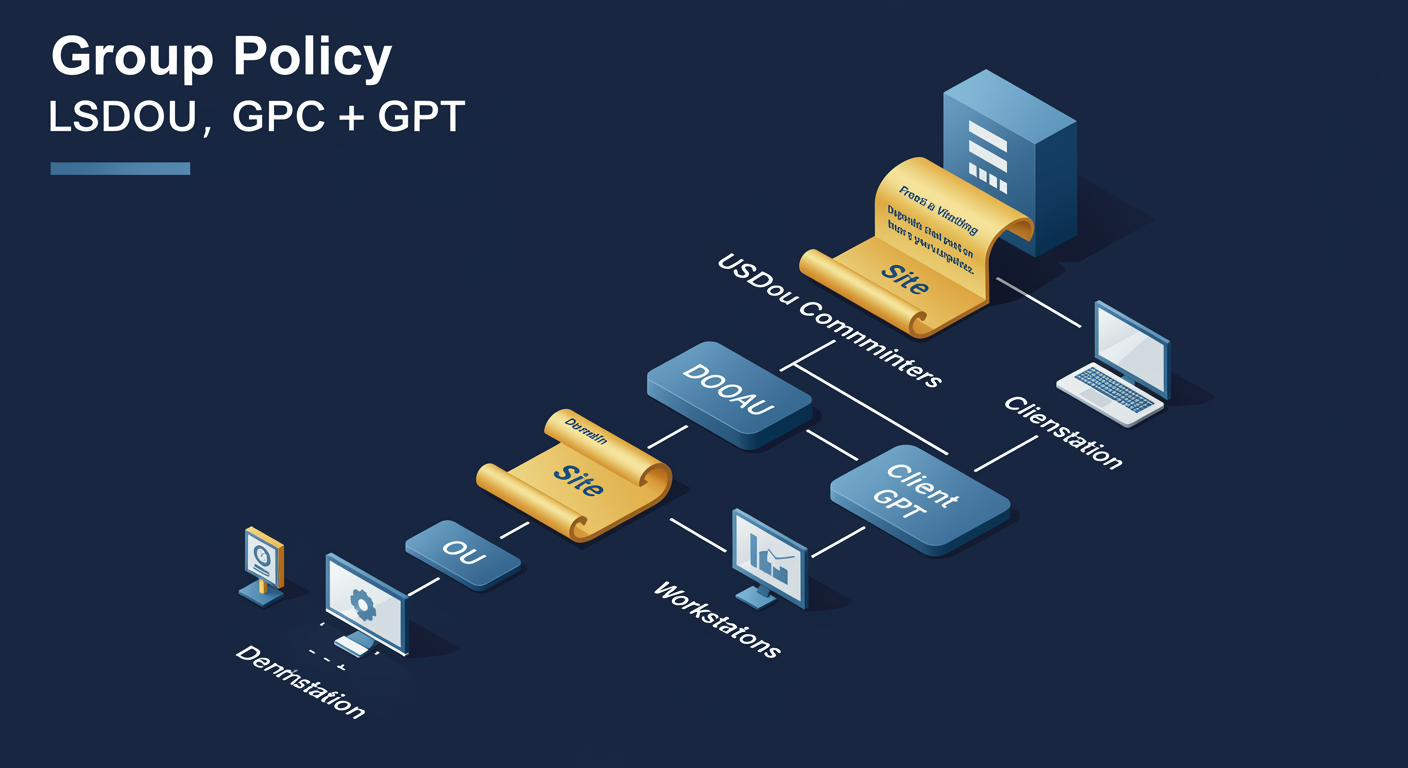
GPO architecture: two halves, one object
GPC in AD. GPT in SYSVOL. Joined by a GUID.
A GPO is not a single file. It is a pair of artifacts in two different places.
- GPC (Group Policy Container). Lives in AD under
CN=Policies,CN=System. Holds metadata: name, GUID, version, ACLs, link list. Replicates via AD replication. - GPT (Group Policy Template). Lives in SYSVOL at
\\domain\SYSVOL\domain\Policies\{GUID}\. Holds the actual settings: Registry.pol, scripts, INF, ADMX. Replicates via DFS-R. - The GUID is the join key. GPC stores its GUID; GPT folder is named with that GUID.
- Replication asymmetry. AD and SYSVOL replicate independently. The "I created a GPO but it is not applying" ticket is usually this: one half has not caught up.
LSDOU processing order
Local, Site, Domain, OU. Last writer wins.
If two GPOs touch the same setting, the one applied LAST wins.
- L, Local. The machine's own local Group Policy applies first. Lowest precedence.
- S, Site. AD site-level GPOs apply next. Useful for branch-specific defaults.
- D, Domain. Domain-level GPOs apply third. This is where the Default Domain Policy lives.
- O, OU. OU-level GPOs apply last. Closest to the object wins.
- U, "and Up". Multiple OUs nest. Top-level OU applies before nested OU. Last in the chain wins.
- Block Inheritance. An OU can block parent OU/Domain/Site GPOs. Department wants to control its own policy.
- Enforce (No Override). A GPO link marked Enforced ignores Block Inheritance downstream. Security uses this to prevent opt-out.
Security filtering + WMI filtering
Two ways to make a linked GPO apply to LESS than the link scope.
Link the GPO broadly. Filter it surgically.
- Security Filtering. Restrict by group membership. Default is "Authenticated Users". Remove that and add a specific group with Read + Apply permissions.
- MS16-072 gotcha. Post-2016, computers need Read on the GPO at boot before user settings can apply. If you remove "Authenticated Users", also grant "Domain Computers" Read-only.
- WMI Filtering. Restrict by machine property. WQL query: "this GPO applies only if Windows 11" or "only laptops" or "only when free disk > 100GB". Evaluated at client side.
- Performance. Every WMI filter runs at every GP refresh on every machine the GPO applies to. Complex filters slow logon. Use sparingly.
Troubleshooting: three layers, in order
Reach, winning, application. Diagnose top-down.
The most common GP problems live in layers 1 or 2. Never skip ahead to layer 3.
- Layer 1, Reach. Is the GPO reaching the machine?
gpupdate /force+gpresult /r. Confirm in "Applied Group Policy Objects" list. - Layer 2, Winning. Is a different GPO overriding?
gpresult /h report.html. The HTML report shows which GPO won for each setting. - Layer 3, Application. Is the right GPO winning but the setting not landing? Check Event Viewer →
Microsoft\Windows\GroupPolicy\Operational. - RSoP.
Get-GPResultantSetOfPolicy -ReportType Html. Planning-mode predicts what WILL apply; logging-mode shows what DID apply.
Week 2 Wrap-Up · Week 3 Preview
Services + policy. What's next.
- M07. Event Viewer, Performance Monitor, WSUS, PowerShell monitoring
- M08. DNS hierarchy, zone types, 8 record types, forwarders, troubleshooting
- M09. DORA, scopes, reservations, options, failover, DNS integration
- M10. GPC/GPT, LSDOU, security and WMI filtering, gpresult troubleshooting
- M11. IIS: sites, bindings, app pools, recycling, authentication
- M12. Remote Desktop Services: session-based vs VDI, RDP, RemoteApp
- M13. Certificate Services: AD CS, templates, autoenrollment
- M14. Advanced Networking: NAT, BranchCache, Network Policy Server